
A turnout is a track switch. DEJA throws it through whatever moves it: your EX-CommandStation, a servo or a Kato snap-switch on a DEJA IO board, or a DCC accessory decoder. You tap it in Throttle, the command goes to your DEJA Server, and the server moves the points.
Throttle shows each turnout as Straight or Thrown. Only the layout owner adds and edits turnouts. Everyone else in the layout sees the same turnouts and can throw them.
The Turnouts page
WhereDock → Turnouts, or Menu → Turnouts /turnouts
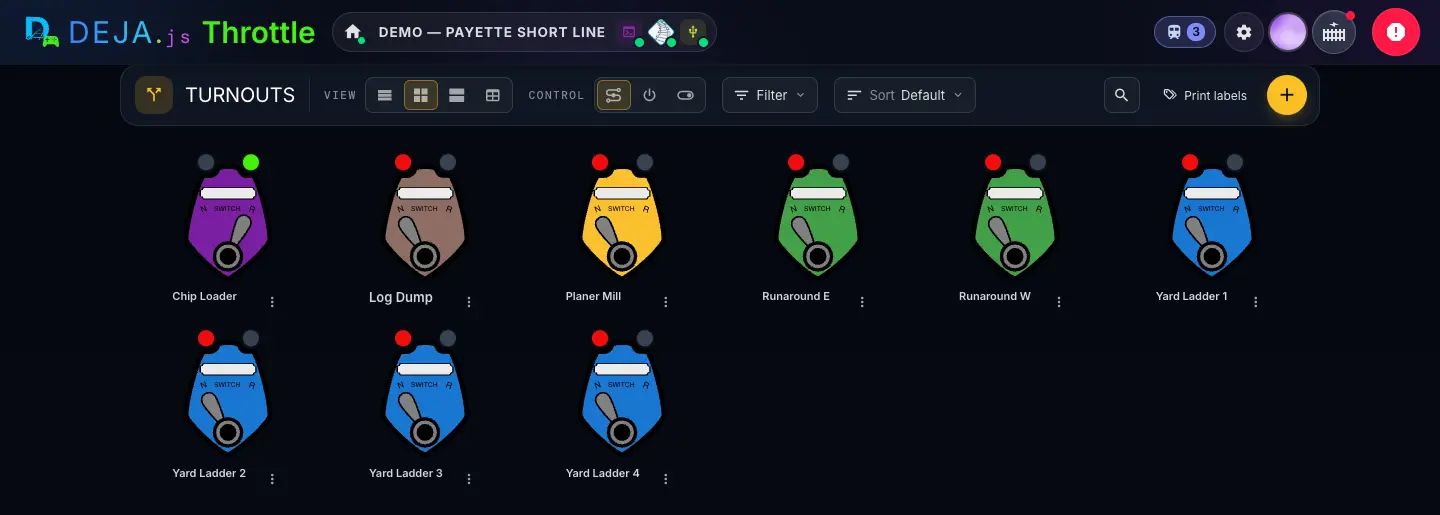
Toolbar
On a narrow screen each control folds into an icon menu. Your choices are remembered on this device.
- Marker 1ViewSegmented buttons
- How dense the list is. Table lays turnouts out in rows with Name, Device, Type, Guest Access and Status columns, with a switch in the Status column.Options: List · Compact · Comfy · TableDefault: Compact
- Marker 2ControlSegmented buttons
- What you tap to throw a turnout.Options: CTC (a lever) · Button (a round button) · SwitchDefault: CTC
- Marker 3FilterMenu
- Narrow the list by Devices or Tags. Picks in one group widen the list (this or that); picks across groups narrow it. Active filters show as chips you can clear.
- Marker 4SortMenu
- The order of the turnouts.Options: Default (your own order) · Name · Device · TypeDefault: Default
- SearchButton → text field
- The magnifier opens “Search turnouts...”. It matches turnout names only.
- Marker 5Print labelsButton
- Opens the Label Maker in a new tab, set up for turnout labels — print them and stick them on the fascia beside each switch.
- Marker 6Add turnoutButton (+)
- Opens New Turnout. Owner only.
Each turnout
In CTC with Compact or Comfy, each turnout is a lever tile in its own colour with its name on a plate below. Every other combination gives a card with an icon, the name, its state and the control you chose.
- Lever, button or switchControl
- Tap it to throw the turnout the other way. It shows a short pending state for about three seconds while the points move.
- Thrown · StraightStatus
- The turnout's current state. Comfy cards also show the device and the type and index.
- Feedback dotDisplay
- Beside the name when the turnout has a feedback sensor or a DCC binding. It tells you how sure DEJA is: “Commanded, no feedback”, “Confirmed thrown” (or closed), or “Feedback says thrown” (or closed) when the sensor disagrees with the last command.
- Marker 7⋮Menu (CTC tiles)
- “Options for” the turnout: its device, type and index, its current state, its tags, and Edit for the owner.
- EditPencil button (cards)
- Opens the turnout's editor. You can also long-press a card or tile. Owner only.
See No turnouts when you know you have some? A filter is hiding them — the empty state shows whenever the filtered list is empty. Clear the chips under the toolbar.
New Turnout and Edit Turnout
WhereTurnouts → +, or ✏️ / ⋮ → Edit on a turnout /turnouts/<id>/edit
/turnouts/new; editing shows the turnout's name in the header with its Index # and device. Some rows only appear for certain types — they're listed in the sections after this one.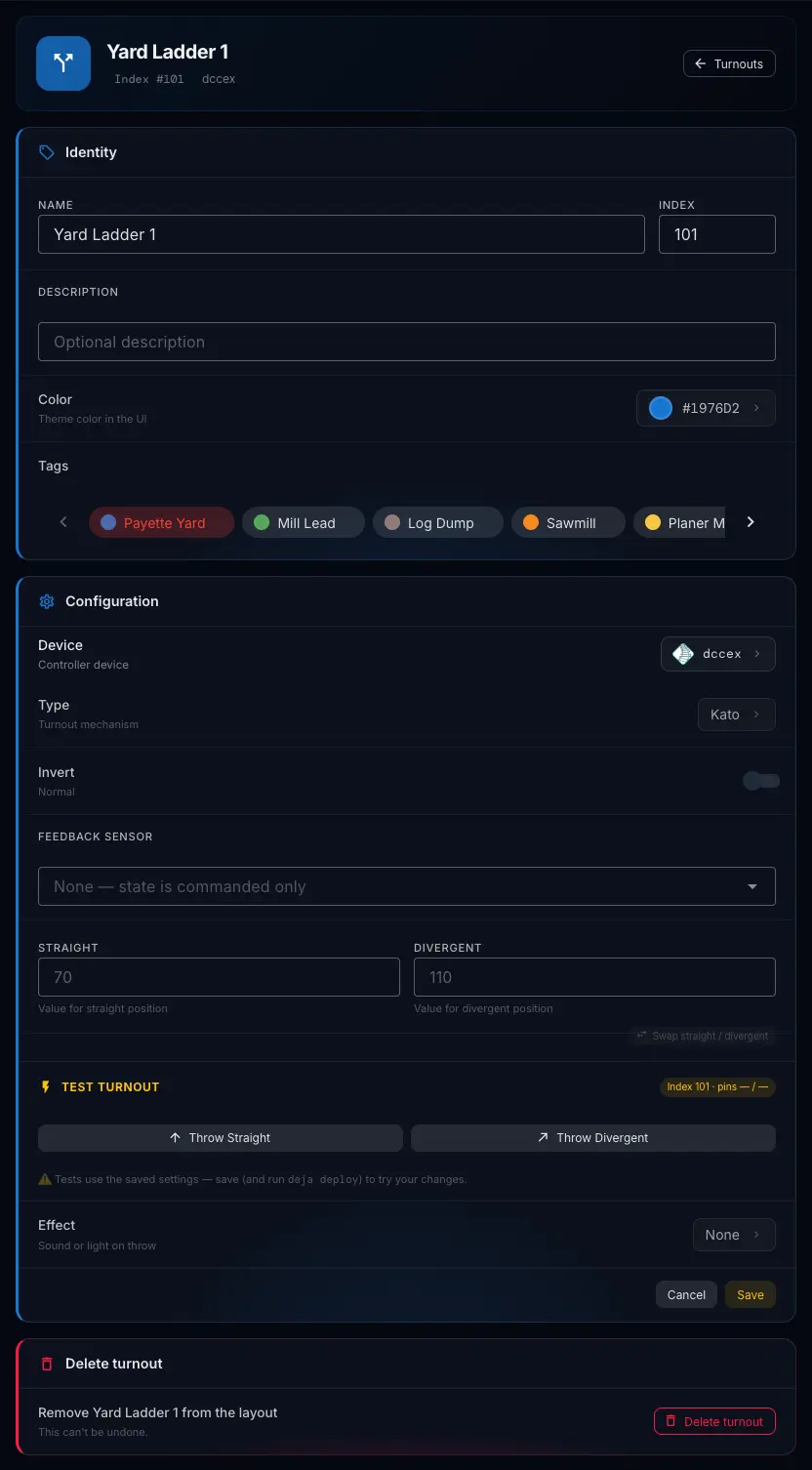
Identity
- Marker 1NameText field · required
- What the turnout's plate and every picker call it, e.g. “Main Yard Lead”.
- Marker 2IndexNumber field · required
- The turnout's number on its device. For a servo it's the servo channel. Hidden for a DCC accessory decoder, which uses the fields in its own section instead.
- Marker 3DescriptionText field
- An optional note, e.g. where it is or what it feeds.
- Marker 4ColorColour picker
- The turnout's colour on its lever and card. Tap it for 20 named presets, your tag colours and a custom colour. The editor's header follows it as you pick.Default: Yellow
- Marker 5TagsChips · multi-select
- Group turnouts by area so you can filter by them. Tags are created in Settings → Layout → Tags, not here.
Configuration
- Marker 6DeviceDevice tiles, or a chip → dialog
- The board that moves the turnout. In New Turnout it's a grid of device tiles, each showing the board's type and whether it's connected. When editing it's a chip: tap it to open Select Device, pick another board, then Save.Default: Your EX-CommandStation (
dccex) - Marker 7TypeRow → dialog
- The turnout mechanism. Tap it to open Turnout Type — “Select the turnout mechanism” — pick one, then Save. Cancel puts it back how it was.Options: Kato (snap-action solenoid) · Servo (servo motor control) · DCC accessory decoder (decoder output or raw address) · Tortoise, a slow-motion machine, is listed as Tortise but isn't available yetDefault: Kato
- Marker 8InvertSwitch
- For a turnout wired the other way round. “Reversed — thrown sends closed”: it flips the command that goes out, never the state Throttle shows.Default: Normal
- Marker 9Feedback sensorDropdown
- A sensor that reports where the points really are, e.g. a microswitch on the tie bar. Pick one of your layout's sensors and two buttons appear: Active = thrown or Active = closed, to say what the sensor means when it's triggered. The turnout then shows a feedback dot.Default: None — state is commanded only
- Marker 10StraightNumber field · required
- The value that sets the turnout straight. For a servo it's the servo position — find it with Real-time Servo Config. For a Kato it's one of the two pins that fire the solenoid.
- Marker 11DivergentNumber field · required
- The value that throws it to the diverging route: the other servo position, or the other Kato pin.
- Swap straight / divergentButton (Kato)
- Swaps the two values — the quick fix when a Kato throws backwards.
- Marker 12Test TurnoutButtons (Kato, when editing)
- Throw Straight and Throw Divergent fire the turnout on the layout so you can check it. The chip shows the index and pins being used. Tests use the saved settings — if you've changed something, it warns you to save (and run
deja deploy) first. - Marker 13EffectRow → dialog
- An effect to fire every time this turnout throws — a light, a relay or a frog juicer. Tap it to open Effect (“Select an effect to trigger on throw”), search, pick one, then Save.Default: None
- Effect StateSwitch
- Appears once an effect is linked. Matches — effect on when thrown; Inverted — effect off when thrown.Default: Matches
- Marker 14Cancel · SaveButtons
- Save writes the turnout and returns to Turnouts. A new turnout starts Straight. If you see “Could not save the turnout”, check your connection and that you're signed in as the layout owner.
Delete turnout
Only when editing.
- Marker 15Delete turnoutButton → confirm
- Removes the turnout from the layout. It asks once, right there — Cancel or Delete. This can't be undone.
After you save, Throttle reminds you: “Run 'deja deploy <device>' to apply the turnout changes.” Do it whenever you add a turnout or change its pins or values on a DEJA IO board — redeploy the board's firmware from its page under Devices, or with deja deploy. There's no code to write.
Servo turnouts
WhereTurnout editor, Type = Servo
Movement
- MovementDropdown
- How the servo travels between positions.Options: Instant (no easing) · Fast (about half a second) · Medium (about a second) · Slow (about two seconds) · Bounce (about a second and a half, bounces on arrival)Default: Medium
Real-time Servo Config
The chip shows which output it drives: VPin (100 plus the index) on an EX-CommandStation, or Servo Channel on a DEJA IO board.
- Servo Angle/PulseSlider
- Moves the servo live as you drag, so you can watch the points. On an EX-CommandStation it runs 100 to 600; on a DEJA IO board, 0 to 180.
- Use as Straight · Use as DivergentButtons
- Copy the slider's current value into Straight or Divergent.
- Test Straight · Test DivergentButtons
- Move the servo to each value using the Movement you picked, to see the real thing.
Drag the slider until the points sit snug against the stock rail, tap Use as Straight, then do the same for the other side. Save, then redeploy the board's firmware from its device page or with deja deploy.
DCC accessory decoder turnouts
WhereTurnout editor, Type = DCC accessory decoder
- Decoder outputDropdown · required
- When the device is an accessory decoder you've added under Devices: the output the turnout is wired to, shown as “Output 1 — linear 5 · addr 2/0”. Outputs already used by another turnout are greyed out.
- Accessory addressLinear or Addr / sub
- When the device is your EX-CommandStation: the decoder's DCC accessory address. Switch between Linear (1–2044) and Addr / sub (address 1–511, sub-address 0–3) to type it the way your decoder's manual does.
- DCC-EX turnout idNumber field
- The number the turnout gets on your EX-CommandStation, 0–32767. DEJA fills in the next free one and sets the turnout up there for you. It warns you if that id is already taken.
- Closed angle · Thrown angleNumber fields
- Shown in place of Straight and Divergent when the decoder is one DEJA built: the servo angles, in whole degrees from 0 to 180. The Movement dropdown appears too.
Turnouts turn up all over Throttle: line up several at once with a route, draw them on your track diagram, throw them from an automation, or let a sensor throw one.