A route lines up a whole path in one tap. It's a list of turnouts, each with the position it needs, thrown in order from Point 1 to Point 2: yard track 1 to the runaround, the sawmill to the log dump.
Only the layout owner adds and edits routes. Everyone in the layout can run them, from the Routes page or the Conductor's Routes panel.
The Routes page
WhereMenu → Routes /routes
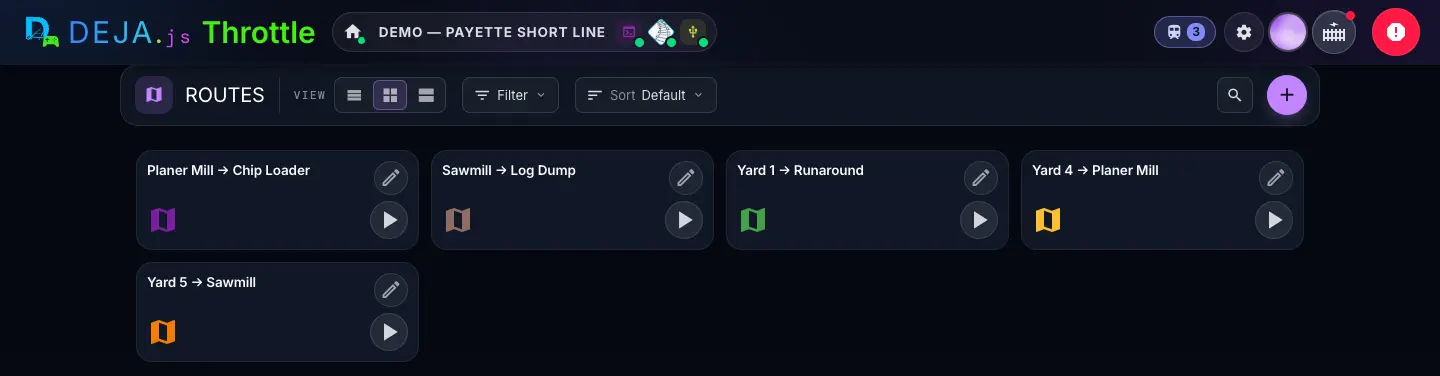
Toolbar
On a narrow screen each control folds into an icon menu. Your choices are remembered on this device.
- Marker 1ViewSegmented buttons
- How dense the list is. There's no table view for routes.Options: List · Compact · ComfyDefault: Compact
- Marker 2FilterMenu
- Narrow the list by Tags. Active filters show as chips you can clear.
- Marker 3SortMenu
- The order of the cards.Options: Default (your own order) · NameDefault: Default
- SearchButton → text field
- The magnifier opens “Search routes...”.
- Marker 4Add routeButton (+)
- Opens New Route. Owner only.
Each route card
- NameDisplay
- In the route's colour, with how many turnouts it throws in the roomier views.
- Turnout chipsDisplay
- In the roomier views, one per turnout, in order, with where it goes: “Yard Ladder 2 → Divergent”.
- Ready · RunningStatus
- Whether the route is lining up right now.
- RunPlay button
- Throws the route. While it runs the card glows and a thin bar along the bottom fills as each turnout goes. Everyone can run routes.
- EditPencil button
- Opens the route's editor. You can also long-press a card. Owner only.
How a route runs
- In order, 2 s apartBehaviour
- Each turnout is thrown to its position in list order, two seconds apart. A seven-turnout route takes about twelve seconds.
- One at a timeBehaviour
- Only one route runs at once. Tapping Run on another while one is lining up does nothing.
- In your browserBehaviour
- The route is stepped through by the device you tapped Run on. Keep Throttle open until it finishes: close the tab halfway and the rest of the turnouts stay where they were.
See No Routes Yet? There are none on the layout, or a tag filter is hiding them. Clear the chips under the toolbar.
New Route
WhereRoutes → + /routes/new
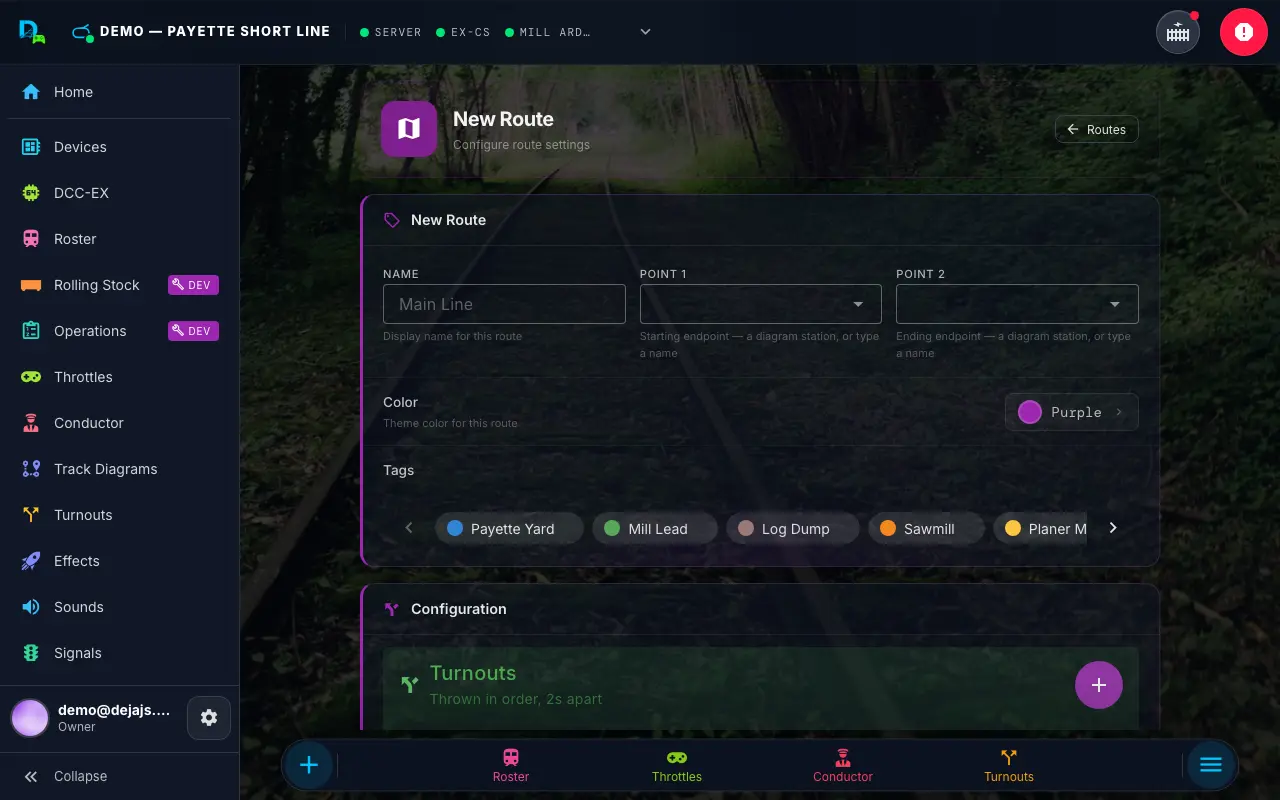
New Route
- NameText field · required
- What the card calls it, e.g. “Main Line” or “Yard 1 → Runaround”.
- Point 1Station picker · required
- The starting end. Pick a station from your track diagrams — listed as “Yard · Main” (station · diagram) — so the diagram can light this route up, or type any name for a route that isn't on a diagram.
- Point 2Station picker · required
- The finishing end, picked or typed the same way. The header shows Point 1 → Point 2 as you go.
- ColorColour picker
- The route's colour on its card.Default: Purple
- TagsChips · multi-select
- Group routes so you can filter by them. Tags are created in Settings, not here.
Configuration
- TurnoutsList
- The turnouts the route throws, “Thrown in order, 2s apart”. Empty, it reads “No turnouts in this route yet — add at least one.”
- Add turnoutsButton (+)
- Opens Add Turnouts to pick them. New ones go on the end, set to Straight.
- Run RouteButton (Run)
- Throws all turnouts to their configured positions, for real, using the list as it is on screen. You can try a route before saving it.
- Cancel · SaveButtons
- Save adds the route and returns you to Routes. It needs a Name, Point 1, Point 2 and at least one turnout. Until then you'll see “Add at least one turnout”.
Give every route its own pair of points — Throttle won't save a second route between the same two. Drawn a track diagram? Pick its stations for Point 1 and Point 2 and the diagram lines the route when you tap those two stations. Or line it on the diagram and tap Save route to fill in the points and turnouts for you.
Edit Route
WhereRoutes → pencil on a card, or long-press /routes/<id>/edit
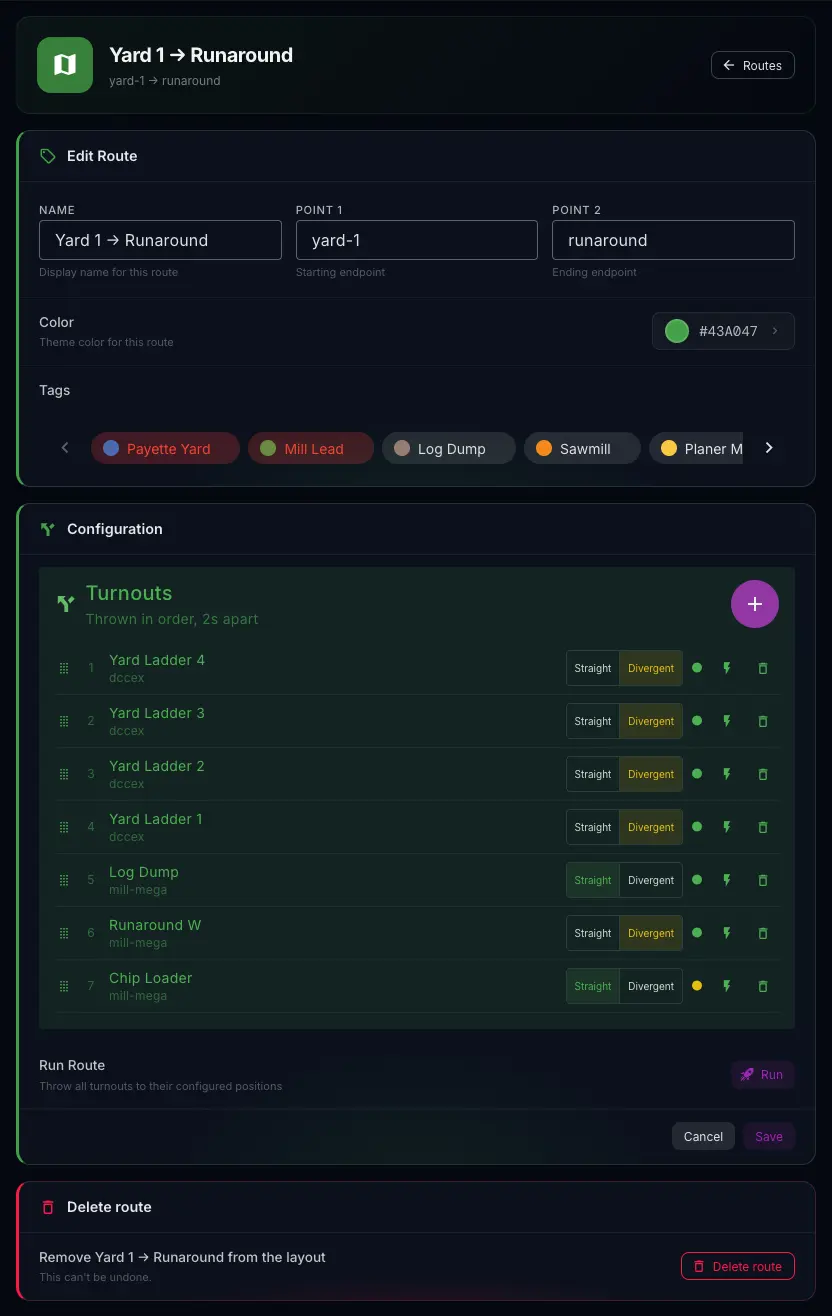
Edit Route
Name, Point 1, Point 2, Color and Tags work exactly as in New Route.
- Point 1 · Point 2Station pickers
- Change the ends here. A point that's a diagram station shows its name, never its hidden id.
Turnouts
Each row, left to right.
- Drag handleHandle
- Drag a row up or down. The order here is the order they throw.
- Step numberDisplay
- Where it falls in the sequence: 1 throws first.
- Name and deviceDisplay
- The turnout, and the board that throws it.
- Straight · DivergentToggle
- Where this turnout needs to be for the route. Changing it only edits the route; nothing moves on the layout.Default: Straight
- Live dotStatus light
- Where the turnout is right now: green for Straight, amber for Divergent.
- Test throwLightning button
- Throws just this turnout to the row's position, now, so you can check it on the layout. Greyed out while a route is running.
- Remove from routeBin button
- Takes the turnout off the route. The turnout itself stays on the layout.
- turnout not foundWarning
- Shown in place of the controls when the turnout has been deleted. Remove the row and add its replacement.
Below the list
- Run RouteButton (Run)
- Runs the list as it is on screen, unsaved changes included.
- Cancel · SaveButtons
- Save writes your changes and returns to Routes.
- Delete routeButton → confirm
- Removes the route. It asks once, right there: Cancel or Delete. The turnouts stay on the layout. This can't be undone.
A turnout throws the wrong way in the route? Use Test throw on its row, watch the layout, then flip the row between Straight and Divergent until it matches.
Add Turnouts
WhereNew or Edit Route → + on Turnouts
- Search turnouts…Text field
- Finds turnouts by name, device or id.
- Turnout listChecklist · multi-select
- Every turnout on the layout, with its device. Ones already in the route are greyed out and marked In route.
- Go to TurnoutsButton
- Only when the layout has no turnouts yet. Add them first; see the Turnouts guide.
- Cancel · Add TurnoutsButtons
- The add button counts your picks, e.g. “Add 3 Turnouts”. Each one lands set to Straight.
Routes also run from the Conductor's Routes panel and from an automation's Route step. A track diagram lines a saved route too, when you tap the two stations it was saved between. Routes aren't drawn on the diagram; it matches them by Point 1 and Point 2.