A sensor tells DEJA what's happening on the layout: an infrared beam or a current detector sees a train, a reed switch feels a magnet go by, a push button gets pressed. Each sensor is wired to a pin on a board, your EX-CommandStation or a DEJA IO board, and shows live as Triggered or Clear.
A sensor can drive one thing on its own (an effect, a turnout, a signal or a train) under When activated. For anything bigger, start an automation from it. Only the layout owner adds and edits sensors. Everyone else in the layout sees the same live list.
The Sensors page
WhereMenu → Sensors /sensors
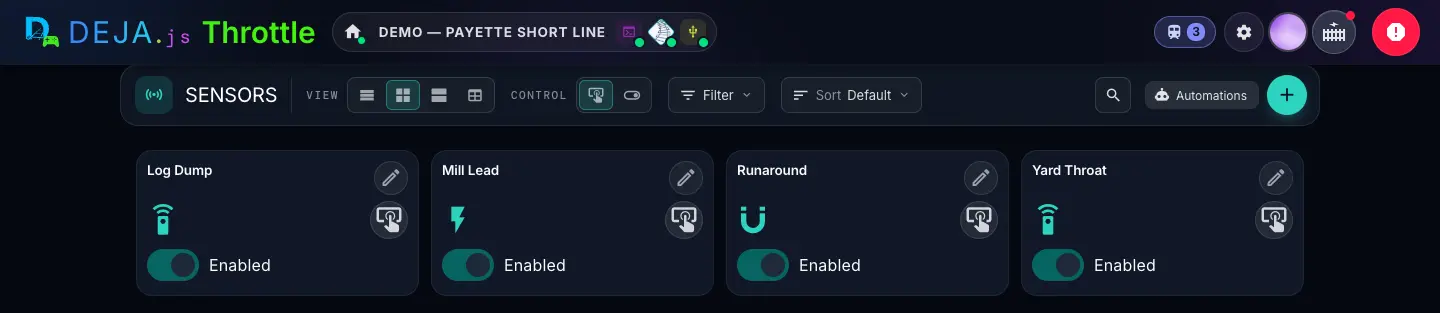
Toolbar
On a narrow screen each control folds into an icon menu. Your choices are remembered on this device.
- Marker 1ViewSegmented buttons
- How dense the list is. Table puts every sensor in one row each, with its status.Options: List · Compact · Comfy · TableDefault: Compact
- Marker 2ControlSegmented buttons
- How the owner's test control on each card behaves. Button pulses the sensor: Triggered for about a second, then Clear again. Switch latches it: it stays where you leave it.Options: Button · SwitchDefault: Button
- Marker 3FilterMenu
- Narrow the list by Devices, Types (Digital, Analog, DCC-EX) or Tags. Active filters show as chips you can clear.
- Marker 4SortMenu
- The order of the cards.Options: Default (your own order) · Name · Device · TypeDefault: Default
- SearchButton → text field
- The magnifier opens “Search sensors...”.
- AutomationsButton
- Jumps to the Automations page. Everyone sees it. See the Automations guide.
- Marker 5Add sensorButton (+)
- Opens New Sensor. Owner only.
Each sensor card
- Icon and nameDisplay
- The icon shows the input type (infrared, current, reed switch and so on). Under the name: the device, then its pin, or its index when there's no pin.
- ChipsDisplay
- The sensor type and input type, its tags, Disabled when it's switched off, and what it drives under When activated, for example “UP 450 #450 → stop”.
- Triggered · ClearStatus
- The sensor's live state, straight from the hardware.
- TriggerButton or switch
- Fires the sensor by hand, so you can test what it drives without a train. Its shape follows the Control setting. Owner only. Members see a status light here instead.
- EditPencil button
- Opens the sensor's editor. You can also long-press a card. Owner only.
- EnabledSwitch
- A quick on/off for the sensor, saved straight away. While it's off the server ignores the hardware, nothing it drives fires, and the card dims. Owner only.
Table view
- Name · Device · TypeColumns
- One row per sensor.
- StatusColumn
- A light and Triggered or Clear. You can't trigger sensors from the table; use a card view for that.
- EditPencil button
- Opens the editor. Owner only.
See No sensors when you know you have some? A filter is hiding them. Clear the chips under the toolbar.
Members get a read-only list: the live state of every sensor, but no trigger buttons, no Enabled switch and no pencil.
New Sensor
WhereSensors → + /sensors/new
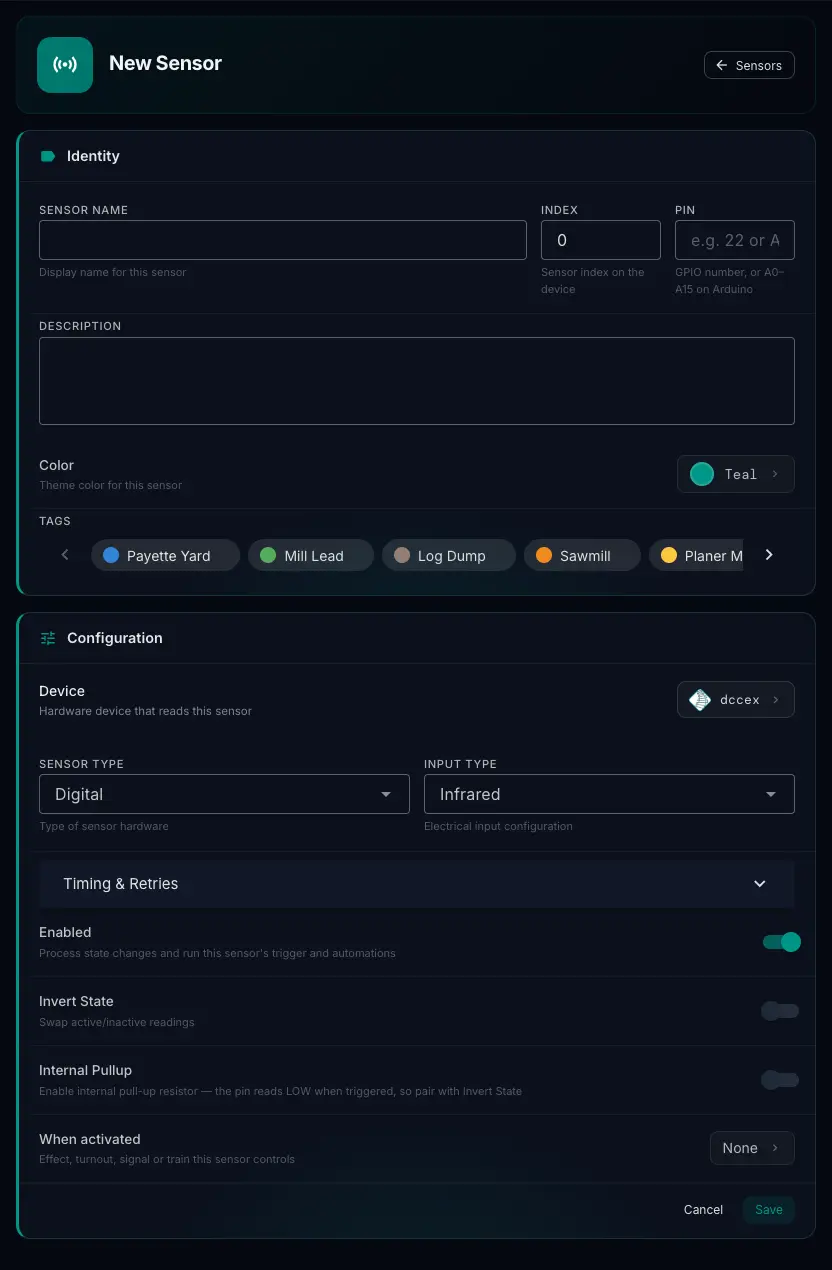
Identity
- Sensor NameText field · required
- What the card, every picker and every automation call it, e.g. “Yard Throat”. Give each sensor on a board its own name.
- IndexNumber field
- The sensor's number on its device.Default: 0
- PinText field
- The pin the sensor is wired to: a GPIO number like
22, or an analog pinA0toA15on an Arduino. Anything else gets “Pin must be a GPIO number (e.g. 54) or an analog pin A0–A15.” - DescriptionText area
- Optional notes: where it is, what it watches.
- ColorColour picker
- The sensor's colour in Throttle. Tap it for named presets, your tag colours and a custom colour.Default: Teal
- TagsChips · multi-select
- Group sensors by area or purpose so you can filter by them. Tags are created in Settings, not here.
Configuration
- DeviceChip → dialog
- The board that reads the sensor: your EX-CommandStation or a DEJA IO board. A new sensor starts on your first device. Tap the chip to pick another. Required.
- Sensor TypeSelect
- The kind of sensor hardware. Choosing Analog adds the Analog Threshold field.Options: Digital · Analog · DCC-EXDefault: Digital
- Input TypeSelect · required
- What's on the pin. It sets the card's icon.Options: Infrared · Current Detection · Reed Switch · Optical · Pressure · CustomDefault: Infrared
- Analog ThresholdNumber field
- Only for Analog sensors: the reading at which the sensor counts as triggered.
Timing & Retries
A folded section; tap it to open. All four are optional, and an empty field isn't saved.
- Debounce (ms)Number field
- Ignores chatter: a change that comes this soon after the sensor last fired is dropped.
- Cooldown (ms)Number field
- After the sensor fires, it ignores changes for this long.
- Max RetriesNumber field
- How many times the sensor may fire inside one Retry Window. Changes past that are ignored until the window ends.
- Retry Window (ms)Number field
- The window Max Retries counts within. Set both, or neither does anything.
Below Timing & Retries, still in Configuration.
- EnabledSwitch
- Process state changes and run this sensor's trigger and automations. Off, it's ignored.Default: On
- Invert StateSwitch
- Swaps active and inactive, for a sensor that reads the wrong way round.Default: Off
- Internal PullupSwitch
- Turns on the board's built-in pull-up resistor. The pin then reads LOW when triggered, so pair it with Invert State. Handy for a plain push button or reed switch wired to ground.Default: Off
- When activatedChip → dialog
- The one effect, turnout, signal or train this sensor controls. The chip shows what's set, or None. Tap it to open the picker, below.Default: None
- Cancel · SaveButtons
- Save adds the sensor and returns you to Sensors. Missing a name or a device? It says “Name is required.” or “A device is required to read the sensor.”
Sensor on a DEJA IO board? The firmware comes with DEJA, so there's no code to write. Deploy the board again after adding sensors, from its page under Devices, so it knows about the new pin. See the IO devices guide.
Using a sensor to stop a train? Leave Debounce and Cooldown empty. A train arriving inside either window won't fire the sensor's throttle trigger, and the form warns you if you set them.
Edit Sensor
WhereSensors → pencil on a card, or long-press /sensors/<id>/edit
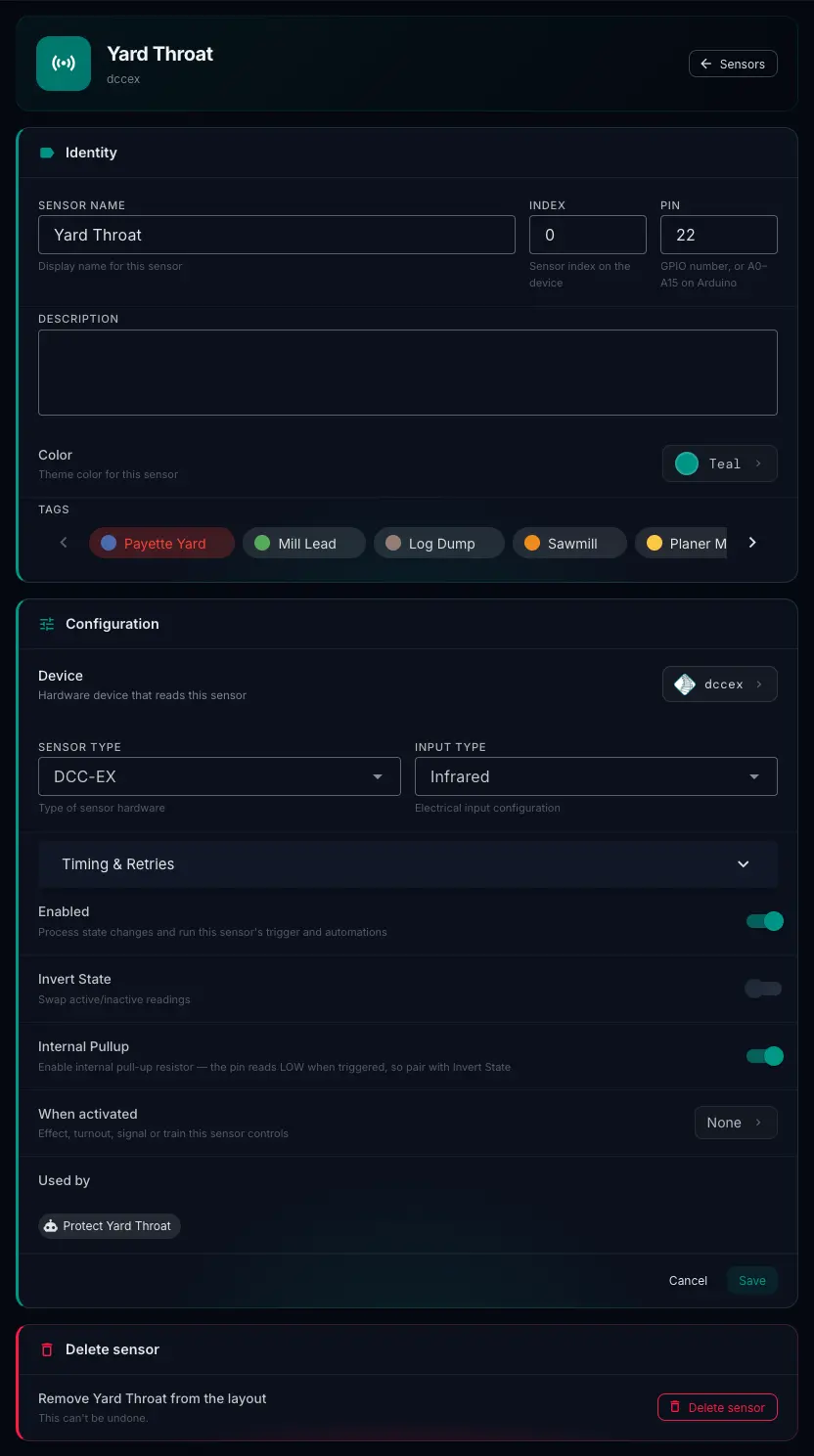
Every field from Identity down to When activated works exactly as in New Sensor.
- DeviceChip → dialog
- Tap it to move the sensor to another board, then Save.
- Used byChips
- Each automation that starts from this sensor, by name. Tap one to open it in Automation Studio. Only shown when there is at least one. The link lives on the automation, so change it there.
- Cancel · SaveButtons
- Save writes your changes and returns to Sensors.
- Delete sensorButton → confirm
- Removes the sensor from the layout. It asks once, right there: Cancel or Delete. This can't be undone.
Deleting a sensor that an automation starts from? Open the automation from Used by first and pick a new trigger, or it won't have anything to start it.
When activated: effects, turnouts and signals
WhereNew or Edit Sensor → When activated
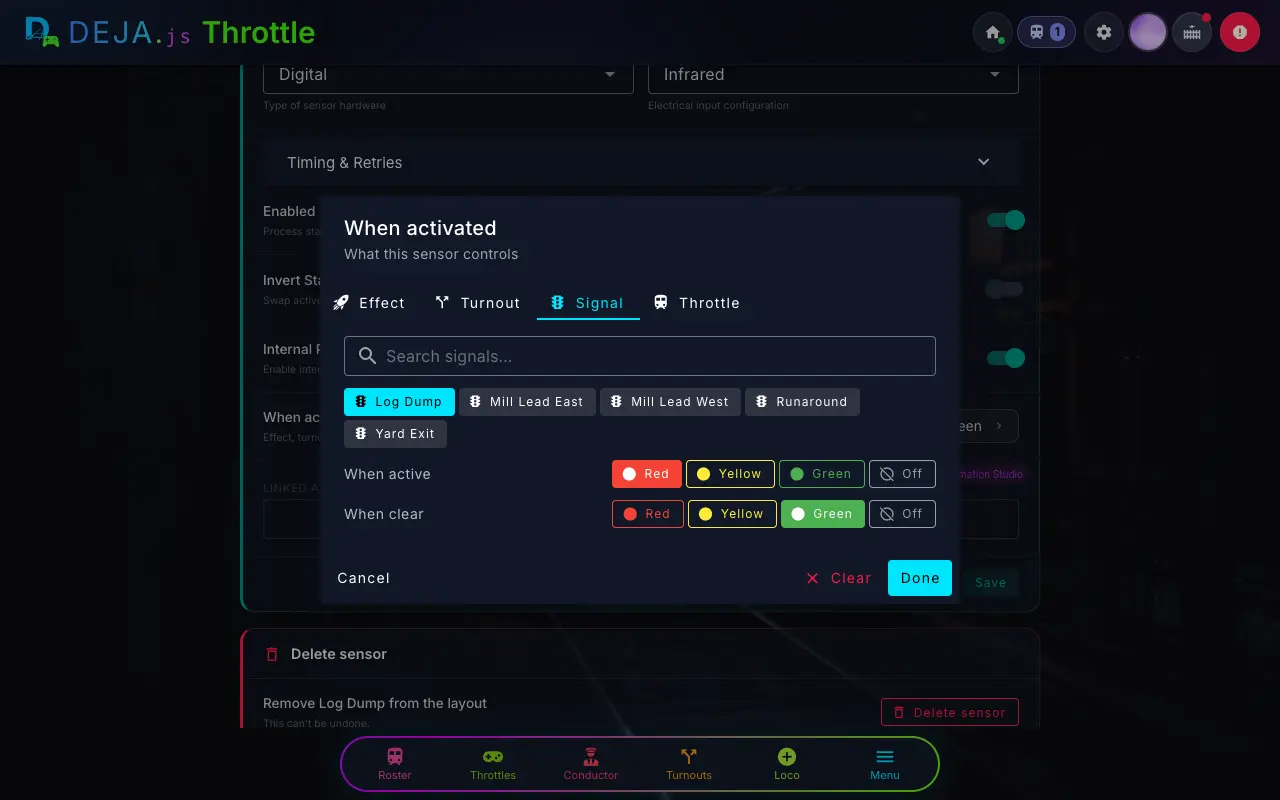
Tabs
It opens on the tab of the current target, or Effect. Each tab keeps its own choices, so switching tabs loses nothing.
- EffectTab
- Search with “Search effects…” and tap one. It's On while the sensor is active and off again when it clears.
- TurnoutTab
- Search with “Search turnouts…” and tap one. It goes Divergent while the sensor is active and back to Straight when it clears.
- SignalTab
- Search with “Search signals…”, tap one, then set the two rows below.
- ThrottleTab
- Sets a train's speed and direction. See the next section.
Effect and Turnout tabs
- InvertSwitch
- Flips the behaviour: the effect is Off while the sensor is active, or the turnout goes Straight. The line above the switch always says which.Default: Off
Signal tab
- When activeButtons · pick one
- The aspect the signal shows while the sensor is active.Options: Red · Yellow · Green · OffDefault: Red
- When clearButtons · pick one
- The aspect it shows once the sensor clears.Options: Red · Yellow · Green · OffDefault: Green
Footer
- CancelButton
- Closes the picker and keeps what you had.
- ClearButton
- Removes the current target, so the sensor drives nothing. Only shown when one is set.
- DoneButton
- Keeps your choice. It stays greyed out until you've picked an item.
The picker only fills in the form. Nothing is stored until you tap the sensor's Save.
When activated: a train
WhereWhen activated → Throttle
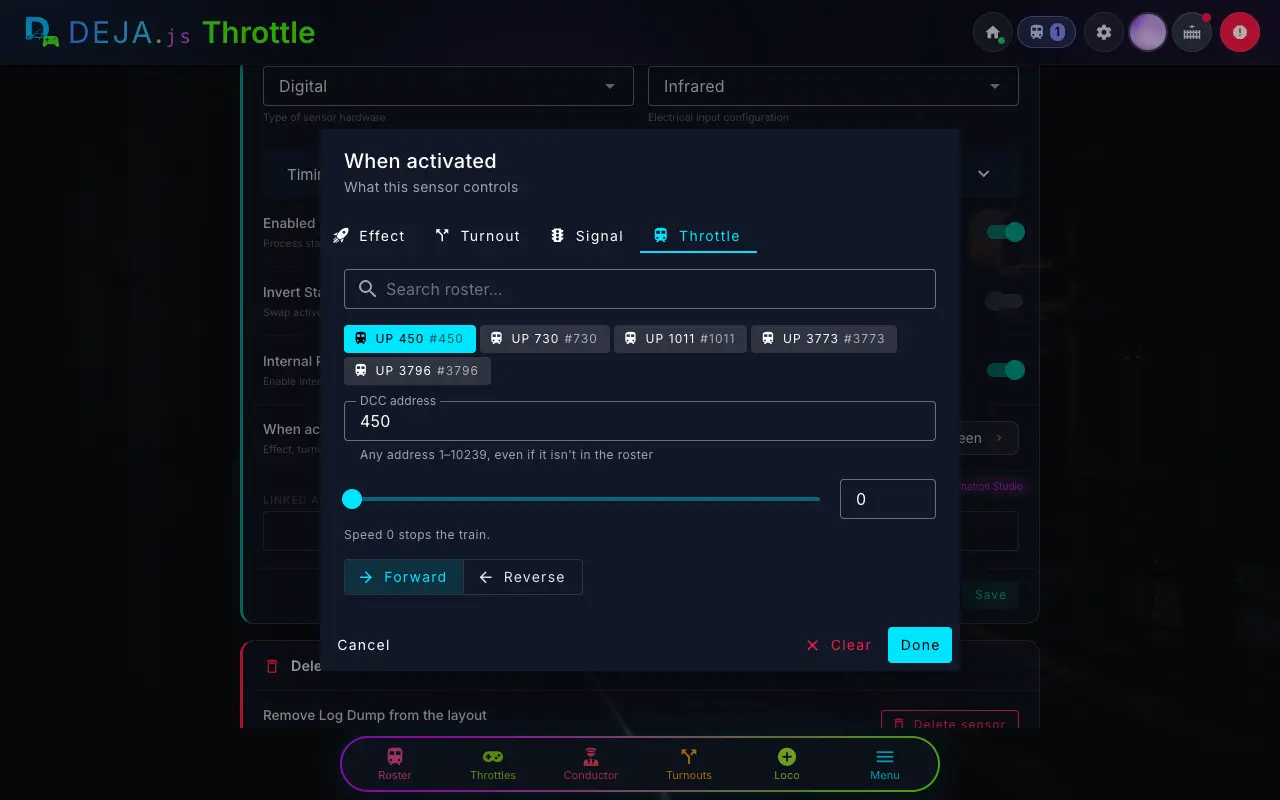
Throttle tab
- Search roster…Search + loco buttons
- Your roster as buttons, “name #address”. Tap one to fill in the address.
- DCC addressNumber field
- The loco's address. Any address 1–10239 works, even if it isn't in the roster. Anything else gets “Enter a whole number from 1 to 10239”.
- SpeedSlider + number box
- The speed to set, 0 to 126. Speed 0 stops the train.Default: 0
- Forward · ReverseToggle
- Which way it runs.Default: Forward
- Cancel · Clear · DoneButtons
- As on the other tabs. Done needs a valid address and a speed from 0 to 126.
Want the train to stop, wait, blow the horn and pull away? That's an automation. Start from the Station stop template in the Automations guide.
Sensors also start automations: pick one under Starts in Automation Studio, or wait for one in a Wait for… step. Sensors don't appear on track diagrams.