A signal is a lineside head with red, yellow and green lamps — or a single searchlight lens that shows all three. Wire its LEDs to pins on a DEJA IO board or your EX-CommandStation, or drive a signal decoder over DCC, and Throttle lets you set its aspect with a tap.
Only the layout owner adds and edits signals. Everyone else in the layout sees the same signals and can change their aspects.
The Signals page
WhereMenu → Signals /signals
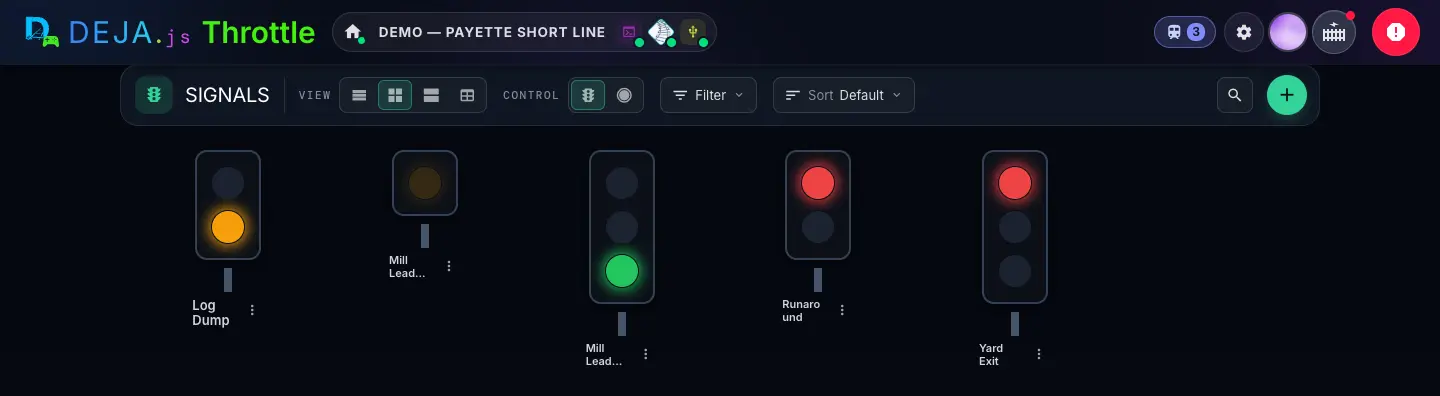
Toolbar
On a narrow screen each control folds into an icon menu. Your choices are remembered on this device.
- Marker 1ViewSegmented buttons
- How dense the list is. With the Head control, Compact gives you a panel of heads, Comfy a big head with a button per aspect, and List a small head in each row. Table adds a Pins column.Options: List · Compact · Comfy · TableDefault: Compact
- Marker 2ControlSegmented buttons
- How you change a signal.Options: Head (tap the lamps) · Button (one round button in the current aspect's colour; each tap steps to the next wired aspect, then Off)Default: Head
- Marker 3FilterMenu
- Narrow the list by Devices or Tags. Picks in one group widen the list (this or that); picks across groups narrow it. Active filters show as chips you can clear.
- Marker 4SortMenu
- The order of the signals.Options: Default (your own order) · Name · DeviceDefault: Default
- SearchButton → text field
- The magnifier opens “Search signals...”. It matches signal names only.
- Marker 5Add signalButton (+)
- Opens New Signal. Owner only.
Each signal
- LampsTap targets
- Tap a dark lamp to show that aspect. Tap the lit lamp to turn the signal off. Lamps that aren't wired don't respond. On a searchlight, each tap on the lens steps to the next aspect.
- Red · Yellow · Green · Off · FlashButtons (Comfy)
- One button per wired aspect, plus Off. Flash makes the lit aspect pulse; it's greyed out while the signal is dark.
- AspectStatus
- The current aspect in words: “Off”, “Red”, “Flashing Yellow” and so on, with the device and pins.
- Feedback dotDisplay
- On signals driven over DCC: “Commanded, no feedback”. DCC signals can't report back, so this is what DEJA last sent.
- ⋮Menu (heads)
- Options for the signal, with Edit for the owner.
- EditPencil button (cards)
- Opens the signal's editor. You can also long-press. Owner only.
See No signals when you know you have some? A filter is hiding them — the empty state shows whenever the filtered list is empty. Clear the chips under the toolbar.
New Signal and Edit Signal
WhereSignals → +, or ✏️ / ⋮ → Edit on a signal /signals/<id>/edit
/signals/new; editing shows the signal's name and device in the header. This one is a three-lamp signal wired to pins on a DEJA IO board — the rows for DCC come after.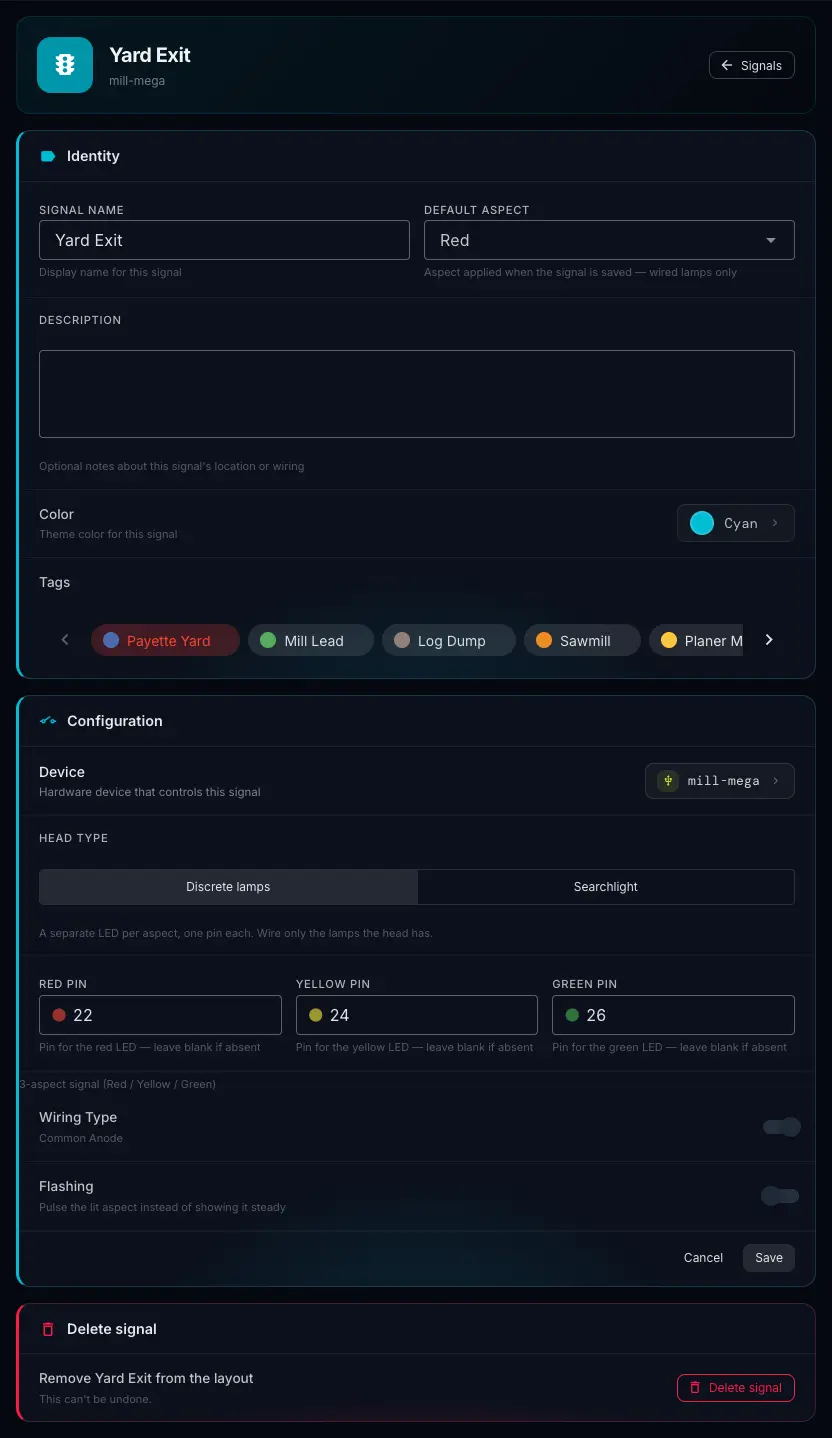
Identity
- Marker 1Signal NameText field · required
- The display name for this signal, e.g. “Yard Exit”.
- Marker 2Default AspectDropdown
- The aspect the signal shows when you save it. Only lamps you've wired are offered; remove a lamp's pin and the choice clears.Options: Off · Red · Yellow · Green (wired lamps only)Default: Off
- Marker 3DescriptionText box
- Optional notes about the signal's location or wiring.
- Marker 4TagsChips · multi-select
- Group signals by area so you can filter by them. Tags are created in Settings → Layout → Tags, not here.
Configuration
- Marker 5DeviceChip → dialog · required
- The hardware device that controls this signal. Tap it to open Select Device, pick a board, then Save. A new signal starts on the first device in your layout, so check it's the right one.
- Driven byPins · DCC
- Only when the device is your EX-CommandStation: pins on the command station itself, or a signal decoder addressed with DCC accessory commands. DCC swaps the pin rows for the DCC mapping below.Default: Pins
- Decoder outputDropdown · required
- Only when the device is a DCC accessory decoder: the output this signal is wired to. Signal-type outputs are listed first; greyed outputs are already used.
- Marker 6Head TypeSegmented buttons
- Discrete lamps: a separate LED per aspect, one pin each — wire only the lamps the head has. Searchlight: one bi-colour LED on two pins, where yellow is the red and green elements lit together. That matches most searchlight signals.Default: Discrete lamps
- Marker 7Red PinNumber field
- The pin for the red LED. Leave it blank if the head has no red lamp. On a searchlight it reads Red Element Pin.
- Marker 8Yellow PinNumber field
- The pin for the yellow LED, blank if absent. Greyed out on a searchlight — it makes yellow from red and green.
- Marker 9Green PinNumber field
- The pin for the green LED, blank if absent. On a searchlight it reads Green Element Pin.
- Signal readoutDisplay
- A live summary under the pins, e.g. “3-aspect signal (Red / Yellow / Green)” or “2-aspect searchlight (Red / Green) on 2 pins”. It turns red if there's nothing to control yet: a signal needs at least one lamp, and a searchlight needs both elements.
- Marker 10Wiring TypeSwitch
- How the LEDs share a wire. Common Cathode (off) when the LEDs share a negative wire; Common Anode (on) when they share a positive one. Check your signal's instructions. If every lamp lights except the one you picked, flip this.Default: Common Cathode
- Marker 11FlashingSwitch
- Pulses the default aspect instead of showing it steady — a flashing yellow, say. Greyed out until you pick a Default Aspect other than Off.Default: Off
- Marker 12Cancel · SaveButtons
- Save writes the signal, sets it to its Default Aspect and returns to Signals. If something's missing it tells you — “Set at least one lamp pin (red, yellow, or green).”, for example.
Delete signal
Only when editing.
- Marker 13Delete signalButton → confirm
- Removes the signal from the layout. It asks once, right there — Cancel or Delete. This can't be undone.
Wired the signal to a DEJA IO board? Deploy that board's firmware again after adding a signal or changing its pins, so it knows about them — from the board's page under Devices, or with deja deploy. There's no code to write.
Signals driven over DCC
WhereSignal editor, Driven by = DCC, or a DCC accessory decoder device
DCC mapping
- Extended (<A>) · Basic (<a> pairs)Segmented buttons
- Extended sends one address with an aspect number — the modern way for signal decoders that support it. Basic uses ordinary accessory addresses, with each aspect made from one or more address-and-direction pairs. Check your decoder's manual for which it speaks.
- 2-aspect (red / green) · 3-aspect (red / yellow / green) · Searchlight (one head, R / Y / G)Preset buttons
- Fill in a typical mapping for that kind of head. Adjust anything afterwards.
- Signal addressLinear or Addr / sub (Extended)
- The decoder's DCC accessory address for this head.
- Aspect #Number field per aspect (Extended)
- The aspect number, 0–31, that shows red, yellow or green on your decoder.
- Linear · Closed / ThrownPairs per aspect (Basic)
- Each pair is an accessory address and a direction. Add pair adds another; ✕ removes one.
- TestButton per aspect
- Shows that aspect on the real signal. It tests the saved mapping, so save first to try your edits.
Extended accessory signals need DCC-EX 5.2.34 or newer on your EX-CommandStation. On an older version, use Basic.
Map at least one aspect before you save — otherwise you'll see “Map at least one aspect (red, yellow, or green) to a DCC address.”
Signals also show up elsewhere: on your track diagram, as a step in an automation, or set by a sensor when a train goes by.