The DCC-EX EX-CommandStation is the box that puts DCC on your rails. It plugs into the computer running your DEJA Server by USB, and the server talks to it at 115200 baud. Throttle never talks to it directly: your taps go to the server, and the server sends the commands.
Every new layout already has one, with the ID dccex. You just plug it in and connect it. Anyone in the layout can connect it and switch track power; only the layout owner changes its settings, firmware and track outputs.
On the Devices page
WhereMenu → Devices /devices
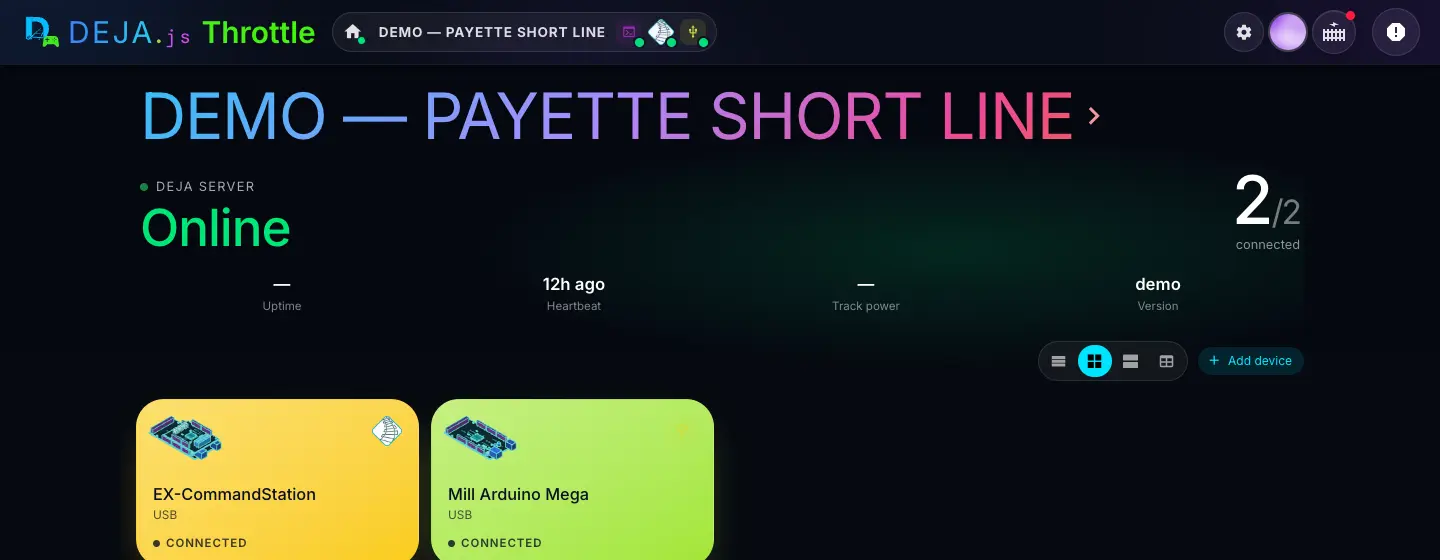
The EX-CommandStation tile
- EX-CommandStationTile
- Its name, and USB with the port it's on. Tap it to open its page. It lights up yellow while it's connected.
- Connected · Waiting · OfflineStatus
- Connected: the server has it open. Waiting: the DEJA Server itself is offline. Offline: the server is up but hasn't opened the port yet.
- ✓ AutoBadge
- Auto connect is on: the server connects it every time it starts.
- Connect →Button (Table view)
- Shown when it's offline. Opens its page so you can pick the serial port.
Server header
- Track powerDisplay
- On, Off, or a dash when the server can't tell.
Add Device
Only if yours was deleted, or you run a second one. Owner only: Add device, then the EX-CommandStation tile. The IO devices guide covers the whole dialog.
- BoardChips · pick one
- Which board it's built on. It picks the pinout drawing, and you can change it later.Options: Arduino Mega 2560 · DCC-EX EX-CSB1Default: Arduino Mega 2560
- usbTile
- How it connects. An EX-CommandStation connects over USB, and it's picked for you.
- IDText field · required
- Its ID, which is also its name, e.g.
dccex. It can't be changed later. - Auto ConnectSwitch
- Have the server connect it every time it starts.Default: Off
Added one? Restart the server with deja restart so it picks it up. The server reads the device list when it starts, and the toast after Submit says so.
The EX-CommandStation page
WhereDevices → EX-CommandStation /devices/dccex
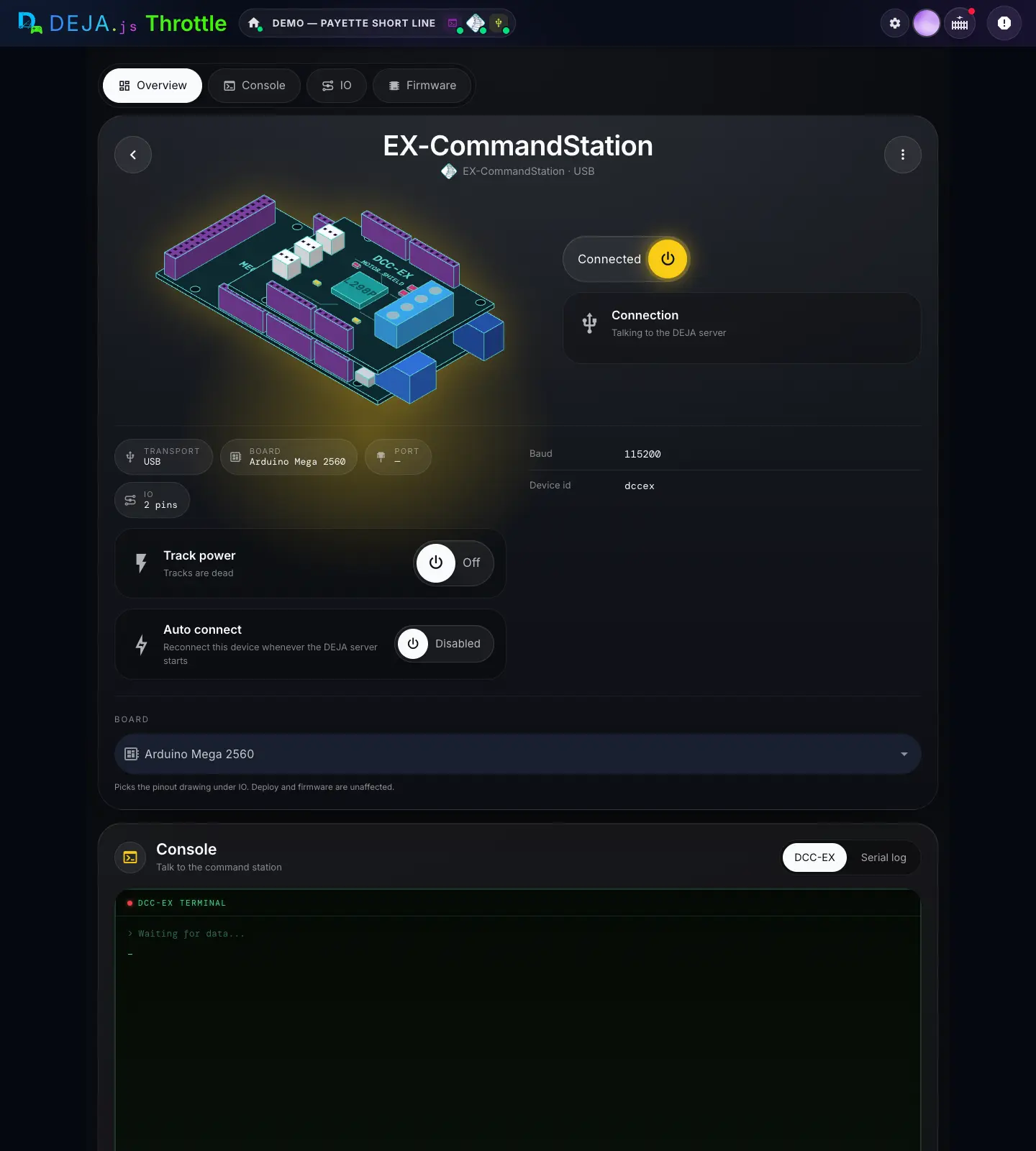
Section pills
- Overview · Console · IO · FirmwarePills
- Jump to each section. Firmware is only there for the owner.
Overview
- BackRound button
- Back to Devices.
- More device actionsMenu (⋮)
- Copy device id for everyone. For the owner, Firmware and Settings jump to those sections, and Delete device removes it.
- Connected · DisconnectedPower pill
- Its connection to the server. Turn it off to disconnect. Turning it on takes you to the Connection row, because a USB board needs you to pick its port. Greyed out while the server is offline.
- ConnectionRow
- “Talking to the DEJA Server” with the port when it's connected. Otherwise “Not connected”, or “The DEJA Server is offline”.
- Serial portCombobox
- Shown in the Connection row while it isn't connected: the ports on the server's computer, e.g.
/dev/ttyACM0on a Raspberry Pi. You can also type one. Clearing it clears the saved port too. - Refresh portsIcon button
- Asks the server to look for ports again. Use it after plugging the board in.
- ConnectButton
- Opens the port. If nothing happens within 10 seconds you'll see “Connection timed out”; check the server's log with
deja logs.
Stat chips
- TransportChip
- Always USB.
- BoardChip
- Arduino Mega 2560 or DCC-EX EX-CSB1.
- PortChip
- Its port, marked Current while connected or Last known when not. A dash means no port is saved.
- IOChip
- How many of its pins your turnouts, effects, sensors and signals use.
Power and connection
- Track A, Track B…Power pill
- One switch per track output on the Overview, labelled with the job you gave it (for example Main line or Programming track). Each turns power on that output alone. Anyone in the layout can use them. Greyed out until the EX-CommandStation is connected. An output set to Off shows the word Disabled in place of the power button. The header's Track power button still switches every main track at once.
- Auto connectPower pill
- Reconnect it whenever the DEJA Server starts, on its last known port. Owner only.Options: Enabled · DisabledDefault: Disabled
Details
Rows show only when they have something to say.
- BaudDisplay
- Always
115200. - Last seenDisplay
- How long ago the server last heard from it.
- DeployedDisplay
- The firmware version and when it was deployed, when DEJA knows.
- Device idDisplay
- Its ID on the layout, e.g.
dccex.
Board
- BoardSelect
- Picks the pinout drawing under IO, and decides the generated config.h and which outputs the device has. Only the EX-CSB1 can be a booster. Saves as soon as you change it. Owner only.Options: Arduino Mega 2560 · DCC-EX EX-CSB1
Delete this device
At the bottom of the page. Owner only.
- DeleteButton → confirm
- Removes it from the layout after one confirm. Blocked while turnouts, effects, signals or sensors use it: the strip says what, e.g. “In use by 2 turnouts, 1 effect — reassign or delete those first”. This can't be undone.
Turn on Auto connect once you've connected it by hand. The server needs a saved port to reconnect it on its own, and connecting once saves it.
Everything here goes through your DEJA Server. If the page says the server is offline, run deja start on the computer the EX-CommandStation is plugged into.
Console
WhereEX-CommandStation page → Console /devices/dccex#console
- DCC-EXTab
- The terminal, command buttons and cheat sheet, exactly as on the DCC-EX page.Default: Selected
- Serial logTab
- Every line between the server and the board: ↓ coming in, ↑ going out, newest first, up to 100 messages.
Serial log
- LiveStatus chip
- Whether the log is flowing: Live, Connecting to server…, Paused, or Relay off when the server has DEJA Cloud turned off.
- Full screenButton
- Fills the window with the log. Esc returns.
- MonitorSwitch
- Pauses and resumes the feed.Default: On
- ClearButton
- Empties the log on this screen.
IO and pinout
WhereEX-CommandStation page → IO /devices/dccex#hookups
IO
- Print labelsButton
- Opens the Label Maker for this board's wiring, in a new tab.
- List · Compact · ComfySegmented buttons
- How dense the item cards are. Remembered on this device.Default: List
- Turnouts · Effects · Sensors · SignalsCount tiles
- How many of each it drives. Tap one to show only those; tap again to show everything.
- Item cardsCards
- The same cards as their own pages, and they work here: throw a turnout, switch an effect. The owner can tap the pencil to edit one. You assign items to a board in each item's editor, not here.
Pinout
Always shown for an EX-CommandStation, even with nothing assigned yet.
- Board · ListSegmented buttons
- The drawing, or the same pins as a list.
- Pin conflicts detectedAlert
- Two things share a pin, e.g. “Pin 22 is assigned to A + B”. Fix one of them in its editor.
- ExpandButton
- Opens the drawing full screen with +, -, Fit and Close.
- Tap a pin for detailsStrip
- Tap any pin on the drawing to see what it's for.
Firmware
WhereEX-CommandStation page → Firmware /devices/dccex#firmware
Firmware
- Install firmware with EX-InstallerStep 1 · link
- Opens DCC-EX's EX-Installer, which installs and updates the EX-CommandStation's firmware.
- Set your track outputs on the OverviewStep 2
- DEJA sends your track outputs to the EX-CommandStation automatically each time the DEJA Server connects to it.
- config.h · myAutomation.hOptional · downloads
- For a custom build: the two files DEJA builds from your layout, to load into your own DCC-EX build.
Track outputs (on the Overview)
One row per output: A and B, plus C and D when an EX-MotorShield8874 is stacked on an EX-CSB1. Owners tap a row to edit it; changes reach a connected station straight away.
- OutputDisplay
- The output letter, with its power switch.
- JobTiles
- What the output drives.Options: Main line · Programming track · DC loco · Off
- PolarityToggle
- Normal, Swapped (for a track wired the other way round) or Auto-reverse (for a reversing loop; not available for a DC loco).
- DC addressNumber field
- Only for DC loco: the loco address whose throttle drives that DC track, 1 to 10239.
Updating DCC-EX itself? Use EX-Installer, then reconnect — DEJA puts your track outputs back on the board when the server connects.
The DCC-EX page
WhereMenu → DCC-EX /dccex
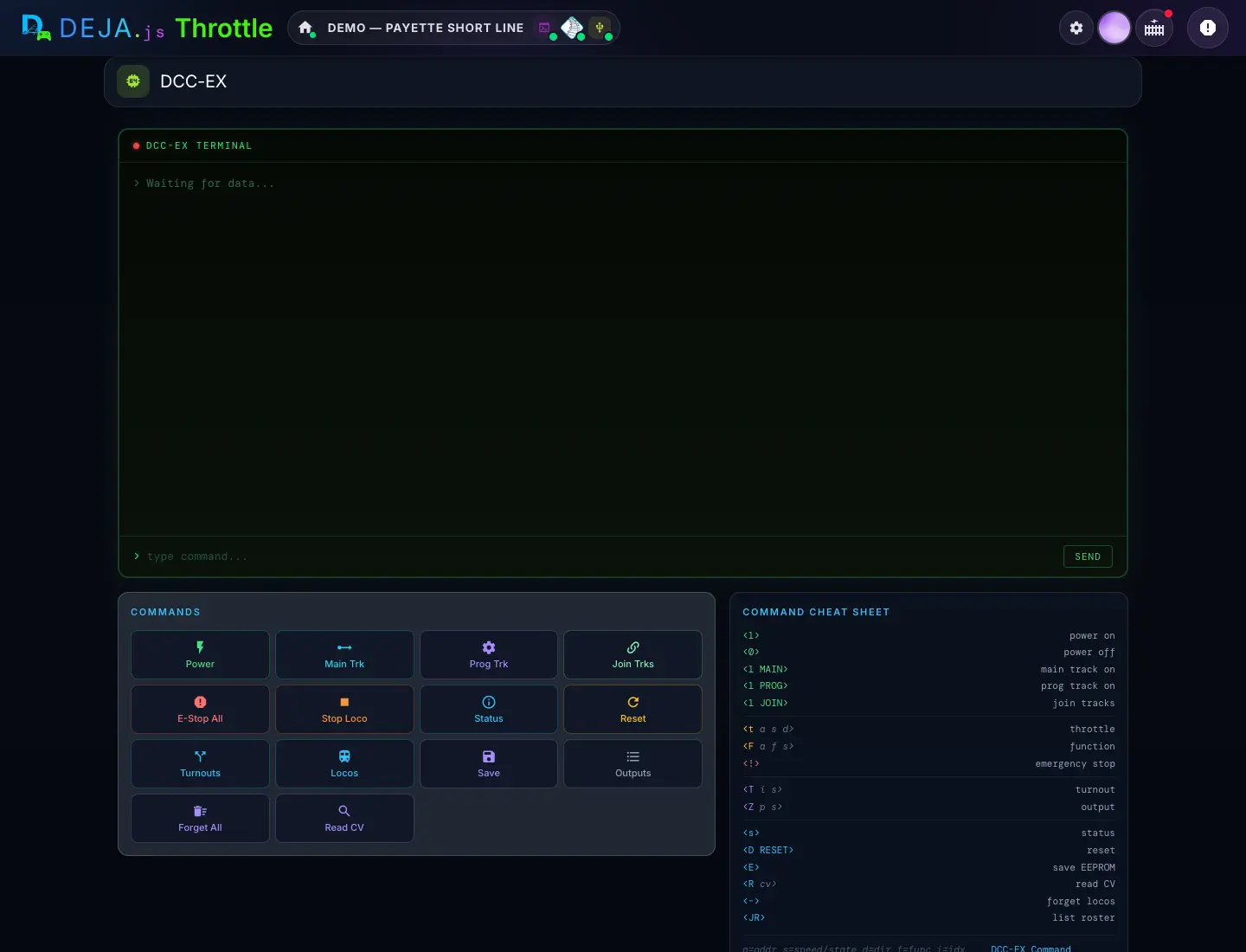
DCC-EX TERMINAL
- Status dot and versionDisplay
- Green when the EX-CommandStation is connected, red when not, with its firmware version on the right.
- LogDisplay
- The last 100 lines of the layout's command log, newest at the bottom, with times. Commands sent start with an arrow. Shows “Waiting for data...” until something happens.
- type command...Text field + SEND
- Type a DCC-EX command and press Enter or SEND. The angle brackets are optional:
<s>andsboth work.
COMMANDS
- PowerToggle
- Track power on and off. It glows while power is on.
- Main TrkButton
- Power the main track (
<1 MAIN>). - Prog TrkButton
- Power the programming track (
<1 PROG>). - Join TrksButton
- Join the tracks so the programming track runs as main (
<1 JOIN>). - E-Stop AllButton
- Emergency stop for every loco (
<!>). - Stop LocoButton → prompt
- Asks for a Loco Address, then stops it. If a WiThrottle app is driving that loco, it warns you first that this overrides it.
- StatusButton
- Asks for the command station's status (
<s>). - ResetButton → confirm
- Restarts the EX-CommandStation (
<D RESET>). Asks before it runs. - TurnoutsButton
- Lists the turnouts it knows (
<T>). - LocosButton
- Lists its roster (
<JR>). - SaveButton
- Saves to its EEPROM (
<E>). - OutputsButton
- Lists its outputs (
<Z>). - Forget AllButton → confirm
- Forgets every loco it's tracking (
<->). Asks before it runs. - Read CVButton → prompt
- Asks for a CV Number and reads it (
<R cv>).
Beside the commands
- WiThrottle LocksList
- Locos being driven from a WiThrottle app like Engine Driver, with the app's name. Only shown while there are some.
- COMMAND CHEAT SHEETReference
- The everyday DCC-EX commands, from
<1>power on to<JR>list roster, with a link to the full DCC-EX Command Reference.
Nothing here works unless your DEJA Server is running and the EX-CommandStation is connected. A red dot on the terminal means it isn't.
Track power has a few other homes too: the Track power figure in the Devices header, the device page, the Power button on the DCC-EX page, and the device panel in the Conductor.