Devices & Activity
The Devices page (/devices) is where your layout meets its hardware. It shows whether your DEJA Server is online, lists every registered device with a live status, lets layout owners add and connect devices, and holds My Layouts for switching, creating, and joining layouts (see Connect). Old /connect links land here. Everything you need to see what your layout is doing is close at hand — device serial logs, the Activity feed (now in Console), and the access-code kiosk — free, from any network.
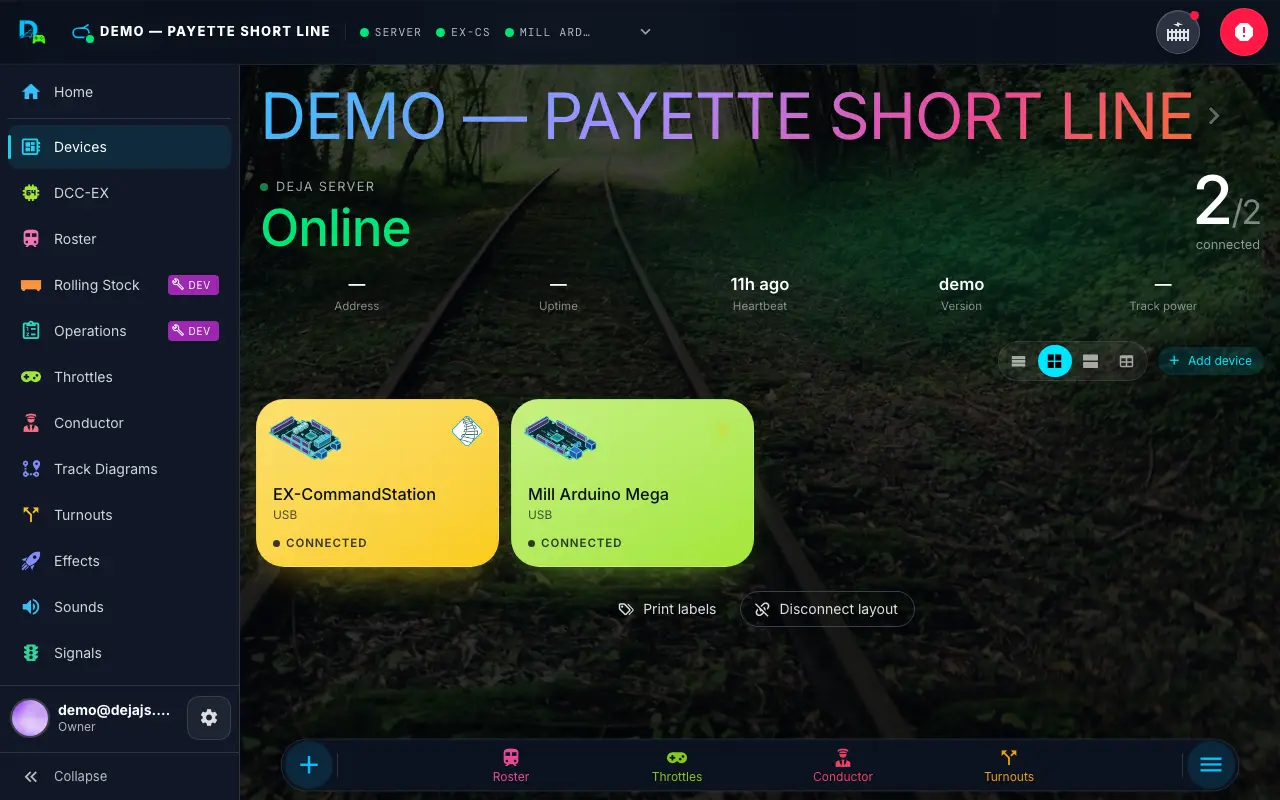
Each device represents a physical piece of hardware — a DCC-EX EX-CommandStation, an Arduino Mega, an ESP32, a Raspberry Pi Pico W, or a WLED controller — connected to your DEJA Server over USB or WiFi (MQTT or WebSocket). The server bridges them to DEJA Cloud, the sync service that keeps every app in step.
Connecting Your Server
The server header at the top of the page shows whether your DEJA Server is online, its LAN Address (tap to copy), uptime, heartbeat, version and track power, plus a chip for every service it's running — DCC-EX firmware version, open serial ports, the MQTT broker, WiThrottle (the address:port Engine Driver asks for), WebSocket and standby — and a last line naming the machine (host, OS, Node, memory). When it's offline, it shows the deja start command with a copy button instead. To link a server to your layout:
- On the server machine, run
deja login. The CLI prints a short one-time code and opens Throttle's Connect Server page (/cli-login) in your browser. - Check the code matches your terminal, pick the layout to connect, and click Authorize. (You can deny the request if you don't recognize it.)
- The CLI finishes on its own, and the server stays signed in from then on — it renews its own credentials automatically.
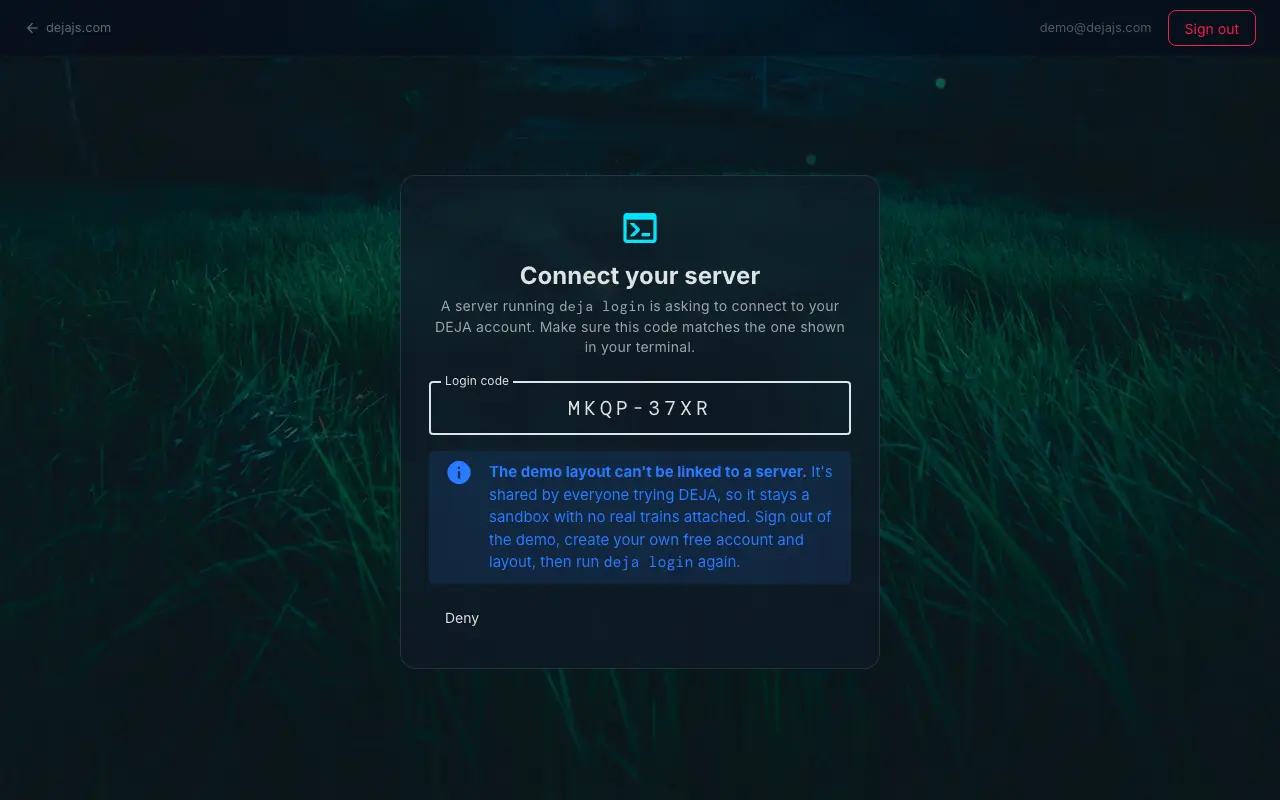
To move your server to a new machine, run deja login on the new machine — authorizing it replaces the server currently connected to that layout, so the old machine stops syncing on its next restart.
Device Status
Every device row shows an honest, evidence-based status:
- ● VERIFIED (green) -- The server has real proof the device is alive: an open serial port for USB devices, actual traffic for WiFi devices.
- ◐ LINKED (amber) -- Linked, but the device hasn't spoken recently — awaiting its first message.
- ◌ WAITING (gray) -- The DEJA Server itself is offline, so no device can truly be connected.
- ○ OFFLINE (gray) -- Device is not reachable. Check the cable, power, and server status.
Your EX-CommandStation always sorts first. On phones, the table collapses to simple two-line rows.
Adding a Device
Every new layout already has your EX-CommandStation as the device dccex — you don't add it, you connect it. Add a device for each IO board, accessory decoder or WLED strip.
Layout owners tap the Add device pill (+) in the device hub to open the Add Device dialog:
- Device type -- Pick a tile:
- EX-CommandStation (
dcc-ex) -- a DCC-EX EX-CommandStation (USB serial) - DCC Accessory Decoder (
dcc-accessory) -- a DCC accessory decoder (DS64, Switch-It, SE8C, SwitchPilot and others) driven through a DCC-EX command station; it has no connection of its own (see Using third-party accessory decoders) - DEJA Arduino Mega USB (
deja-arduino) -- Arduino Mega 2560 IO board (USB serial) - DEJA Arduino ESP32 USB (
deja-esp32) -- ESP32 IO board (USB serial, same sketch asdeja-arduino) - DEJA Arduino ESP32 WIFI (
deja-esp32-wifi) -- ESP32 IO board (WiFi — MQTT or WebSocket) - DEJA Pico W WIFI (
deja-mqtt) -- Raspberry Pi Pico W IO board (WiFi — MQTT or WebSocket, CircuitPython) - DEJA LED (
deja-arduino-led) -- Arduino-based LED controller board (USB serial) - DEJA MQTT (
deja-mqtt-diy) -- Custom/DIY MQTT device - deja-server -- Your DEJA Server itself, pinned to the top of the list
- WLED (
wled) -- A WLED-controlled LED strip (see WLED Studio)
- EX-CommandStation (
- Board -- Chips for types that come on more than one board (ESP32: ESP32-DevKitC V4 or WEMOS D1 R32; EX-CommandStation: Mega 2560 or EX-CSB1). It only picks the pinout drawing — deploy and firmware are unaffected — and can be changed later in the device settings. Single-board types (Mega, Pico W) show no choice.
- usb / wifi -- The connection toggle, defaulted from the type (
deja-esp32-wifianddeja-mqttstart on wifi, everything else on usb). - Transport -- ESP32 WiFi and Pico W only: MQTT (the default) or WebSocket, where the device dials the DEJA Server directly at
ws://<server>:8082/devicewith its own token. You can change it later from the device page; the choice is baked into the firmware, so redeploy after changing it (see Protocol Details). - DCC Accessory Decoder swaps the connection fields for Command station, Decoder, Base address (output 1), Address offset, Outputs, Signal LEDs, and a Pin (plus Frog pin) per output.
- ID (required) -- A unique identifier (e.g.,
turnout-board-east). - Host IP Address (required) and LED Count -- WLED only.
- Auto Connect -- Connect the device automatically when the server starts.
Tap Submit to add it (or Close to cancel). A toast confirms Added "<id>". Restart the DEJA server (deja restart) to connect to it.
The serial port isn't part of this form — you choose it when you connect the device. WiFi credentials aren't either — you enter them when you deploy the firmware.
📟 See Arduino & ESP32 Setup and Pico W Setup for the firmware setup steps for each device type.
Connecting a Device
- Tap a device's row (or its Connect button — shown for USB and WLED devices when offline). For your EX-CommandStation, that's the
dccexdevice every layout starts with. - On the device page's Connection row, choose the Serial port (tap Refresh ports if yours isn't listed yet) or the WLED host address.
- Tap Connect — the row's badge turns green when the link is verified. Turn on the Auto connect row to have the server reconnect it on every start. WiFi devices (MQTT or WebSocket) skip all of this: they announce themselves and connect automatically.
Device Details
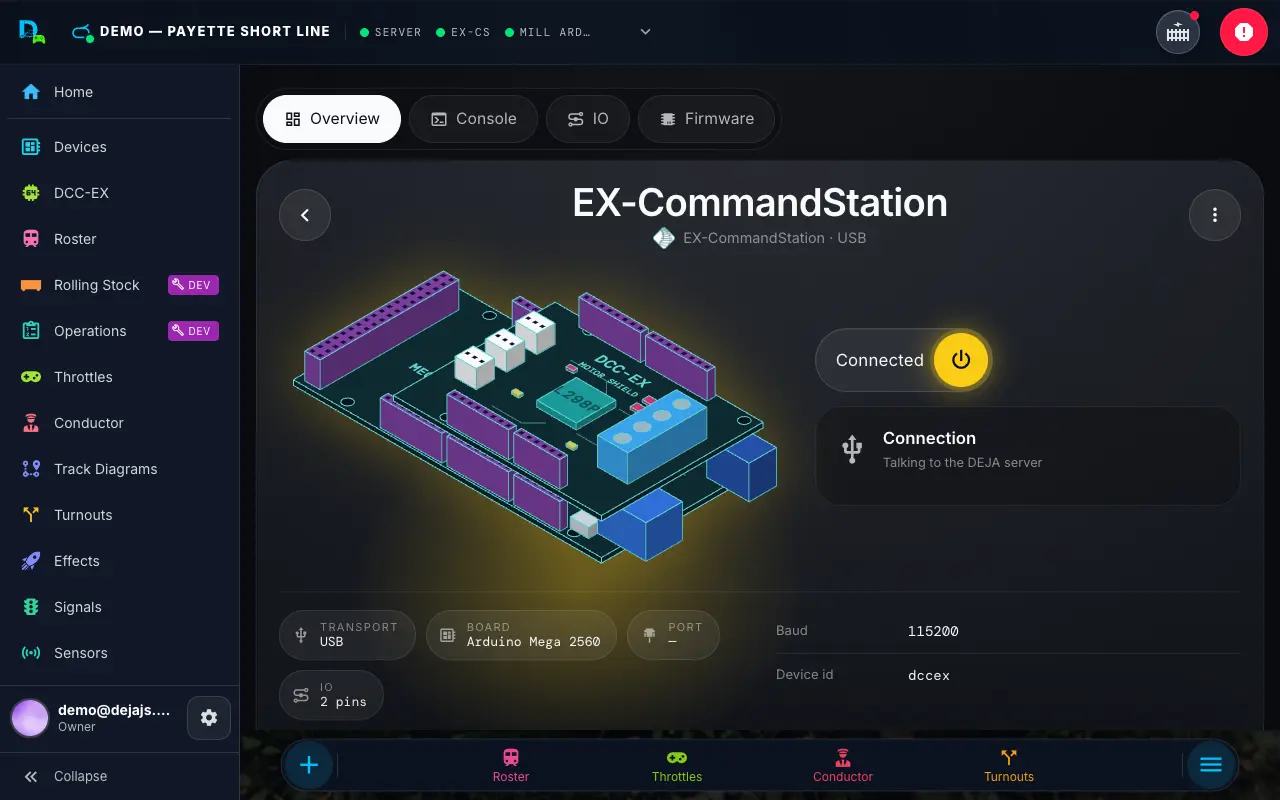
Tap a device's row, then Device details, to open its page at /devices/:deviceId -- one page for everything about that device (the old /devices/:deviceId/edit page folds into it; old links land here on its Firmware section). A hero card up top shows a live health badge, connection info, and stats such as board, baud rate, track power, Wi-Fi signal, device uptime, and I²C health, plus Connect (serial port or WLED host), Auto Connect, and, for an EX-CommandStation, its track outputs (see below). A sticky pill nav below the hero switches between the device's sections:
- Console (EX-CommandStation) or Traffic Monitor (other USB/Wi-Fi devices) -- the full DCC-EX console for an EX-CommandStation, and a live serial log for other devices.
- IO -- tables of everything wired to this device (turnouts, effects, sensors, signals) plus, for Arduino-family boards, the pinout drawing. Print labels opens the Label Maker for this device — a plate for its box, flags for its wires, a tag per pin.
- Firmware (owner) -- the EX-Installer link for an EX-CommandStation, Arduino advanced config, and developer configuration.
The owner also gets a ⋮ menu on the hero for Copy device id, Deploy firmware (jumps to Firmware), Settings (WLED host/LED count, board choice, and device facts, at the bottom of the hero card), and Delete device. A WLED strip's page is its WLED Studio, right under the hero.
Track outputs (EX-CommandStation)
An EX-CommandStation's Overview shows each of its track outputs (A, B, and C and D when an EX-MotorShield8874 is stacked on an EX-CSB1). Anyone on the layout can switch an output's power. If you own the layout, tap an output to choose Main line, Programming track, DC loco or Off, and its polarity. Changes reach a connected station straight away, and the DEJA Server sends them again each time it connects. Tell DEJA about a stacked EX8874 under Expansion in the device settings.
Boosters (EX-CSB1)
A second EX-CSB1 can run as a booster that repeats your command station's track signal to more track.
- Set Role → Booster in the device's settings. This needs Board = EX-CSB1.
- Its outputs repeat the command station's DCC from the RailSync jack. Set each one to Booster (Normal, Swapped or Auto-reverse) or Off, then re-deploy it.
- DEJA never sends throttle, turnout, accessory, signal, layout-wide power or E-stop commands to a booster. Only its own device page can switch its per-output power or use its console, plus a read-only status query. Its USB link is optional and only shows status and a console. A booster's serial lines never change layout-wide power, power-linked effects or the EX-CommandStation version.
- Wire one command station output to the booster's RailSync jack, and use that output for nothing else.
- Use DCC-EX 5.6.2 or newer.
Device serial log
Each device's detail page has a live serial log: lines the server sent to the device and lines the device sent back, newest first. It streams through DEJA Cloud only while the log is open (see Remote Monitoring). EX-CommandStation logs open with recent history from the command log.
Pinout
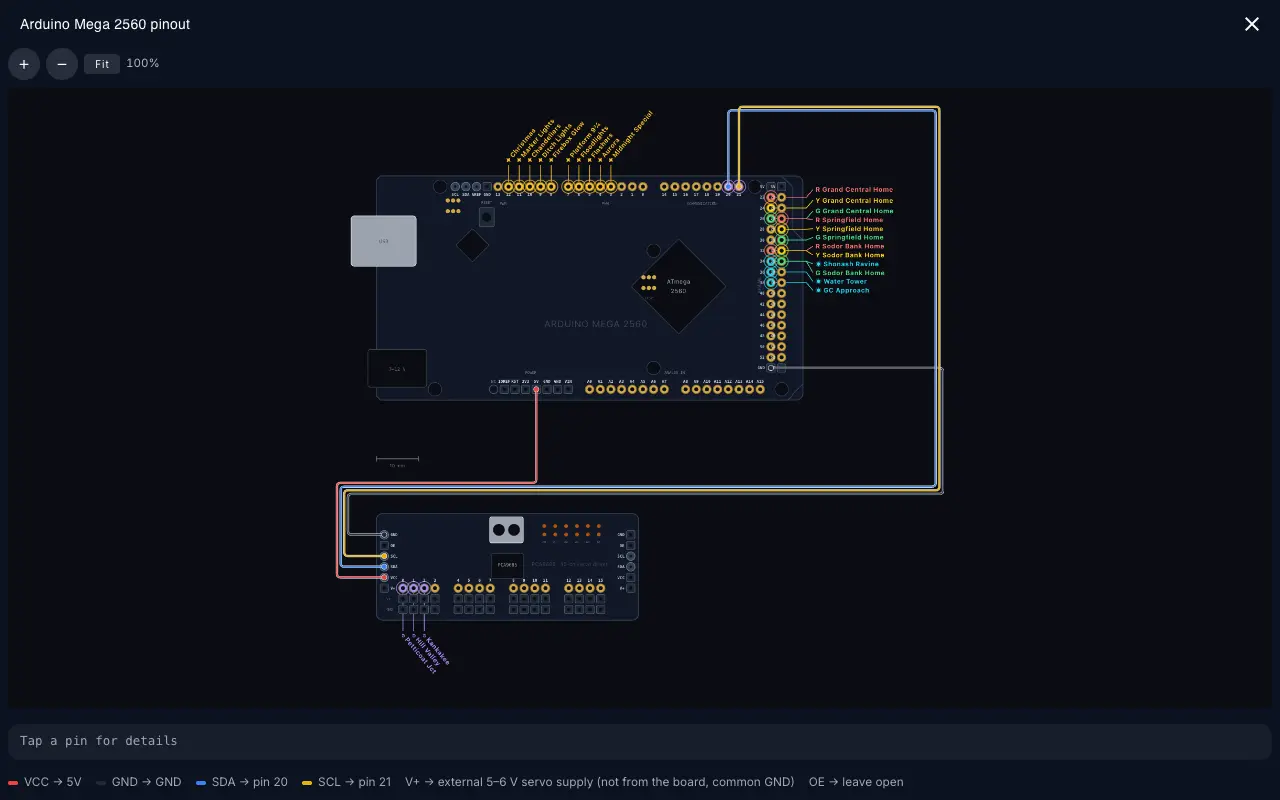
Under IO, Arduino-family devices show a to-scale drawing of the device's board (Arduino Mega 2560, ESP32-DevKitC V4, WEMOS D1 R32, Raspberry Pi Pico W / Pico 2 W, or DCC-EX EX-CSB1) with every assigned pin labelled by its owner, conflicts in red, and reserved / input-only / power pins marked. Drag to pan, pinch or scroll to zoom, tap Expand for fullscreen on a phone, and tap any pin for its roles and caveats. Where the manufacturer's own pinout sheet is openly licensed (Espressif, Raspberry Pi) a Sheet view overlays your assignments on it; List shows the plain pin table. Servo turnouts draw the PCA9685 driver board underneath with each channel's turnout, and the board's I²C pins (firmware default, or your custom pins from Advanced Configuration) are marked so you can see where the driver plugs in. Colour-coded wires run neatly around the board, one lane each, to show exactly which board pins the driver's VCC, GND, SDA and SCL go to, and the list under the drawing spells it out (V+ comes from a separate servo supply).
Developer Configuration
An EX-CSB1's Firmware section shows Build and flash it with DEJA: run deja deploy <id> and DEJA builds DCC-EX with your track outputs and flashes it. A Mega EX-CommandStation links to DCC-EX's EX-Installer instead (the EX-Installer is also the fallback for an EX-CSB1). Either way, the Overview is where you set your track outputs. A booster's Overview tells you when its outputs differ from the last DEJA deploy: Outputs changed since the last deploy — run deja deploy <id> to apply. A DEJA LED or WLED device's Firmware section points to the WLED web installer instead.
Under Firmware, the generated firmware configuration for DEJA Arduino, ESP32, and Pico W devices, with per-file downloads and the exact PlatformIO and Arduino CLI build/upload commands that deja deploy runs. The generated config includes the device ID, feature flags derived from its assigned turnouts and effects, servo PWM constants, output, signal, and sensor pin arrays, and the turnout pulser setup.
Status LEDs
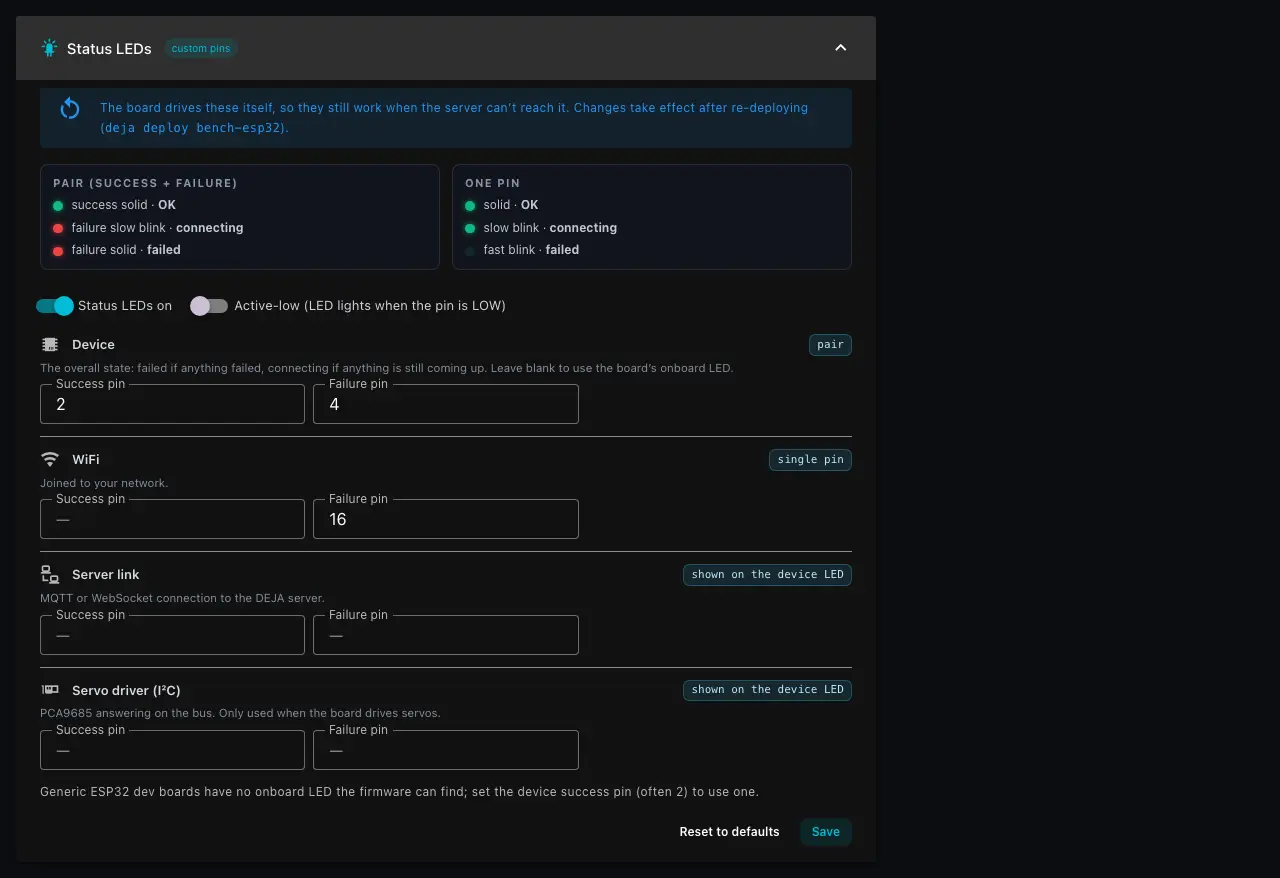
Also under Firmware, Status LEDs sets the LEDs an IO board (DEJA Arduino, ESP32, ESP32 WiFi, Pico W) lights to show its own health. The board drives them itself, so they keep working even when it can't reach the server.
- Device shows the overall state. Leave it blank to use the board's onboard LED on
deja deploybuilds. A browser install leaves the device LED unlit unless you pick a pin (GPIO 2 on an ESP32 DevKit). You can also wire a green success and red failure LED. - WiFi, Server link, Servo driver (I²C) and USB serial rows appear for the boards that have them. Give one its own LED, or leave it blank and it counts toward the device LED.
- With a success and failure pair: green solid is OK, green blinking slowly is connecting, red solid is failed. With one LED: solid is OK, slow blink is connecting, fast blink is failed.
Status pins show on the pinout, and a pin that's also used by an effect, sensor, signal or turnout is flagged in red. Redeploy the firmware to apply changes.
Display
Also under Firmware, Display turns on a small I²C OLED (the 0.96" 128×64 SSD1306 module) an IO board (DEJA Arduino, ESP32, ESP32 WiFi, Pico W) can carry to show its own status. The board draws it itself from the same connecting / OK / failed model as the status LEDs, so it still says "WiFi down" (or "server link down" on a USB board) when the server can't reach it.
- Display on, the panel (one kind for now), a title for the top line (blank shows the device name), the I²C address (3C on most modules, 3D if the strap is bridged) and whether it's mounted upright or upside down.
- Rows -- pick and order up to six: WiFi, Link (MQTT or WebSocket), Servos and, on a USB board, Server (the USB link) show OK / connecting / FAILED like the LEDs; IP, Signal, Host, Up (uptime), ID, Layout, FW and Mem are plain stats. WiFi boards have no Server row; USB boards have no WiFi, Link, IP, Signal or Host rows.
- The preview shows what the panel will say; switch it between OK, Connecting and Failed to see each state.
The display shares SDA/SCL with the servo driver (GPIO 21/22 on an ESP32, pins 20/21 on a Mega, GP0/GP1 on a Pico W), so those pins show on the pinout whenever it's on. A panel that isn't answering shows up on the Overview beside the servo driver. Redeploy the firmware to apply changes.
Deleting a Device
Delete device, in the hero's ⋮ menu, is blocked while the device is still referenced by any turnout, effect, signal, or sensor; unassign those first.
See Arduino & ESP32 Setup, Pico W Setup, and Deploy & Flash for the full firmware walkthroughs.
Activity
Live turnout, effect, signal, and sensor changes, and per-device serial traffic, now live in Console (/console) -- its own item in the main nav, not a button on this page. Console is a tmux-style workspace of split panes: DCC-EX traffic, stats, a per-kind activity log, and one pane per device, which you can split, zoom, and cycle between.
Device Map (preview)
/devices/map draws your layout's real hardware as a live architecture diagram — server, DCC-EX, and every DEJA IO device, wired up with live command traffic and connection health. Tap a device to open its details page. It's a trial view alongside the table on this page, not linked from the main nav yet.
Access-code kiosk
/access-code shows your layout's rotating 3-digit Room Code full-screen with a countdown to the next one — put it on a spare tablet near the layout. Guests type it on the join page when Require Code is on (see Access & Inviting People). Only the layout owner can display it.
WLED Studio
A WLED strip's device page is its studio -- one place to light the strip and to turn parts of it into signals. Layout owners and members get the same controls; guests never reach this page. The strip's LED hardware (count, pins, colour order) stays in WLED's own settings page, one tap away from the studio's ⋮ menu -- DEJA never changes it.
Looks
A look is a saved animation for the whole strip: brightness, transition time, and one or more bands (WLED segments), each with a colour or an effect. The looks bar holds every look saved on the strip; tap one to put it on the strip. Every strip starts with two: Warm white (the whole strip, warm white) and Signals only (the strip dark, so only signal zones show).
Everything you change goes to the strip as you change it, so you judge it on the layout, not in a preview. Once the active look has edits the bar says Edited · unsaved and shows Save; Save as… keeps the edits as a new look, and the bar's ⋮ menu renames or deletes the active look. Leave the page without saving and the strip returns to the saved look. The studio's own ⋮ menu has Pull look from strip -- it reads whatever the strip is showing right now (handy after using WLED's own app); Use pulled look then loads it into the draft, and Save or Save as… keeps it -- and WLED settings.
The strip map
The map is the canvas: an LED ruler, a live ribbon -- one dot per LED, mirroring the strip -- and a lane of bands. Look bands sit underneath; signal zones sit on top, because that's the order the strip draws them. Tap a band to select it; drag its handles (or use the arrow keys -- Shift moves 10 LEDs, Home/End jump to the ends) to move its edges; double-tap an empty stretch of the lane to add a band there. The band list beside the map lists the same bands with their LED ranges, and + Add band offers a Colour or animation band or a Signal zone.
Bands
A selected look band opens the inspector with two tabs:
- Colour -- eight railroad swatches (Warm white, Daylight, Red, Amber, Green, Blue, Sodium, Off), a warmth fader from candle to daylight, your device's own colour picker, and the band's brightness.
- Animate -- the effects a strip like yours can actually show, with the railroad picks first (Candle, Fire Flicker, Twinkle, Lightning, Rain, Sunrise, Railway, Traffic Light, Lighthouse, Aurora…) and a search over the rest; each effect's own sliders under their real names, only the colour slots it uses, palettes, and reverse/mirror.
Signal zones
A zone turns a stretch of the strip into a signal head -- an overhead signal bridge across a yard, say, with one zone per track. A zone is a DEJA signal: it appears under Signals like any other, so sensors, routes and automations drive it the same way; the studio just lets you set its aspect by hand. Add one with + Add band → Signal zone, give it a name (Track 2), its first LED and a length, and pick its head style:
- Searchlight -- the whole zone glows the aspect colour.
- Lamps (3 LEDs) -- one LED per aspect, red / yellow / green in LED order, like a three-lamp head.
Selecting a zone shows its aspect as words -- Stop, Approach, Clear, Off -- a flashing toggle (60 per minute), its head style and range, Open in Signals for the rest of the signal's settings, and Remove zone. Lamp colours are shared by every zone on the strip, so a yard's signals all use the same red. Zones keep showing on top of whichever look is active -- pick Signals only when nothing but the signals should be lit.
Effects › WLED
During a session the same studio runs in a compact form on the Effects page's WLED tab -- power, brightness, looks, the map, band chips and the selected band's quick controls -- with Open studio › back to this page.
Serial Ports
The serial ports your DEJA Server detects are listed under Settings → Layout → USB Ports — handy for finding which port your EX-CommandStation is on (e.g. /dev/ttyACM0, /dev/ttyUSB0, or COM3 on Windows). They update automatically when the server sees a USB device plugged in or removed.
Troubleshooting
- No ports available -- Make sure your EX-CommandStation is plugged in via USB and the DEJA Server is running. Re-scan the ports and try again.
- Connection drops -- Check USB cable quality. The server will auto-reconnect on brief interruptions.
- Is my IO board OK? -- Look at its status LED: solid means connected, slow blink means still connecting, fast blink (or the red LED solid) means something failed. Give WiFi or the server link their own LEDs under Firmware → Status LEDs to see which part.
- Multiple devices -- Each device connects independently. You can have a DCC-EX EX-CommandStation and IO boards connected simultaneously.
Related Pages
- Connect -- My Layouts, joining, and sign-in.
- DCC-EX Console -- Send commands once connected.
- Deploy & Flash --
deja deploybuilds and flashes a device from this configuration. - Server Troubleshooting -- When the server band stays offline.