🚀 Getting Started with Throttle
The Throttle app is your command center for running trains, throwing turnouts, firing routes, and triggering effects — all from a browser on any device. This guide walks you through a typical first session from launch to full operation.
Prerequisites: Make sure you've finished Onboarding and installed the DEJA Server before continuing.
🔌 Connect
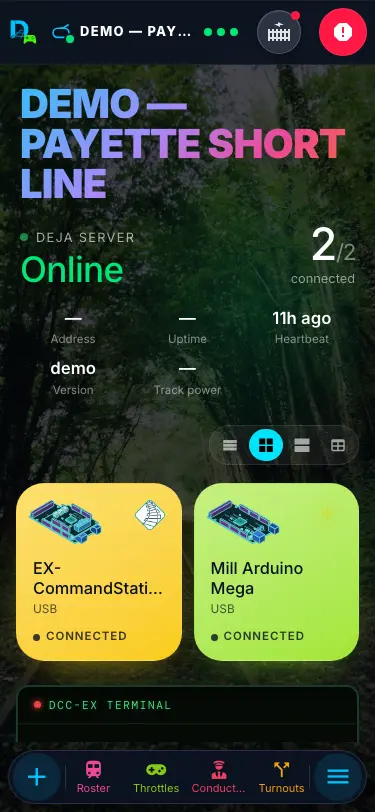
Open the Throttle app and sign in, or tap Try Demo to explore a shared demo layout. Select your layout from the picker — the app remembers your choice for next time.
Once connected, the header shows a green status indicator. For more details, see Connection Setup.
The first time you land on Home, Throttle offers a short guided tour of the app shell and a throttle cab — a quick alternative to this guide. Skip it, take it, or replay it later from Settings → App → Take the tour.
➕ Add a Locomotive
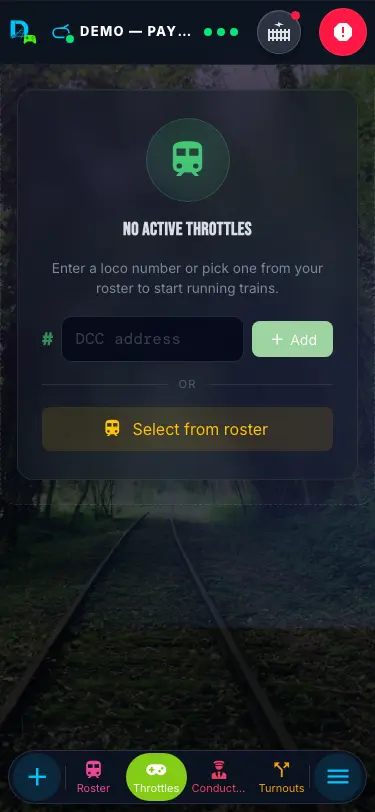
On the Throttles page, the No active throttles card brings your first locomotive into the session — either type its DCC address and tap Add, or tap Select from roster. After that, tap + Loco on the bottom bar, or the Drive button on any Roster tile.
The locomotive is added to your active throttle list and ready to control. See Roster for more on managing your locomotive collection.
🚂 Select a Locomotive
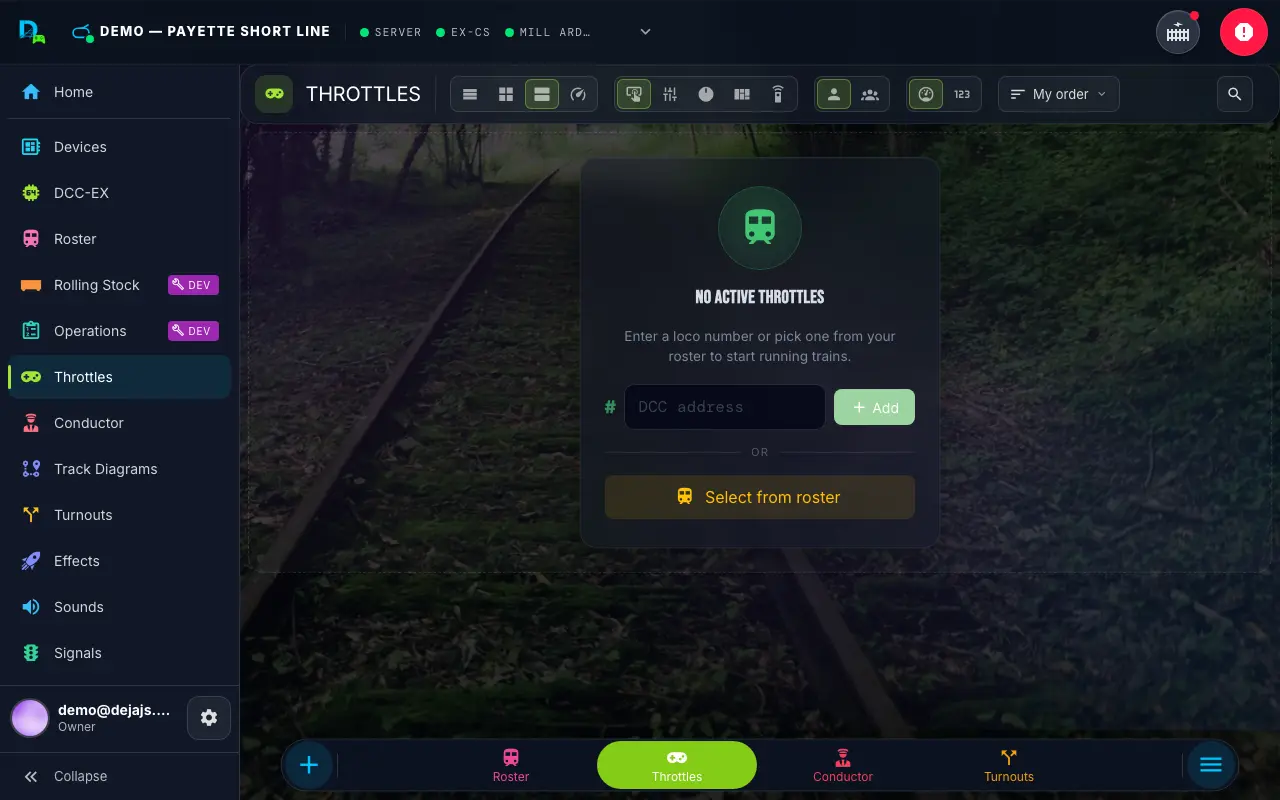
The Throttles page shows all active locomotives as cards. Tap a card's number plate to open its full throttle controls.
You can drag to reorder cards or swipe between locomotives. Learn more at Throttles.
🎚️ Control Speed & Direction
Use the speed controls to set your locomotive's speed and direction. Pick your preferred control style — buttons, a slider, an arc dial, a skeuomorphic dashboard, or a ProtoThrottle-style lever faceplate — from the Control segment at the top of the Throttles or Conductor page (on phones, the Control dropdown in the page header). Doing yard work? Tap 🔀 Switcher in the cab toolbar for a spring-return control that stops the moment you let go.
The emergency stop button in the header halts all locomotives instantly. For the full control reference, see Throttle Control.
🔊 Use Functions
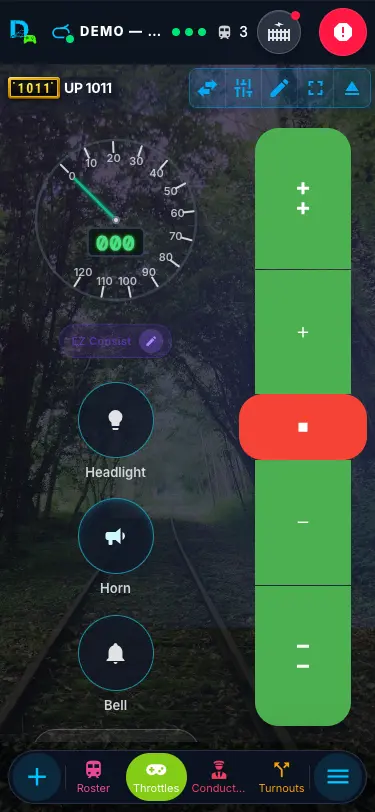
The function pad sits beside the speed controls — headlight, bell, horn, and your pinned decoder functions (F0–F31). On a phone it starts with Light · Horn · Bell; tap More functions (or All on a larger screen) for everything else. Locos without onboard sound get magenta system sound keys too, played on your layout — see Sounds — Sound Profiles.
Functions toggle on and off individually. The available functions depend on your locomotive's decoder — configure them once in the loco editor (or let 🤖 DejaBot Identify suggest a full mapping from a photo) and they sync everywhere. See Throttle Control — Function Mapping for details.
🔀 Throw Turnouts
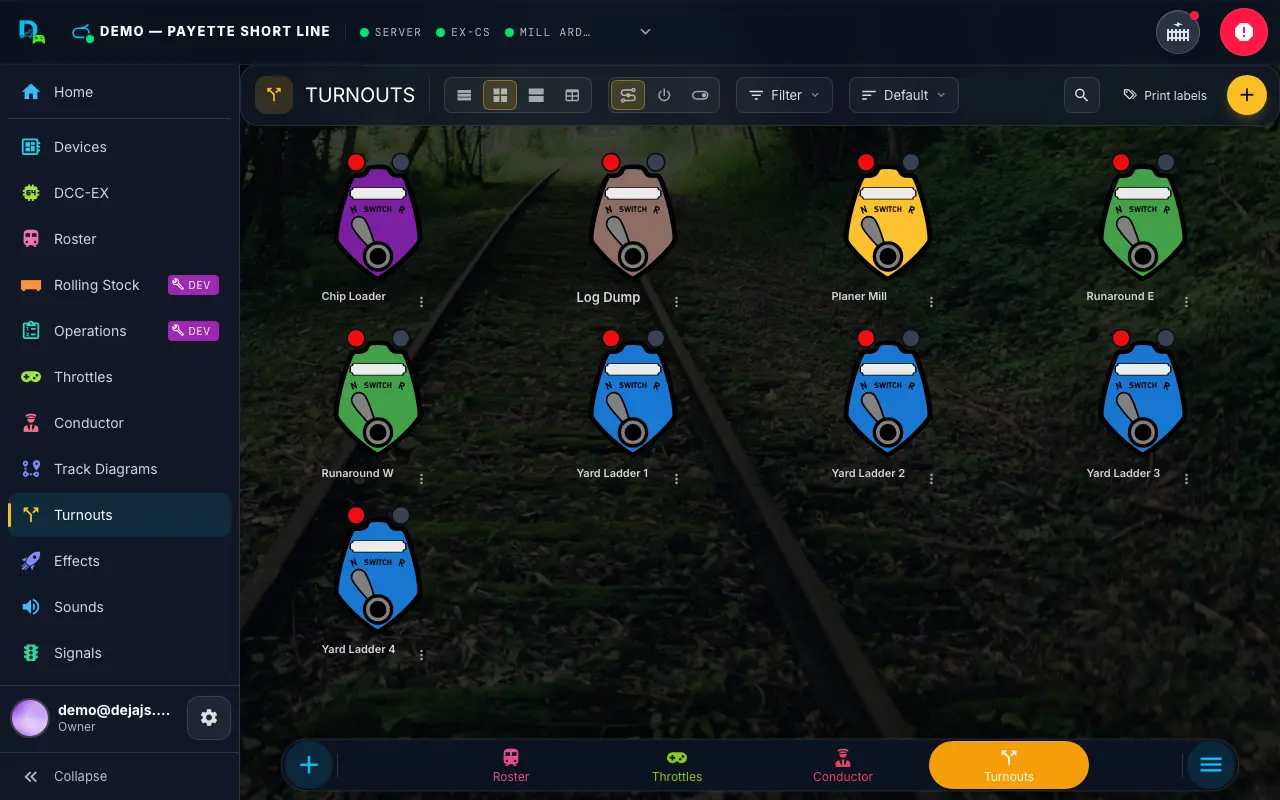
Navigate to the Turnouts page to throw and close track switches. Each turnout shows its current state with a color-coded indicator.
Tap a turnout to toggle it. Changes are sent to the EX-CommandStation in real time. See Turnouts for the full reference.
🛤️ Fire a Route
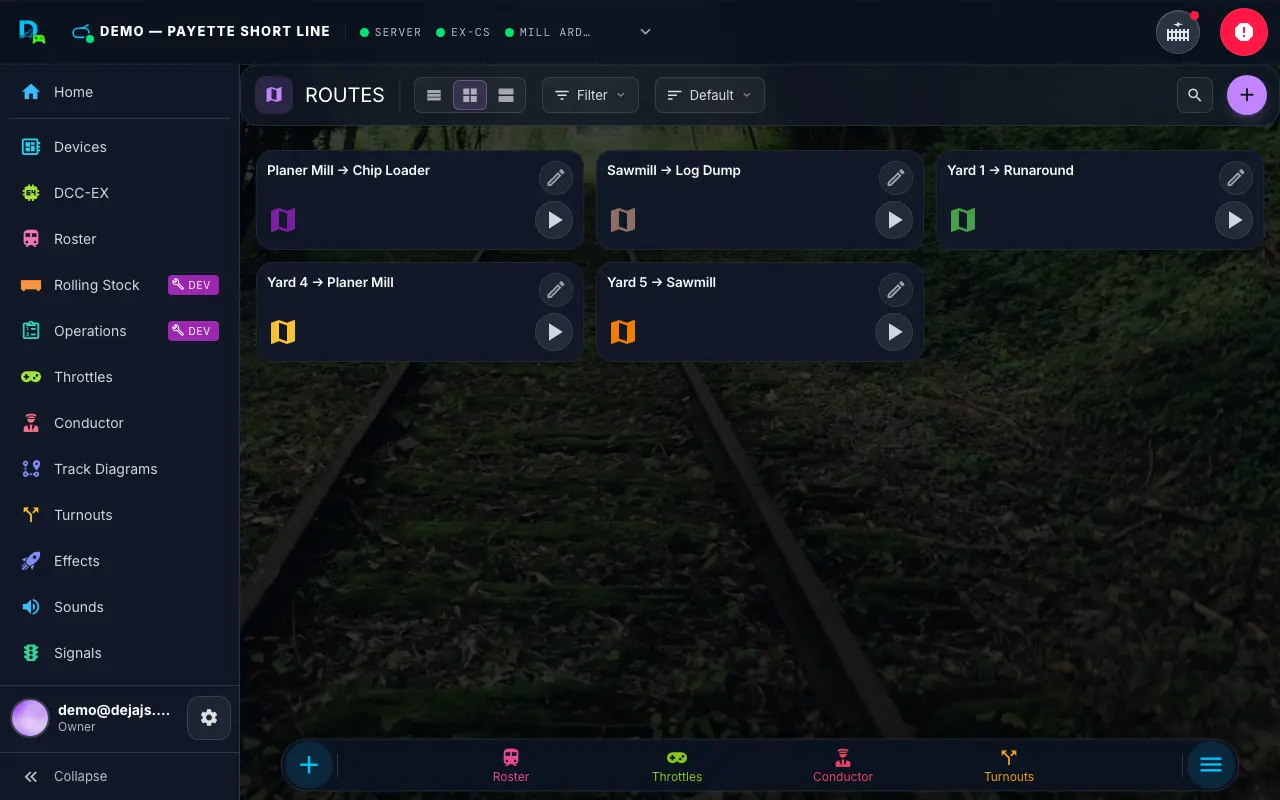
Routes let you throw multiple turnouts in sequence with a single tap. Open the Routes page and tap a route to execute it.
A progress bar shows the sequence as each turnout fires. See Routes for more on route configuration and execution.
✨ Try Effects
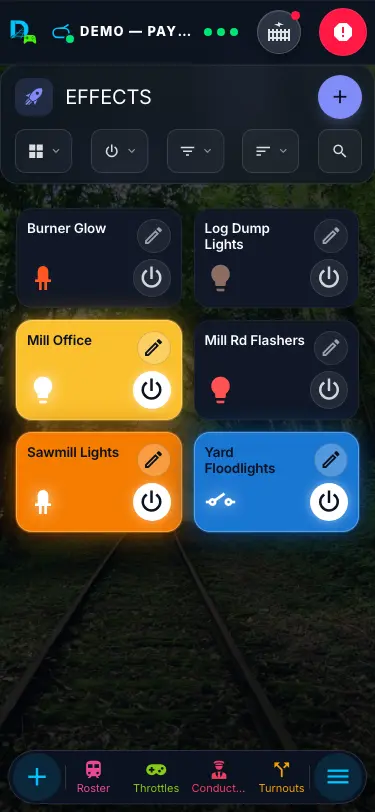
The Effects page gives you control over LED lighting and relays on the Effects tab and your WLED strips on the WLED tab. Toggle an effect card or tap a look to trigger it on your layout. Sounds have their own page in the menu — see Sounds.
Effects and WLED looks are configured in Throttle's editors and controlled here during sessions. See Effects for the full breakdown of both tabs.
🗺️ What's Next?
You've got the basics down. Here's where to go from here:
- Conductor Mode — a three-pane layout for full-station operation on large screens
- Track Diagram — an interactive, pan-and-zoom diagram of your layout with live turnout and signal state, at
/track-diagrams - Signals — monitor and control signal aspects across your layout
- Settings — customize the footer bar, switch themes, and configure app preferences
- Home Screen — layout status, active-throttle speedometers, and quick navigation at a glance
- Access — invite others to your layout with a QR code, room code, or invite link
- Install Throttle as an app — add it to your phone's home screen from the card on Home or Settings → App
That's it — you're running trains. 🎉