Effects
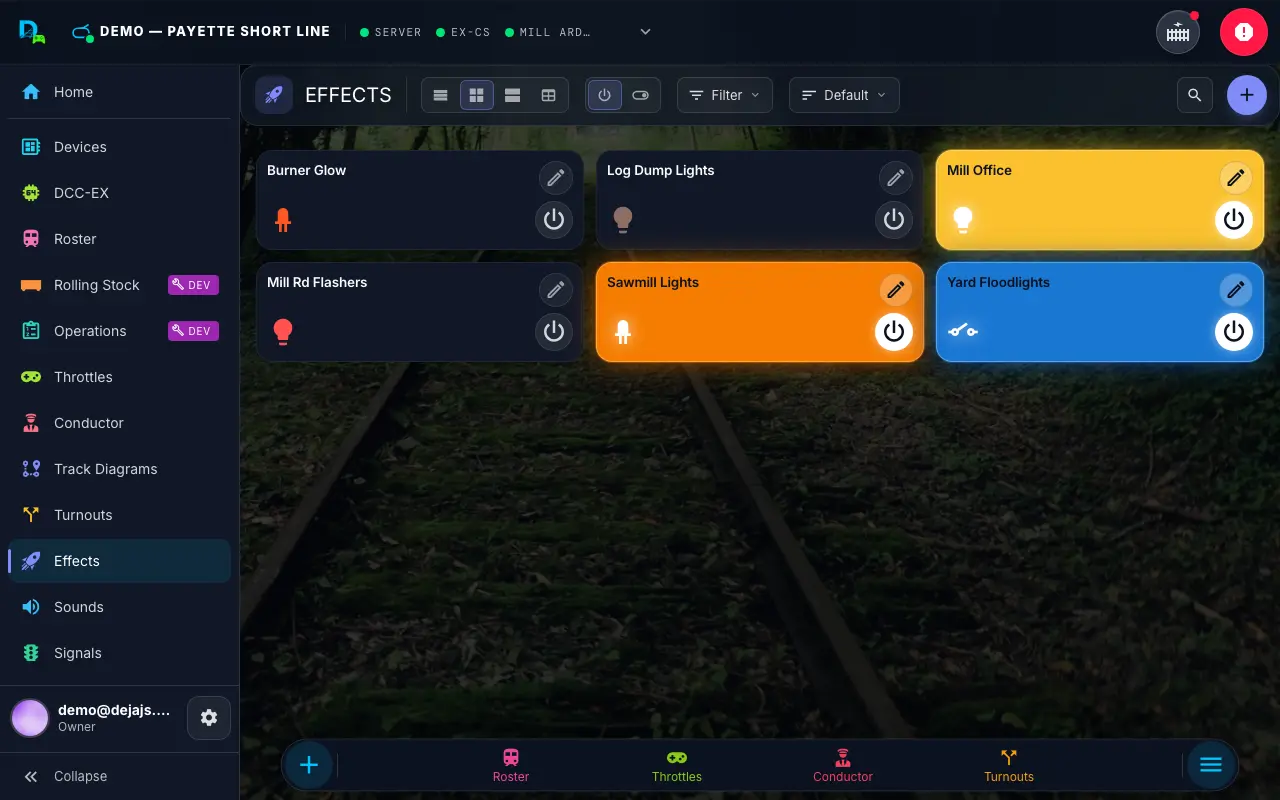
The Effects screen (/effects) is where you bring your layout to life during a session. It's split into two tabs -- Effects and WLED -- each shown only when there's something to display. Layout owners also create and edit effects here; WLED looks and signal zones are saved on each WLED strip, whose full studio lives on its device page under Devices. The sound library has its own page: Sounds.
Tabs
| Tab | Visible when | Content |
|---|---|---|
| Effects | Always | Pin-toggle effects — lights, LEDs, street lights, relays, frog juicers, power, and generic pins |
| WLED | The layout has at least one WLED strip and you're its owner or a member | One card per strip: the compact WLED studio — power, brightness, looks, the strip map, band chips and the selected band's quick controls |
[!NOTE] Owners and layout members get the same WLED controls — someone who joined through the QR/room-code join flow can change a strip's looks and signal zones just like the owner. This is about Throttle members, not Guest Mode visitors, who play in a separate account-less guest app and never see the WLED tab.
Effects Tab
Effect Types
DEJA supports seven categories of pin-toggle effects, each with a distinct icon and color in the UI:
| Type | Icon | Description |
|---|---|---|
| Light | Lightbulb | Simple on/off light control via a specific pin on a connected device. |
| LED | LED | Individual LED control, similar to Light but specifically for LED indicators. |
| Street Light | Post lamp | Street light or scenery lamp control via a device pin. |
| Relay | Electric switch | Relay module control for switching external circuits. |
| Frog Juicer | Blender | Frog juicer (auto-reversing module) control for track polarity management. |
| Power | Power | Power control for layout sections or accessories. |
| PIN | Pin | Raw digital pin control on a connected device (Arduino, ESP32, or Pico W). |
Every effect type needs a device and a pin -- the form fields are the same for all seven; only the icon and label differ.
Effect Cards
Each effect is rendered as a tonal card that displays:
- Icon and name in the card title, using the icon for the effect's type.
- Effect name repeated in the card body for clarity.
- Metadata chips showing:
- The target device (e.g.,
deja-arduino-01). - The effect type (e.g., Light, Relay, PIN).
- Any assigned tags for categorization.
- A "guest" chip if the effect is also exposed to visitors in Guest Mode.
- The target device (e.g.,
- Toggle switch in the card actions area to turn the effect on or off. The switch is disabled and shows a loading indicator while the effect is being executed.
The card color follows the effect's configured color, or falls back to the primary theme color.
Two segments in the page header's toolbar change the layout (on phones, each becomes its own dropdown): View picks List, Compact (the default), Comfy, or Table (a dense tabular listing), and Control picks a Button or a Switch for each effect.
Filtering and Organization
The Effects tab supports three filter dimensions accessible from a filter menu:
- Device -- filter by the hardware device that executes the effect.
- Type -- filter by effect category (Light, LED, Relay, PIN, etc.).
- Tags -- filter by user-defined tags configured at the layout level.
Effects are displayed in a responsive grid that adjusts column count based on screen width:
| Screen Size | Columns |
|---|---|
| Extra small | 1 |
| Small | 2 |
| Medium | 3 |
| Large | 3 |
| Extra large | 4 |
| Extra extra large | 6 |
Empty State
The Effects tab always shows -- even with zero effects configured, it displays an empty state with a magic wand icon prompting you to create your first effect.
Guest Effects
Effects with the allowGuest flag set to true can be switched by visitors in Guest Mode (/guest/effects) — no account needed there. The toggle only appears on the effect form when guest mode is turned on for the layout, and track power and frog-juicer effects are never eligible.
Creating an Effect
Layout owners tap the round + in the page header on the Effects tab (or go to /effects/new).
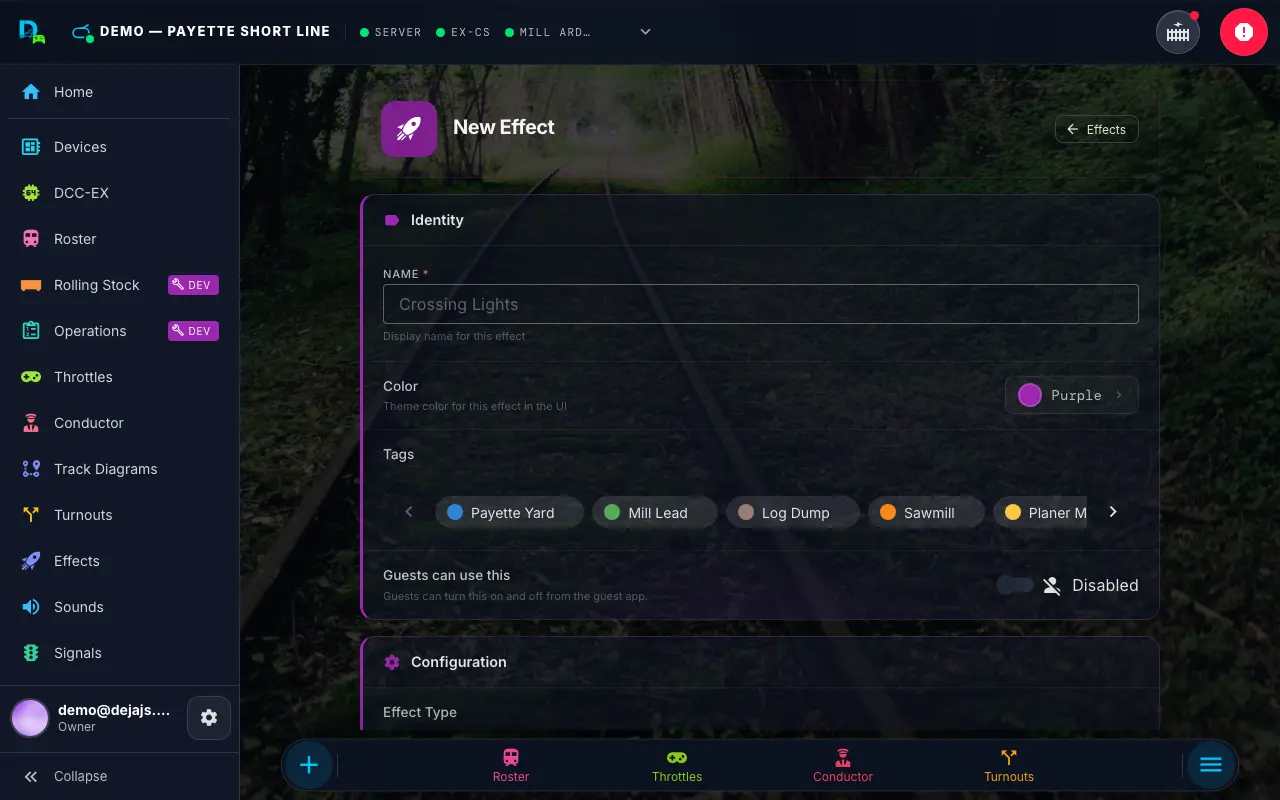
The form has two cards: Identity first, then Configuration.
Identity
- Name (required) -- A display name for the effect.
- Color -- Pick a display color from the colour picker — presets, your layout's tag colours, saved custom colours, or Custom (your device's own colour picker plus a hex field; a colour you use is saved as a swatch for the layout).
- Tags -- Assign tags for filtering and organization.
- Guests can use this -- Shown only when guest mode is on for the layout (and the effect type is guest-eligible — not track power or a frog juicer). Lets guests turn the effect on and off from the guest app; see Guest Mode.
Configuration
- Effect Type -- A grid of all seven types: Light, LED, Street Light, Relay, Frog Juicer, Power, and PIN. Pick the type that matches your hardware. The type can only be chosen when creating an effect.
- Device -- Every device registered on your layout, as toggle buttons. Select the device that controls this effect.
- Pin -- The output pin number on the connected device (Arduino, ESP32, or Pico W).
Click Save to create the effect, or Cancel to discard it.
Editing an Effect
Tap the ✏️ pencil on an effect card (or long-press it) to open /effects/:effectId/edit. The form shows the same fields, pre-populated; the effect type is locked and shown as a chip at the top. Click Save to keep your changes. Delete sits at the bottom of the edit page and asks you to confirm inline before removing the effect.
WLED Tab
The WLED tab shows one card per WLED strip registered on your layout, each running the WLED studio in its compact form — the same studio as the strip's device page, trimmed for a session:
- Power and Brightness at the top, with the strip's LED count and whether it's online.
- Looks as chips -- tap one to put it on the strip. A look is a saved animation for the whole strip: brightness, transition and one or more bands.
- The strip map -- a live ribbon (one dot per LED, mirroring what the strip shows) over a lane of bands: look bands underneath, signal zones on top.
- Band chips, and for the selected band its quick controls: the railroad colour swatches and band brightness for a look band, or the four aspect buttons -- Stop, Approach, Clear, Off -- for a signal zone.
Every change reaches the strip as you make it. Once the active look has edits the card says Edited · unsaved and shows Save; leave without saving and the strip goes back to the saved look. Open studio › takes you to the device page for the full studio -- animations, zone editing, lamp colours -- described under WLED Studio.
Related Pages
- Sounds -- The sound library (now its own page), sound profiles, and guest sounds.
- Devices -- Assign effects to devices; the full WLED Studio for looks and signal zones.
- Turnouts -- Link effects (like a frog juicer) to turnout actions.
- Signals -- Signal heads, which work like multi-pin effects.
- Sensors -- Trigger effects automatically from sensors and automations.