
Connect an Arduino over USB for wired reliability, or a Pico W over WiFi for wireless flexibility. Configure everything in Throttle's editors, then control it all from the same Throttle — no code required.
No code to write.
DEJA IO includes the firmware that runs on your boards. It's built from your own configuration and deployed straight from the Throttle app.
- 1. Plug inAn Arduino Mega, ESP32 or Pico W, over USB.
- 2. AttachYour LEDs, servos, signals, relays and sensors.
- 3. ConfigurePick devices and pins in Throttle — no sketches to write.
- 4. DeployFrom your browser (ESP32, Mega) or one deja deploy. Nothing extra to download.
Transparent, configurable and flexible: the firmware ships as readable source, and changing a pin is a redeploy, not a rewrite.
Before you start: complete the Getting Started guide — your server should be running and your EX-CommandStation connected.
How It Works
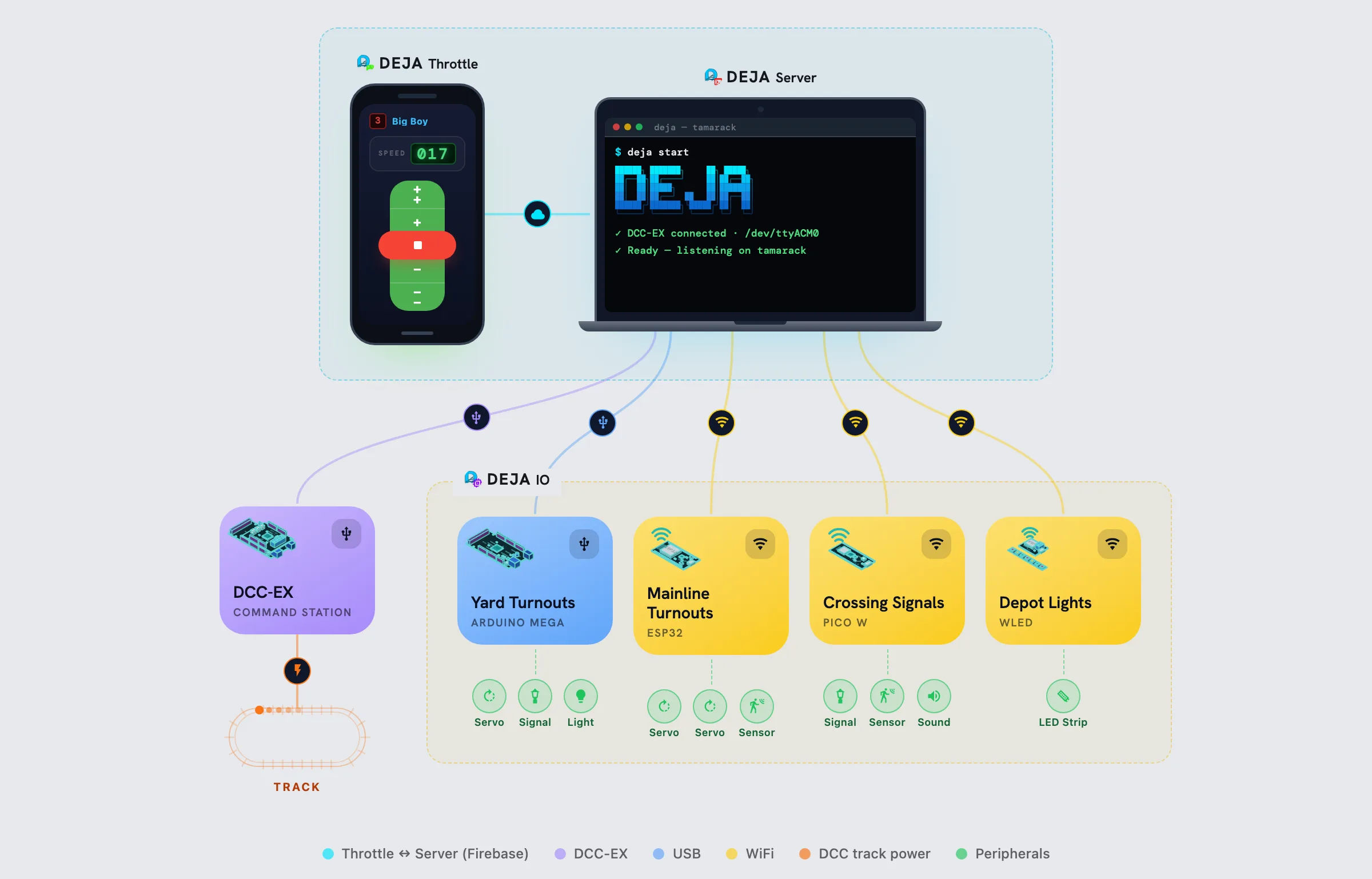
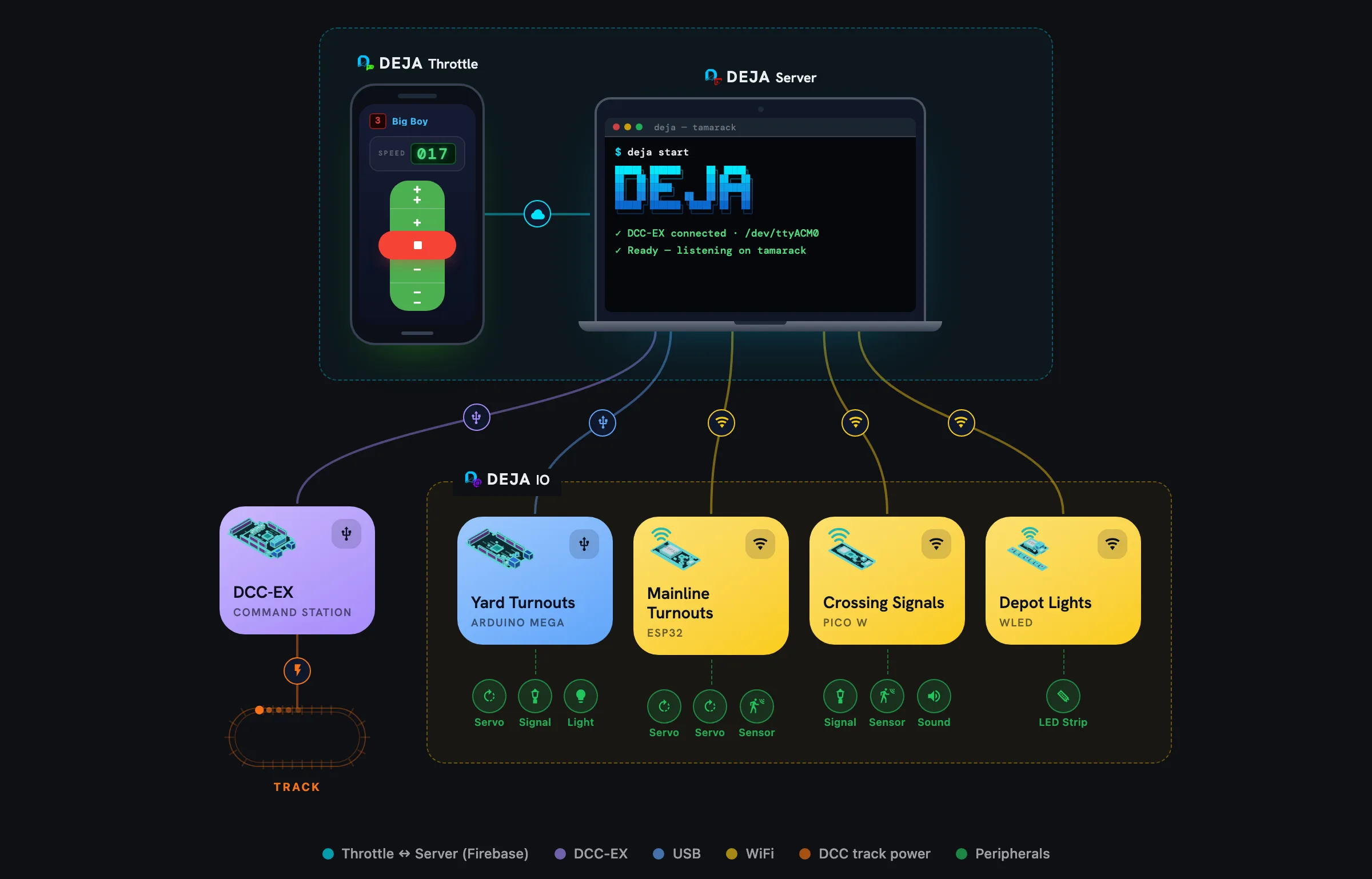
DEJA connects your browser to your layout hardware through three communication protocols — each optimized for different setups. This is the same diagram engine used in the Architecture Guidedocs, so it always matches the platform's real topology.
Choose Your Protocol
Serial USB
Direct & reliable
- Device
- Arduino
- Link
- USB cable to server
- Speed
- Lowest latency
MQTT over WiFi
Wireless & scalable
- Device
- Pico W
- Link
- WiFi to MQTT broker
- Speed
- Low latency
WebSocket
Real-time & flexible
- Device
- Any networked device
- Link
- TCP port 8082
- Speed
- Persistent connection
Ready-Made Devices
Arduino
Serial USB · Wired
ESP32
Serial USB or WiFi MQTT
Pico W
MQTT WiFi · Wireless
WLED
Addressable LED strips
Flash any ESP board with WLED firmware, connect it to a strip, and register it as a device in Throttle. Its studio lights the strip live — colours, animations, saved looks — and turns stretches of it into signal zones; the Throttle app's WLED tab runs the same studio during a session.
WLED StudiodocsBuild Your Own
DEJA uses open protocols — any device that speaks Serial, MQTT, or WebSocket can join your layout. Send JSON commands and you're in.
Custom Device GuidedocsSound effects don't need a board at all — upload files to the sound library and they play back through your DEJA Server's own speakers, triggered instantly from any Throttle. See Soundsdocs.
Register a Device, Then Wire It Up
Everything below happens in Throttle. Register the device once, then assign as many turnouts, effects, and sensors to it as it has pins for.
Step 1: Add the Device
Open
Devicesdocs and click Add. Give it a Device ID (e.g. yard-board-1), then pick its Device Type — deja-arduino or deja-esp32 for USB, or deja-esp32-wifi/deja-mqtt for wireless. Connection (USB or WiFi/MQTT) is auto-filled from the type; for wireless devices, add the WiFi SSID/password and MQTT broker — they get baked into the firmware when you deploy.
Step 2: Add an Effect
Open Effectsdocs and click Add. Pick the device you just registered, then pick an effect type (Light, LED, Relay, etc.). Set a Name and the output Pin on that device — a color and tags are optional.
Step 3: Add a Sensor
Open Sensorsdocs and click Add. Set a Name, Index, and input Pin, then pick the same device and its Sensor Type (Digital/Analog) and Input Type (Infrared, reed, etc.). Optionally link it directly to the effect from step 2 — the effect fires automatically whenever the sensor activates.
Step 4: Add a Turnout
Open Turnoutsdocs and click Add. Set a Name and its DCC Index, then the Straight and Divergent position values (servo angle or pin state). Pick the Type (Kato or Servo) and the same device — the turnout now shows up on that device's details page alongside the effect and sensor.
Everything you just added is what deja deploy reads to generate the device's firmware config — see
Device Detailsdocs to view them all in one place, or jump straight to the deploy flow below.
Configure once, deploy to any device
Plug in a new device and it's auto-detected by the server. Configure pins, servos, and outputs in Throttle, then deploy with a single command — no re-flashing, no code changes.
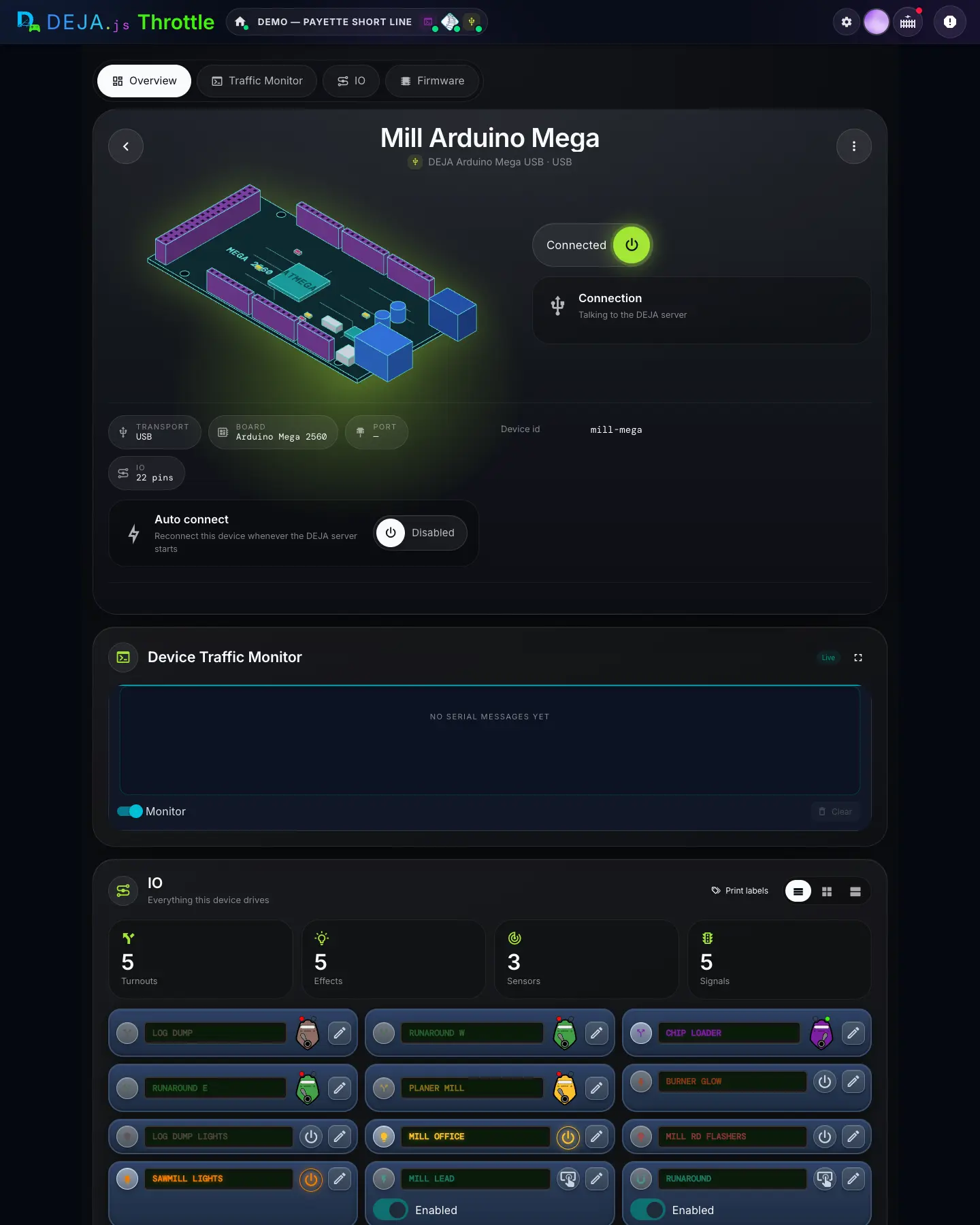
Every registered device gets a details page — pinout, assigned turnouts, effects, signals, and sensors, plus the exact deploy command for that device.
From your terminal, one command reads a device's live configuration from DEJA Cloud, generates the right firmware config, and flashes the board:
deja deploy- Pick the layout from your DEJA account
- Pick a registered device (auto-filtered to flashable types)
- Enter WiFi/MQTT credentials — only for wireless devices
- Config is generated from that device's turnouts, effects, sensors, and signals
- The board is compiled (or copied, for Pico W) and flashed