Before you start: complete the Getting Started guide — your server should be running and your EX-CommandStation connected.
Find your way around.
Two bars on every page: the header for status and safety, the dock for getting around.
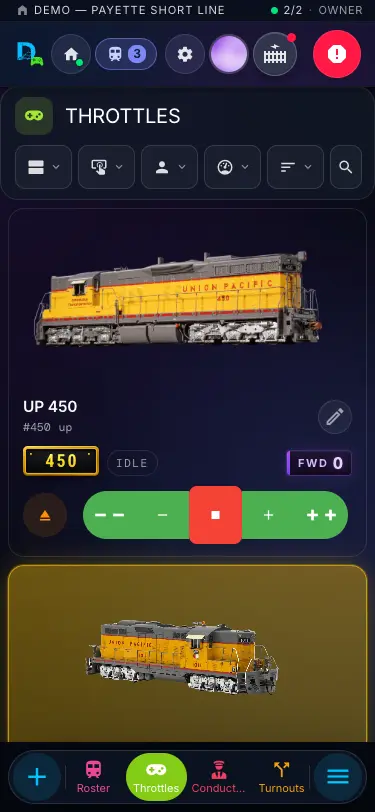
Logo
Back to Home.
Layout status
Your layout, server and devices at a glance. Tap for the device list, or Disconnect to switch layouts.
Active cabs
Shows while you hold a loco. Tap for a mini throttle on any page.
Settings
The Settings page.
Profile
Your account, and Sign out.
Track Power
Power to the rails. Green when it’s on; the dot shows what the EX-CommandStation reports.
Emergency Stop
Stops every train — and stops and pauses running automations.
+ Loco
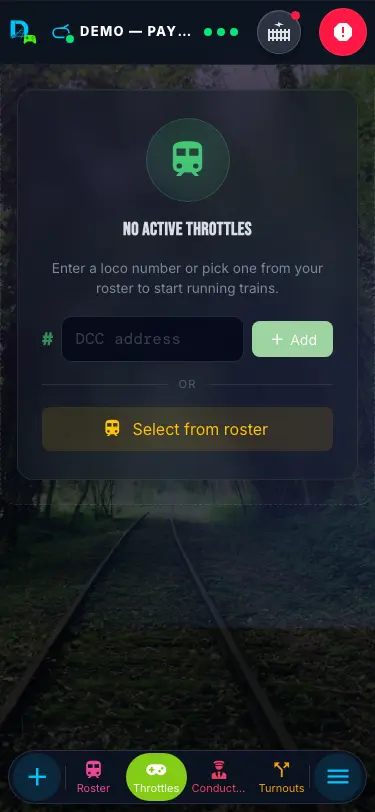
Take a loco from your roster, or type any address, and drive.
Your pages
Roster, Throttles, Conductor and Turnouts to start. Pin your own.
Menu
Every page in a list, plus search. Swipe up on the dock to open it too.
On a phone, a thin bar above the header names your layout and its health — tap it to go Home.
The Menu.
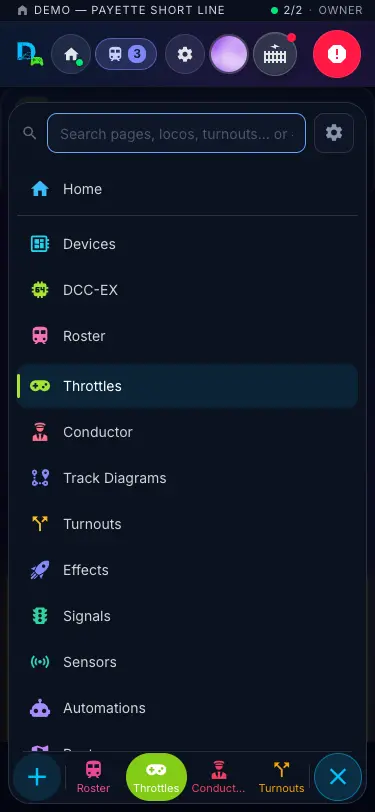
Every page, in one list, with a search box that finds pages, locos and turnouts — or type #42 to jump to a loco. The ⚙ beside it holds this page's settings, the theme, and On your bar: tap chips to pin the pages you want on the dock.
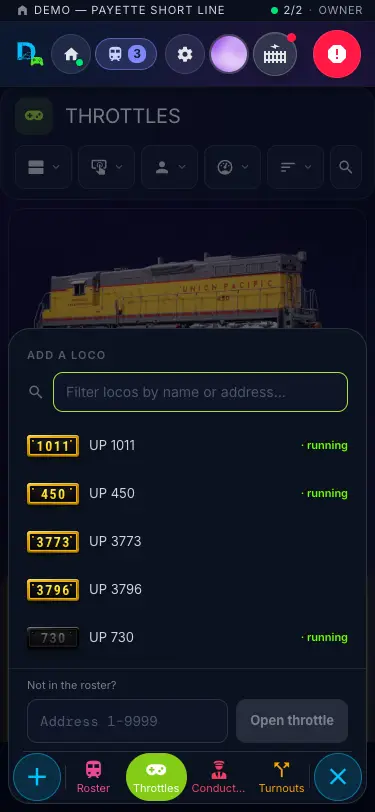
+ Loco lists your roster — running locos are marked — and has an address box for anything that isn't in it yet. Tap one and you're driving.
On a keyboard: ⌘K (Ctrl+K) opens the search, Esc closes it, and g then a letter jumps to a page — g r Roster, g t Throttles, g c Conductor.
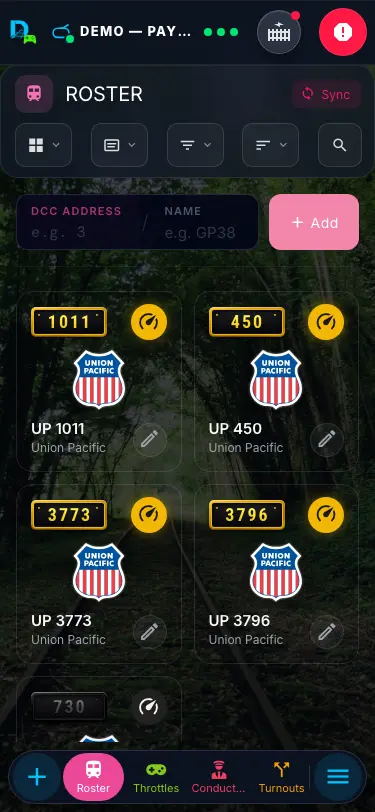
Your roster
Add a loco from + Loco on the dock or the quick-add bar on the Roster: a DCC address and a name is all it takes. Drive on any tile opens its cab.
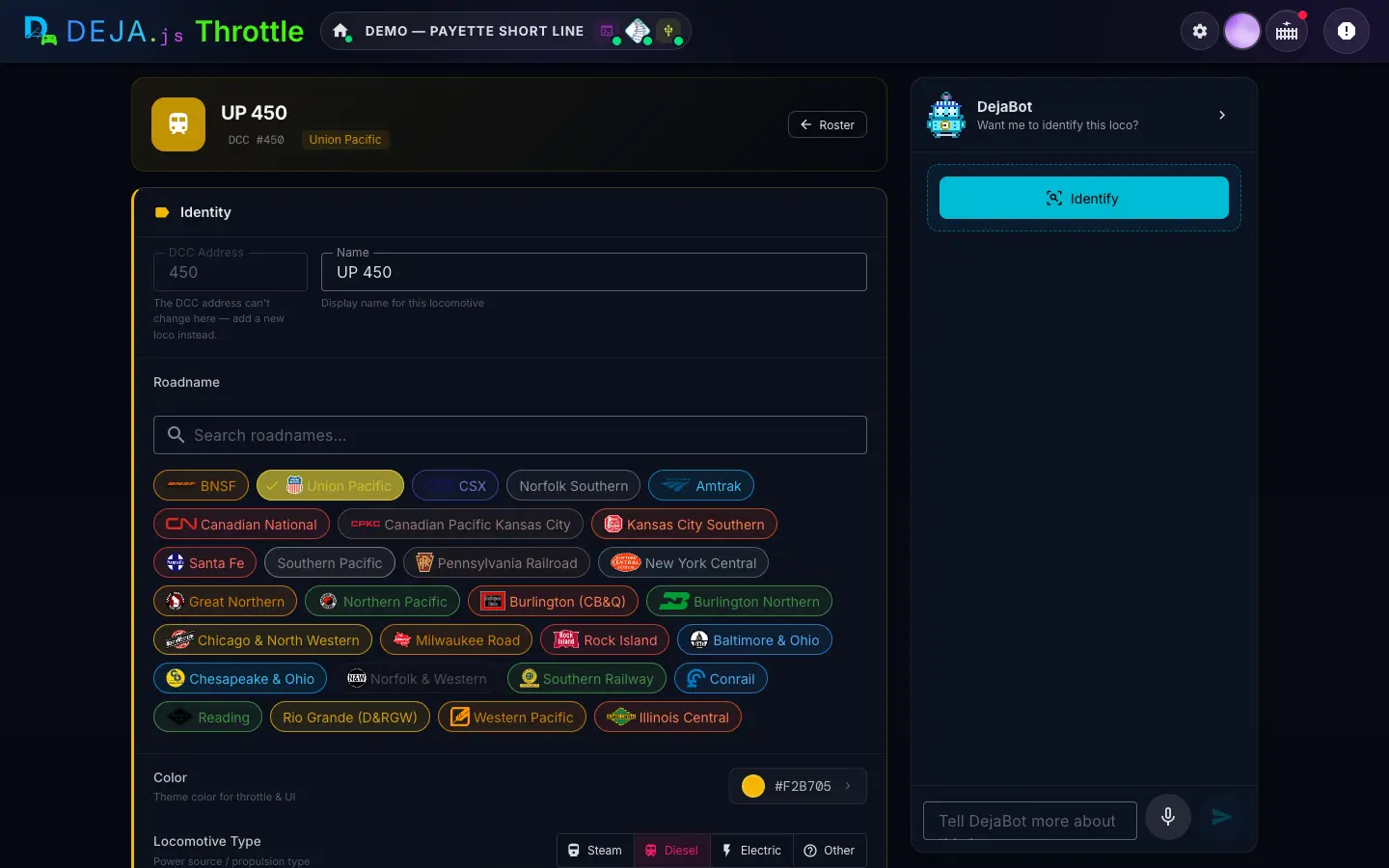
Meet DejaBot.
The AI built into Throttle. Snap a photo of a loco — or just describe it — and DejaBot fills in your roster and maps its functions for you. You approve every suggestion.
- Identify a loco
- From a photo or a few words, it suggests the address, name, roadname, colour and details.
- Map every function
- A full F0–F31 map for the decoder. It asks whether the loco has onboard sound to get it right.
- You stay in charge
- Suggestions appear right in the fields — tap ✓ to keep, ✕ to drop, or Accept all. Nothing saves until you do.
- Talk it through
- Not quite right? Tell DejaBot more by typing or with the microphone, or tap one of its follow-up questions.
- From the throttle too
- In the function editor, Identify maps a sound decoder’s F0–F31 as edits for you to review.
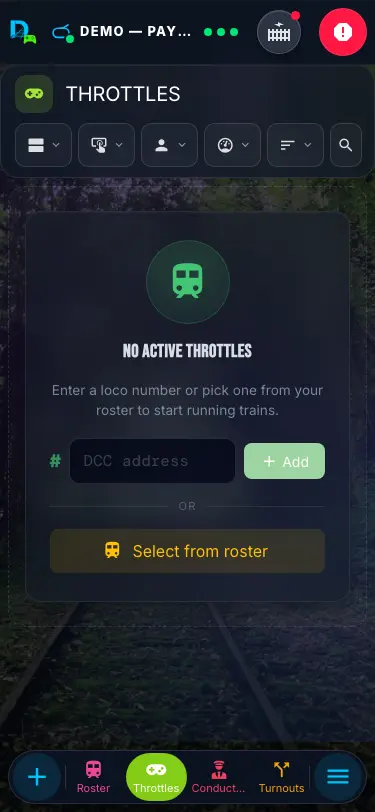
Your Throttles page
Every loco you're driving, as cards. Tap one to open its cab, or drive right from the card.
Five ways to drive.
Pick a style from the Control switch at the top of the Throttles or Conductor page. It applies to every loco, and every style keeps the same speedometer, function dial and consist badge. Next to it, Display picks an analog dial or a digital readout.
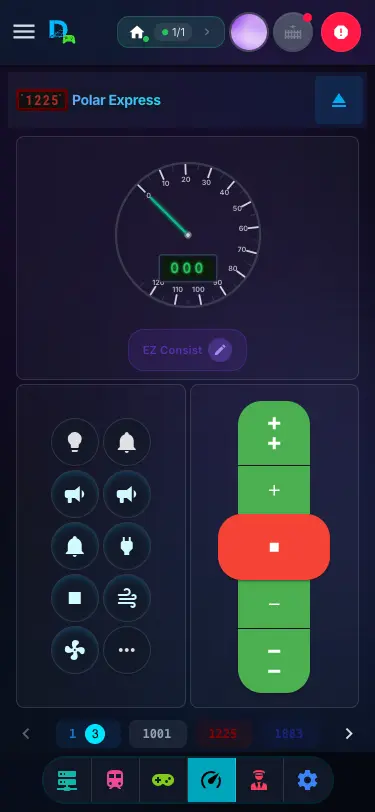
Buttons
The default. Five big buttons: +5, +1, a red Stop, −1, −5. They glow when pressed and buzz on phones that can.
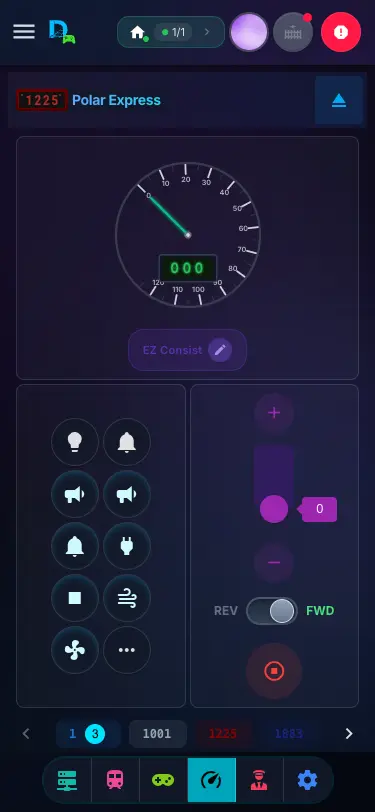
Slider
A vertical slider from 0 to 126 with + and − at the ends, a REV / FWD lever and a stop button.
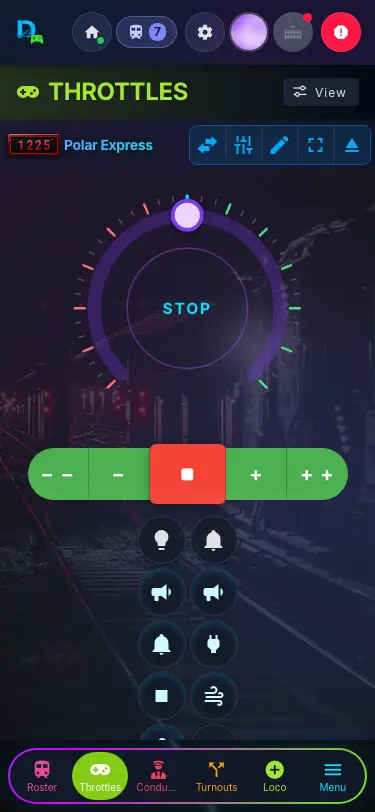
Dial
Turn clockwise for forward, counter-clockwise for reverse. Drag the handle; it never jumps, and stays where you leave it.
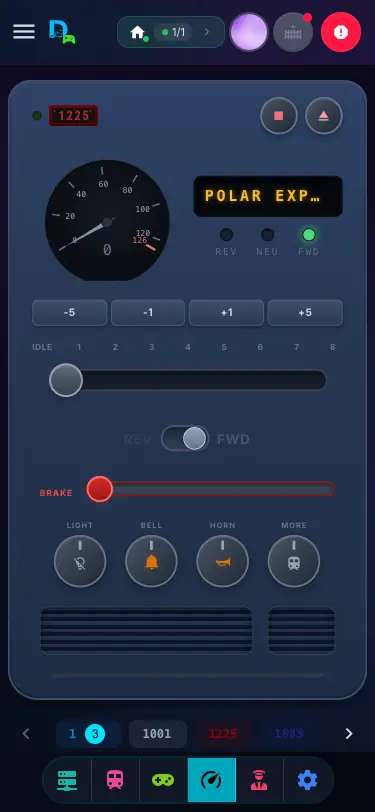
Dashboard
A control stand: LCD readout, notched throttle, reverser, brake, bell, a press-and-hold horn and headlight knobs.
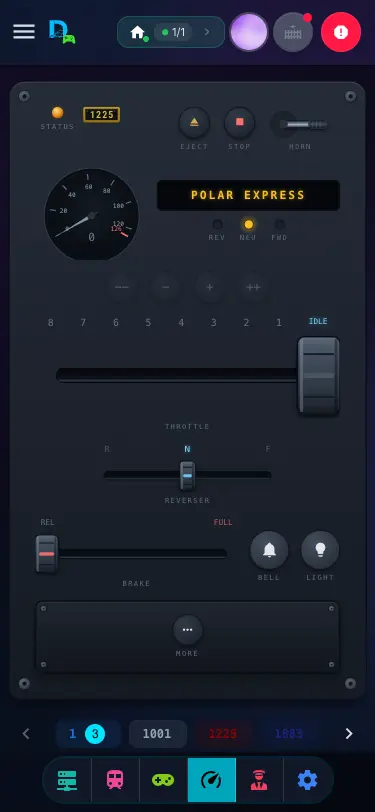
Proto
Levers inspired by the ProtoThrottle handheld: a throttle fader, a FWD / NEU / REV reverser, brake and horn levers.
In the cab
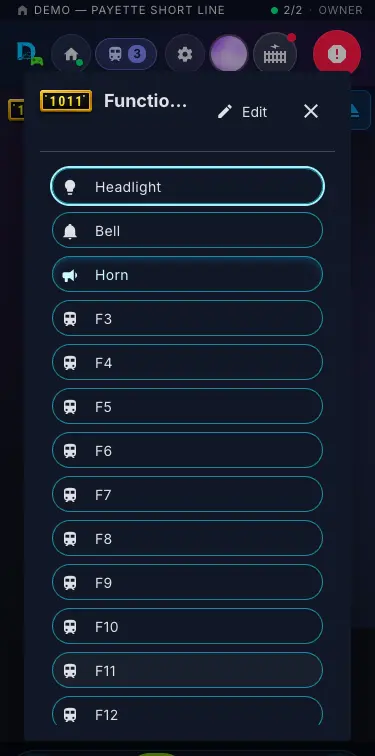
However you drive, stop is one tap away — and the red Emergency Stop never leaves the header. Functions sit beside the throttle: your favourites up front, F0–F31 one tap further.
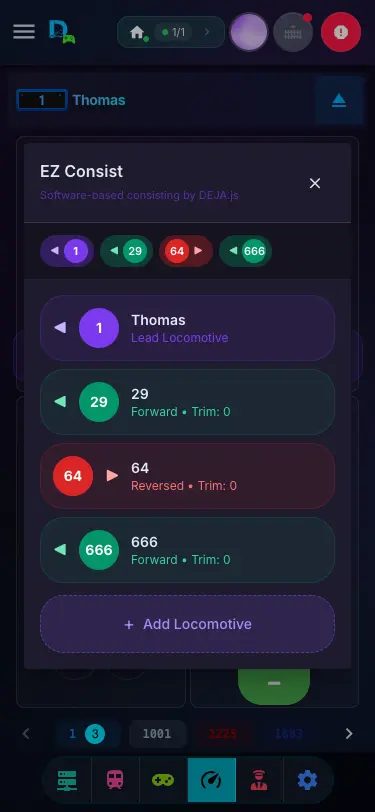
EZ Consist.
Couple locos into one train in software — no CV programming, no decoder address maths. The consist is saved with its lead loco, and works with any DCC loco.
- Start one
- Tap the purple EZ Consist button on any throttle. That loco becomes the lead.
- Add units
- + Add Locomotive, pick from your roster, and choose ◀ Fwd or Rev ▶ for each unit.
- Tune the lashup
- Flip a unit, or trim it a few steps faster or slower so they pull together.
- Drive it
- The lead’s controls drive the whole train; Stop all halts every unit.
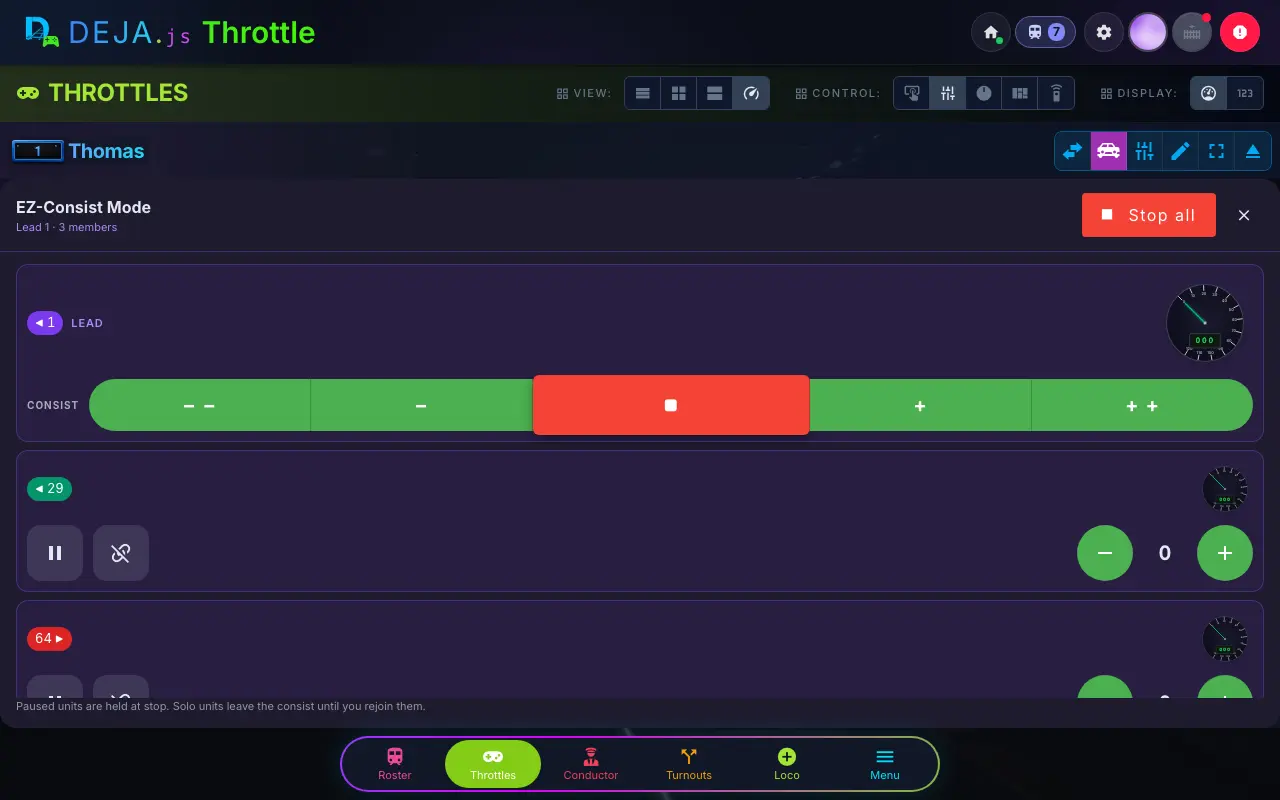
EZ-Consist Mode
Open the consist to drive every unit on its own speedometer — handy for real-world operating moments.
-
Trim live
Nudge a unit up to 40 steps faster or slower than the lead while it runs.
-
Pause / Resume
Hold one unit at zero while it stays in the consist.
-
Drive solo / Rejoin
Cut a unit out with its own controls — perfect after a break-in-two.
Switcher mode.
Yard work, made physical. The loco moves only while you hold the control — let go and it stops. Tap the Switcher button in the cab toolbar on Buttons, Slider or Dial.
- Spring-return
- Drag to nudge, release to stop. Switching apps mid-drag stops the loco too.
- Dial or Slider
- An arc dial, or a center-zero slider where the middle is STOP. Remembered per loco.
- Max speed
- A Max slider (10–126) scales the whole sweep down to yard speeds.
- Hold a speed
- The −5 · −1 · ■ · +1 · +5 pill sets a speed and holds it, no spring-back.
- Keyboard
- Arrow keys drive it; let go of the key and it stops.
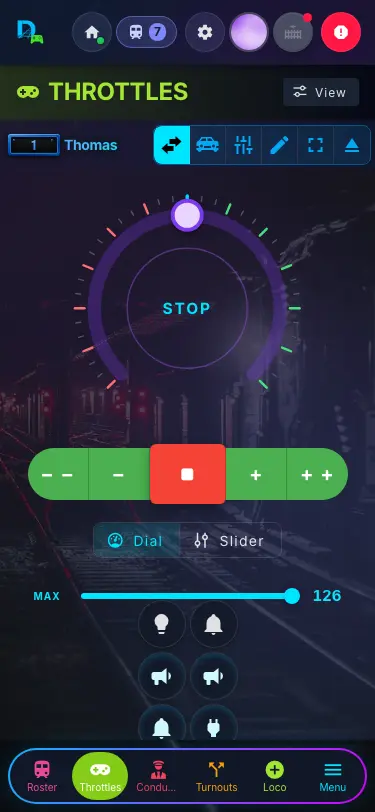
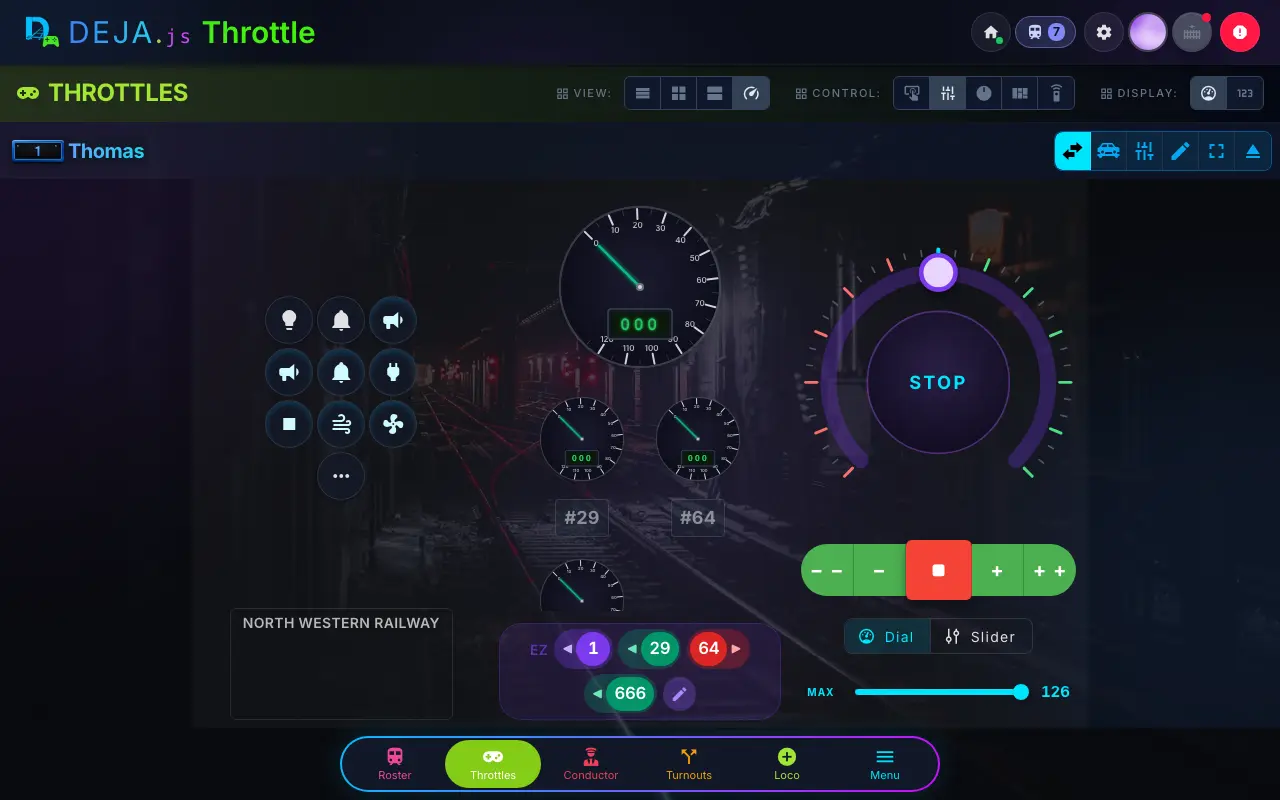
Set the default for new locos in Settings → Throttle → Switcher Control.
Conductor
A three-pane operator station for big screens: your throttles on the left, the active cab in the middle, and a right panel you choose — turnouts, effects, signals, devices, routes or the track diagram.
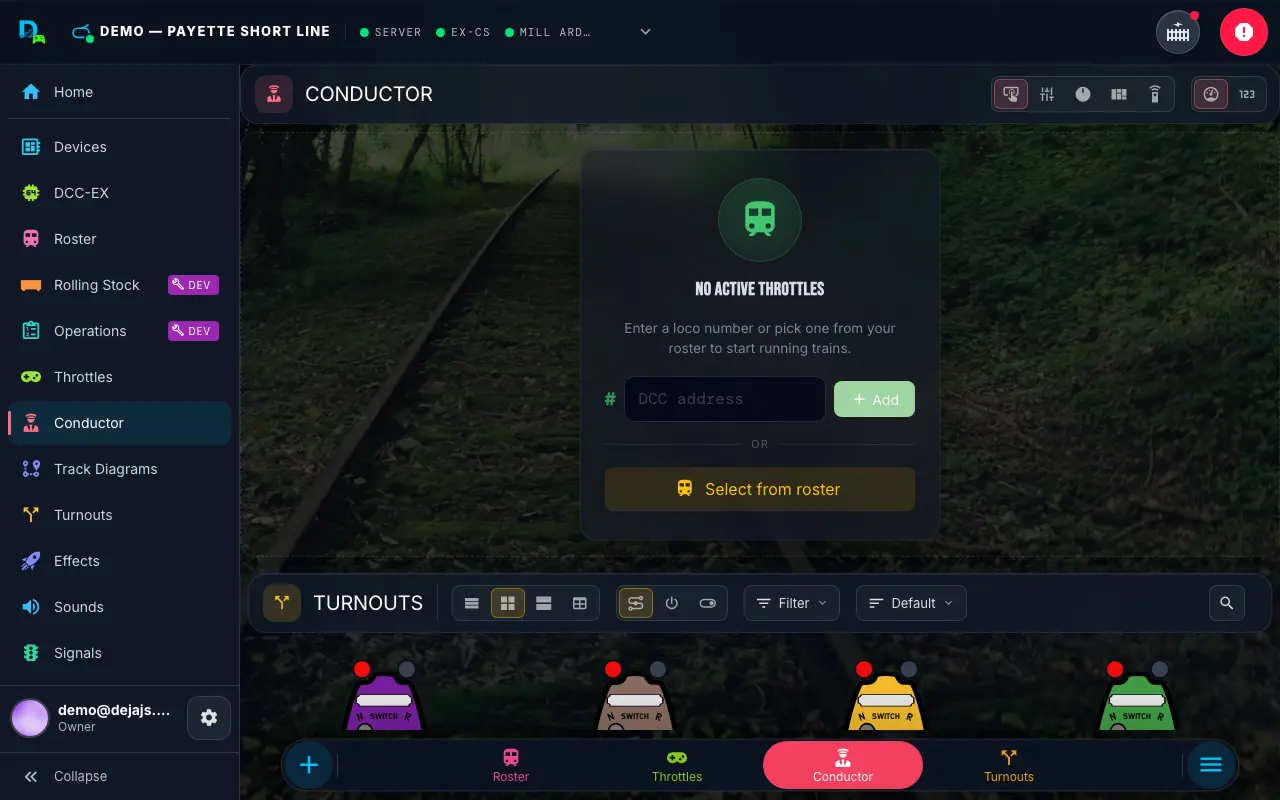
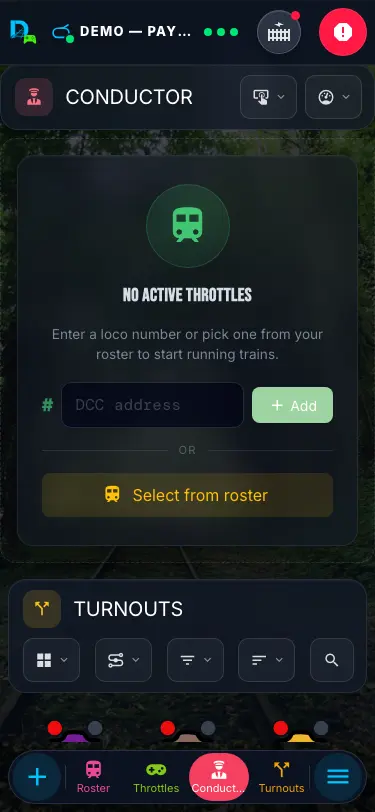
Control your entire layout
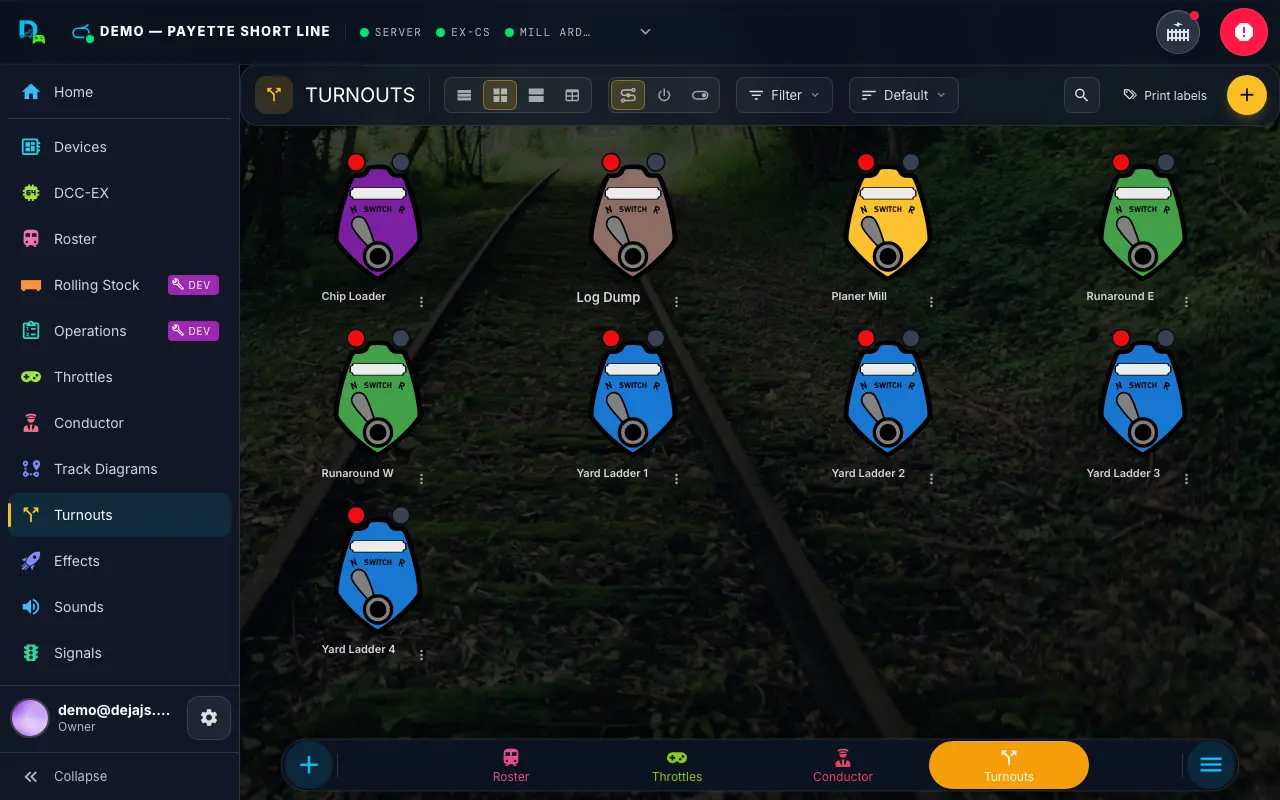
Turnouts
Turnouts
Throw switches with a tap
Every turnout as a CTC lever, a button or a switch. Tap to throw it — the lever moves and the card shows Thrown or Straight.
Effects
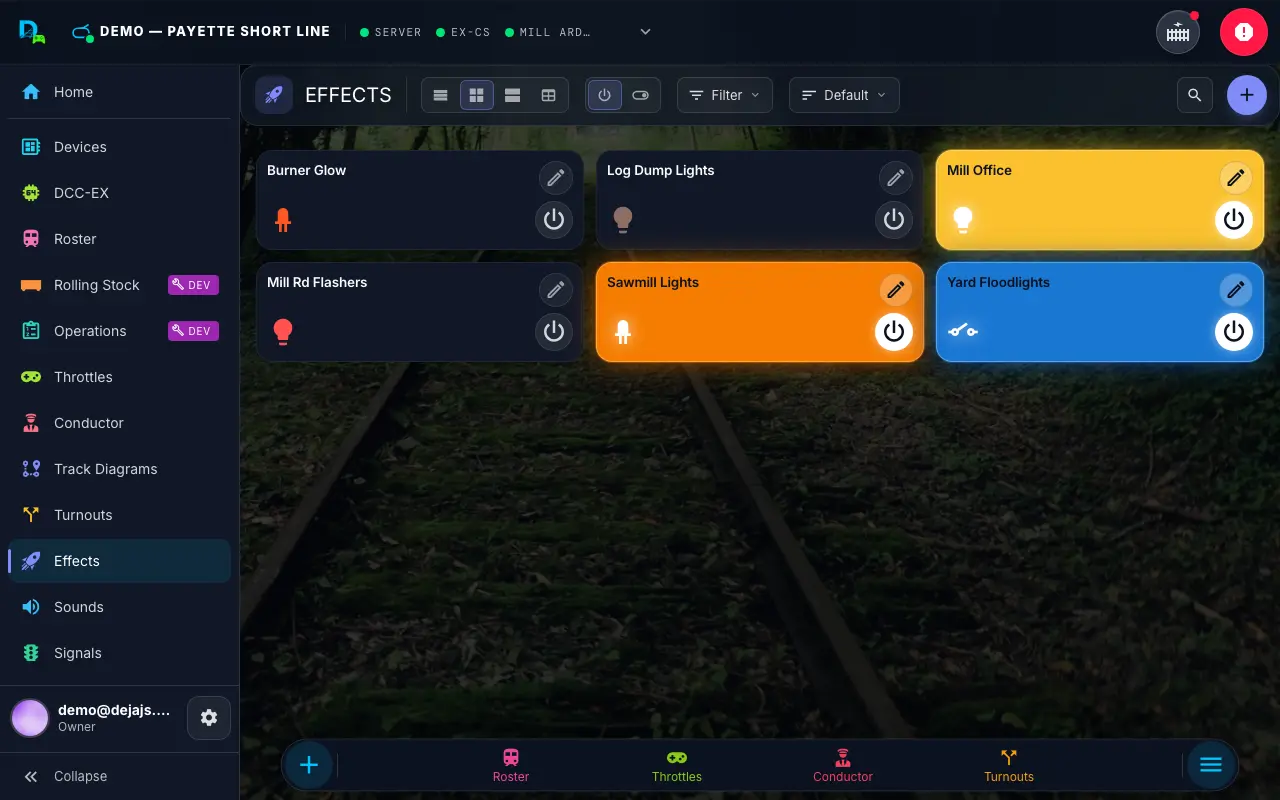
Effects
Bring your layout to life
Lights, LEDs, relays and power, each a card with an on/off button. WLED strips and sounds have their own tabs.
Signals
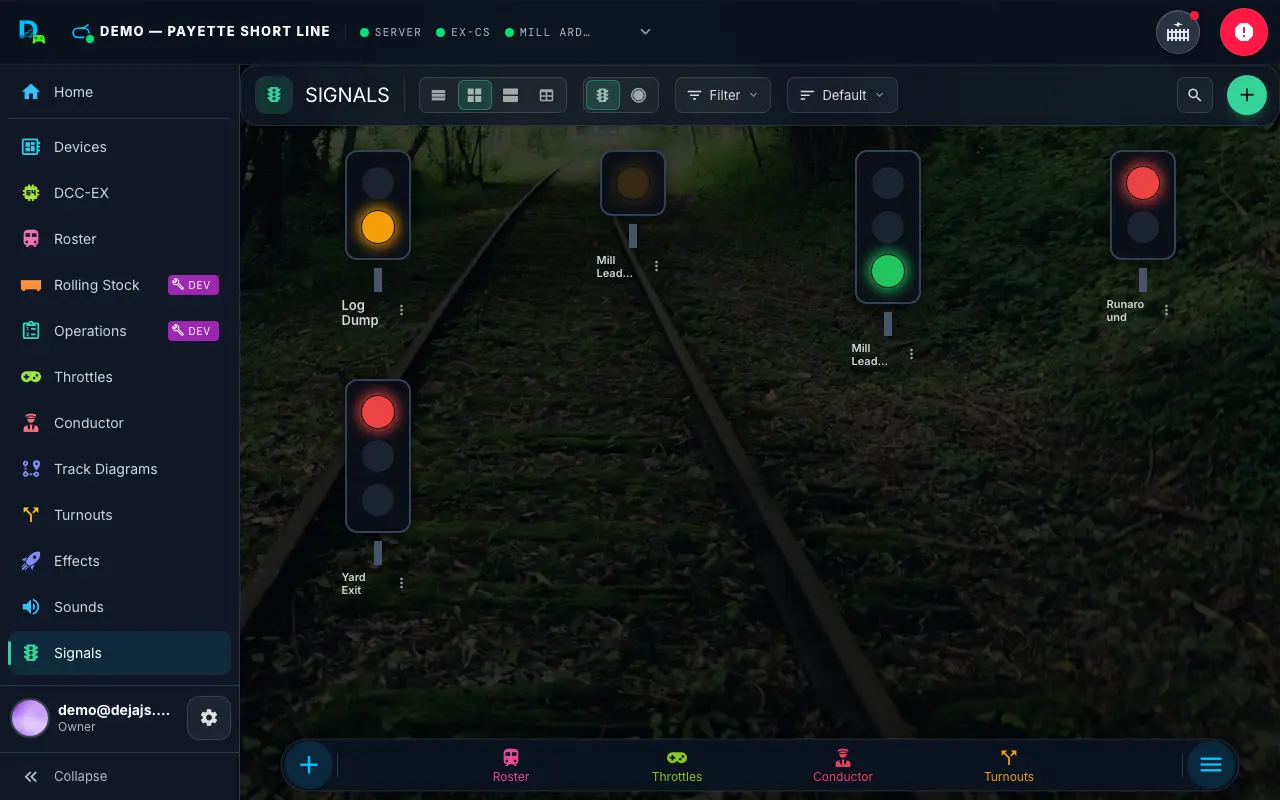
Signals
Every aspect at a glance
Each signal head shows its live aspect. Tap a lamp to set it, or let a sensor or an automation do it.
Sounds
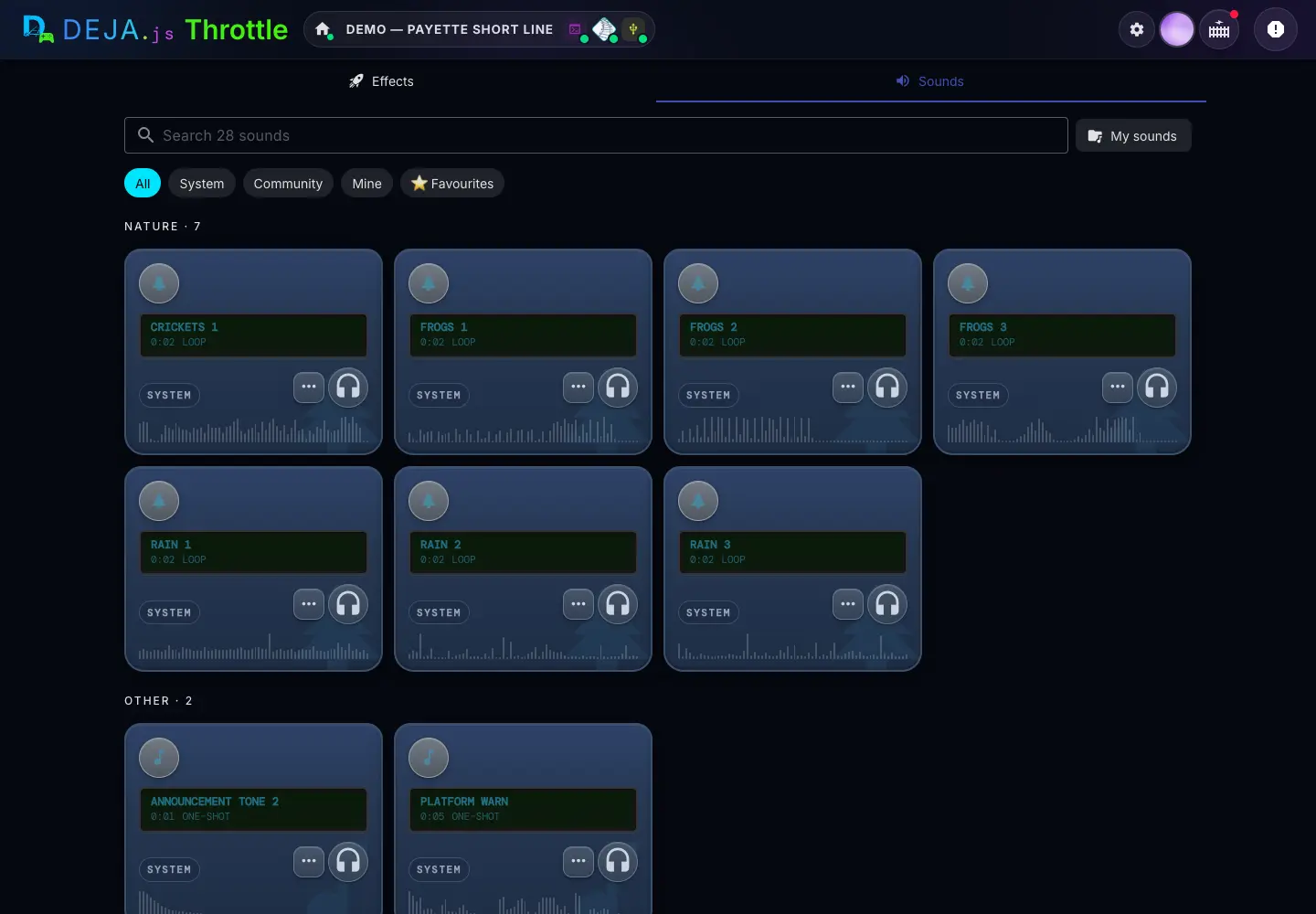
Sounds
Sound for the whole layout
Crossing bells, horns, ambience and station announcements from the sound library, playing through your DEJA Server.
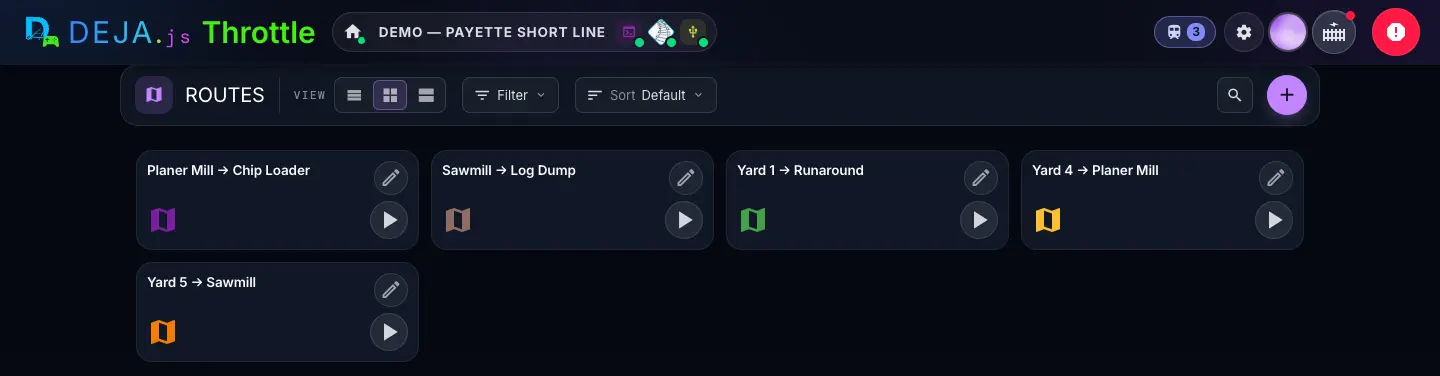
Routes
Routes
Line up the whole path with one tap
A route throws a set of turnouts one after another to take a train from one point to another.
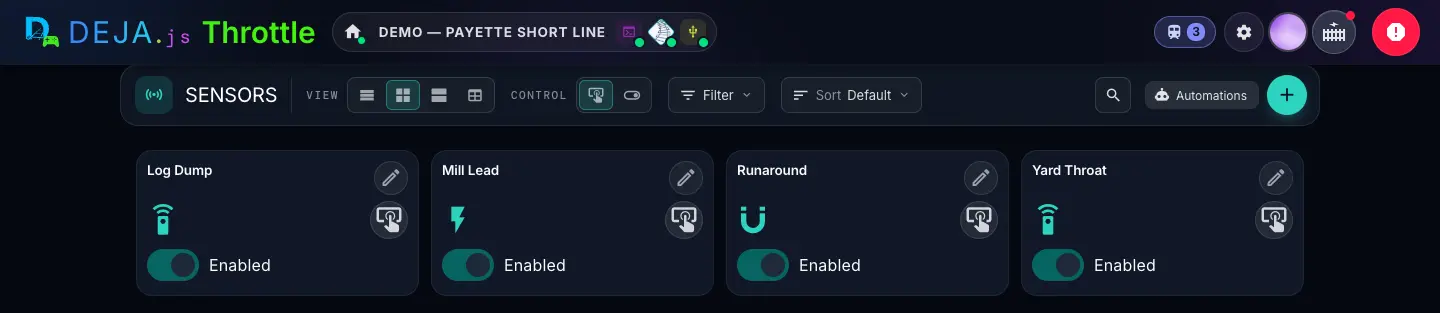
Sensors
Sensors
Your layout reports back
IR detectors, current sensors and reed switches on your DEJA IO boards show up live — and each can drive one thing on its own.
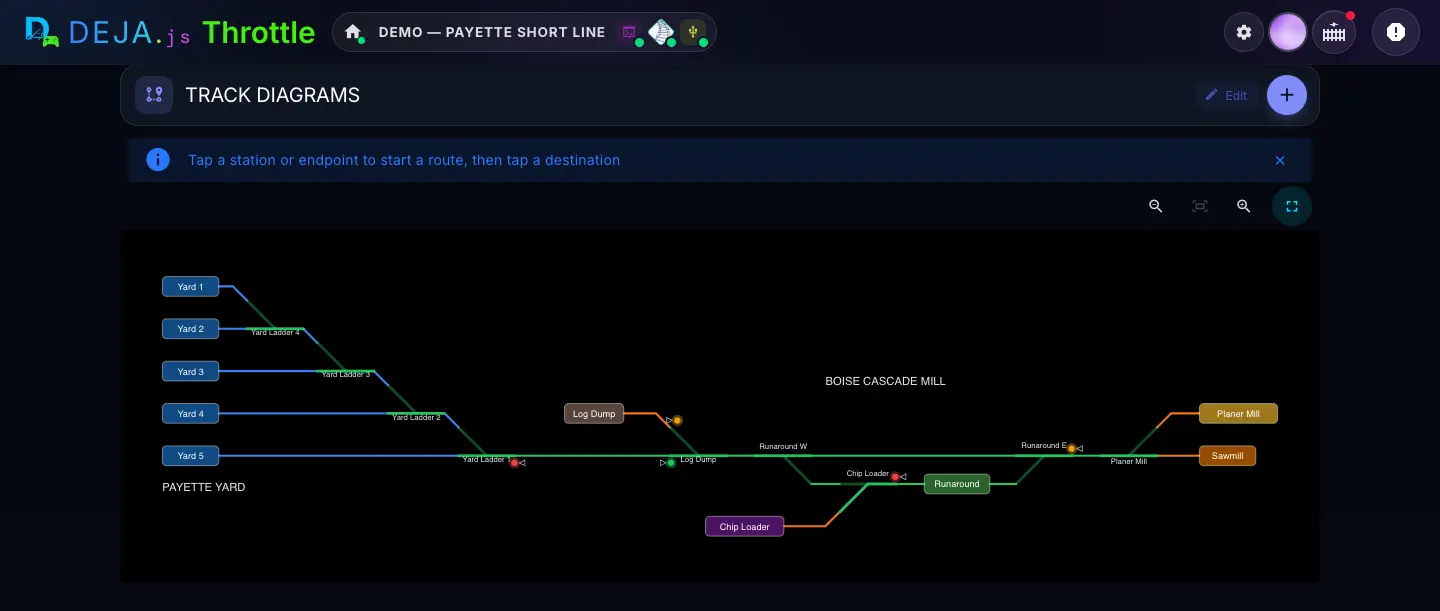
Track diagrams
Track diagrams
Your layout, drawn and live
Draw your track plan once, then run it: turnouts and signals show their live state, and you tap to throw them.
Automations.
A little program for your layout, built from chunky coloured blocks. It waits for something to happen, checks it's safe, then throws turnouts, sets signals, starts and stops trains. Automations run on your DEJA Server, so they keep going when you close the app.
- Start from a template
- Signal follows a turnout · stop at a red signal · station stop · shuttle between two sensors.
- When…
- A button in the app, a sensor (activates, clears or a train has passed), a turnout, a signal, or the server starting.
- Only if…
- Check a sensor, turnout, signal, block, effect, loco or another automation first.
- Then…
- Do something, wait for a sensor or loco, delay, branch with If, Repeat, or run another automation.
- Test run
- DejaBot walks the blocks on screen — nothing moves on the layout until you’re happy.
The emergency stop also stops and pauses every running automation.
- 1When Station sensor activatesActive
- 2Stop UP 10110
- 3Delay 20 seconds20 s
- 4Sound the hornF2
- 5Pull away UP 101140
The Station stop template: arrive, wait, sound the horn, depart.
Even more in Throttle
The small things that make an operating session flow.
Driving
- Swipe between throttles
- Swipe left or right to hop between your active locos.
- 1-up, 2-up or 4-up
- Drive several locos side by side on a tablet or bigger screen.
- Analog or digital speed
- Pick a dial gauge or a number readout; analog gauges turn red in reverse.
- Game controllers
- Connect a game controller and drive with it; a chip in the header shows it’s connected.
Sharing
- Room Code
- A rotating 3-digit code, with a full-screen kiosk for a spare tablet.
- Who’s driving
- Owners see Mine or All, every card shows who holds the loco, and you can take over.
- Guest Mode
- Visitors explore stops, switch allowed effects and hunt eggs — no account.
- WiThrottle clients
- ProtoThrottle and Engine Driver drive alongside; locos they hold are marked “In use”.
The app
- Install it
- Add Throttle to your home screen like a native app.
- Label Maker
- Print wire flags, device plates and turnout tags at exact sizes, with QR codes.
- Guided tour
- Settings → App → Take the tour walks you through the controls.
Settings
Make Throttle yours.
What's next
- Setup guideEvery screen and field for devices, locos, turnouts, effects and more
- IO guideLights, servos, signals and sensors — with no code to write
- Members & guestsInvite your crew with a join link, QR code, or Room Code
- Guest Mode guideLet visitors explore your layout from their phones
- DCC-EX consoleSend commands and inspect responses straight from Throttle
- SupportBook a session with Track & Trestle, or join the community