Connecting to Your Layout
Before you can control trains, Throttle needs to know which layout you're running. Layouts live in the My Layouts section of the Devices page (/devices) — old /connect links land there too.
My Layouts
My Layouts lists every layout you own or belong to, with your role on each. Tap a layout to switch to it — your selection is remembered between sessions, so you won't pick again unless you switch.
Single-layout accounts are connected to their layout automatically.
Creating Another Layout
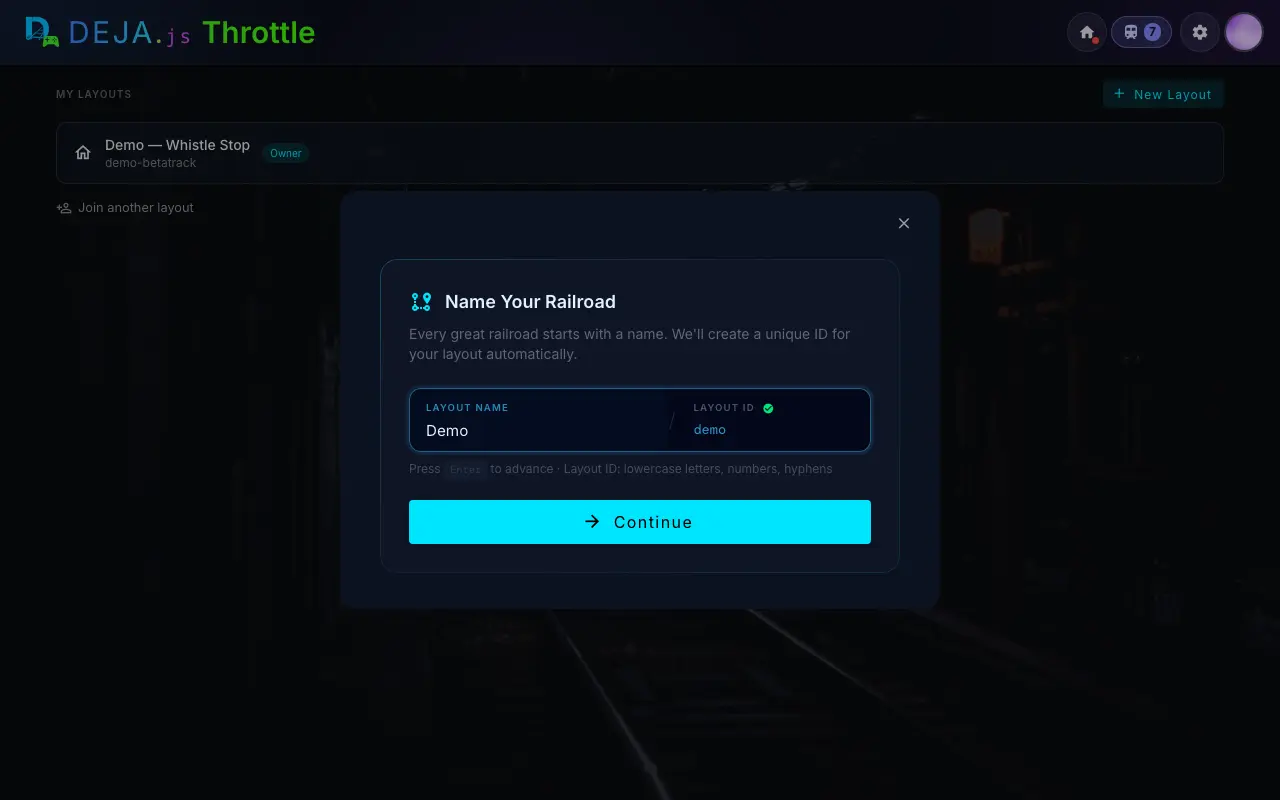
New Layout creates another layout: name it, and a unique layout ID is generated and checked for availability — the same validated flow as onboarding. New layouts start empty with a default DCC-EX EX-CommandStation device, ready for device setup.
Joining Another Layout
Join another layout in the same section takes a layout ID or a pasted invite link and routes you into the join flow — instant access with a room code, or a request the layout owner approves from Settings → Access. While a request is pending (or if it was declined), its status shows right here.
Connection Status
The app header shows which layout you're on and its connection status at all times, in one strip beside the logo: the layout mark (a loop of track with a siding) carrying an overall status dot, the layout name, and a lamp for the DEJA Server and each device (green connected, amber linking, grey waiting for the server, red offline). Extra devices collapse into +N.
- On a computer — each lamp is labelled (Server, EX-CS, your device names), and the strip also shows how many cabs you're running and the lead cab's number and speed.
- On a tablet or phone — the lamps are bare dots and the cab count sits beside them.
Tap the strip, or pull it down on a touch screen, to open the layout shade: your role (Owner or Member) and overall status, a compact DEJA Server header (version, address, heartbeat, uptime — or the deja start command with a copy button when it's offline), and every device as a row you can tap for its details. Devices opens the Devices page; Switch layout leaves this layout so you can pick another. Next to it, Your cabs lists the locos you're driving with mini controls. Close the shade by tapping outside it, pushing its handle up, or pressing Esc. Track power and Emergency Stop stay in the header the whole time.
- All systems go — The Throttle app is communicating with your DEJA Server and every device. You're ready to control trains.
- Server offline — The app can't reach your server. Check that the DEJA Server is running (
deja status) and that your device is on the same network.
Authentication
The Throttle app supports two modes:
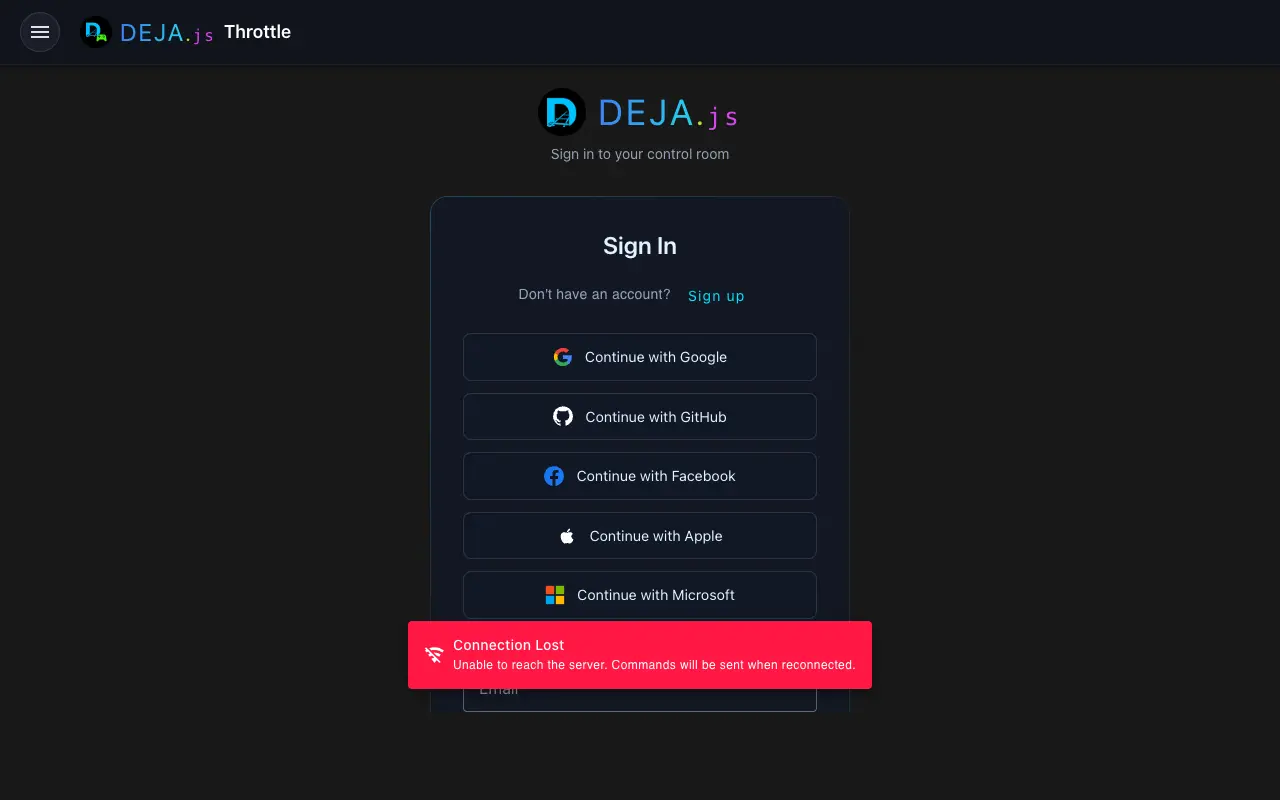
- Sign in — Log in with your DEJA account for full access to all features
- Try Demo — Explore the app on a shared demo layout without setting up your own (limited features)
Joining Someone Else's Layout
The public /join page is where someone gets onto your layout. It opens without signing in, then asks the visitor to create an account or sign in before they join. Depending on how the layout owner shared access, they can:
- Scan a QR code or enter a room code shown on-site (for example, on Throttle's full-screen Access Code kiosk) for instant, proximity-based access.
- Open an invite link generated from Settings → Access.
- Request access, which shows up for the layout owner to approve or deny from Settings → Access.
Once approved, they're taken into Throttle as a member of that layout. See Access & Inviting People for the owner's side.
Troubleshooting
Can't connect to layout
- Verify the DEJA Server is running on the computer connected to your EX-CommandStation — run
deja status - Make sure your phone/tablet/computer is on the same network as the server
- Try refreshing the browser page
Layout not appearing
If your layout doesn't show up in My Layouts, verify that you've completed onboarding (Get Started, /onboarding) and that your layout has been created.