Home Screen
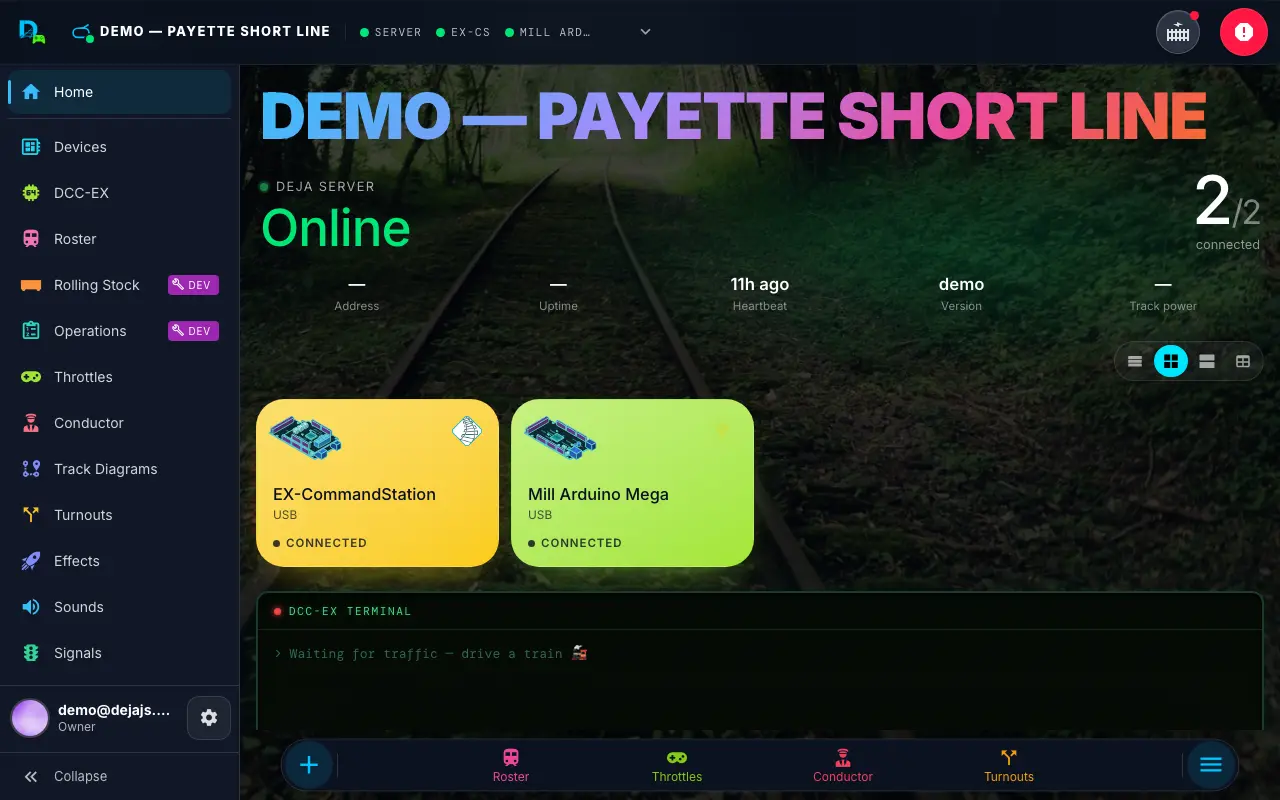
The Home screen is your operating dashboard — the first page you see once you are signed in and connected to a layout. It surfaces everything you need to start a session: your layout's status, device connections, running locomotives, and quick links into the rest of the app.
Home requires you to be signed in and have a layout selected. If you aren't, you're routed to the login screen, to Get Started when you don't have a layout yet, or to the layout picker on Devices.
Layout Status
A status header at the top shows the current layout's name and its server connection status — displayed once, so the rest of the page can stay focused on controls.
Setting Up Your Railroad
Until your DEJA Server has connected, Home shows a Set up your railroad card that walks through the three setup steps — install the server, run deja login (approved in your browser), and deja start. Once the server comes online, a welcome card takes its place. See Onboarding for the full walkthrough.
Once setup is done, layout owners (not members) are offered a short guided tour of the app shell and a throttle cab the first time they land here — skip it, take it, or come back later from Settings → App → Take the tour or the Command Menu search.
On a phone or tablet in a browser tab, Home also offers an Install App card for adding Throttle to your home screen (it hides itself once installed or snoozed); the same card lives in Settings → App.
Connection & Active Throttles
Below the header, the screen pairs your device connections with your running locomotives:
- Connection panel — the DEJA Server as the page's header, then one tile per device. The header carries your layout's name, the server's state in big type (Online, Stalled when its heartbeat goes quiet, Offline), how many devices are connected, and a row of vitals: the server's LAN Address (tap it to copy — it's what Engine Driver, WiThrottle apps and WebSocket IO boards ask for), Uptime, Heartbeat age, Version and Track power. Under the vitals, a chip for each service the server is running: the EX-CommandStation's DCC-EX firmware version, every serial port it holds open (
ttyACM0 · 115200), the MQTT broker (:1883 · 3 clients, or the external broker's address), WiThrottle with the fulladdress:portand how many throttles are on it, WebSocket when it's on, and Asleep while the server is in standby. A quiet last line names the machine itself — host name, OS, Node version and memory. While the server is offline the vitals give way to thedeja startcommand with a copy button. Below, one tile per device — EX-CommandStation first with the DCC-EX logo, then your IO devices with their type icons — each with an honest connection state:VERIFIED(the server has proof the device is alive),LINKED(connected but quiet), orOFFLINE, plus an activity sparkline and a live "last seen" age. WiFi/MQTT devices connect automatically when they come online. Tap any tile for details and controls — see Devices. - DCC-EX Terminal — a retro LCD-style console alongside the connection panel (the same terminal as the DCC-EX Console) streaming live DCC command traffic, with a command prompt for sending raw DCC-EX commands directly — type the inner command (no angle brackets) and press Enter.
- Active Throttles — a grid of Speedometer widgets, one per running locomotive. Each speedometer is an SVG gauge showing the locomotive's current speed and DCC address. Clicking a speedometer opens that locomotive's full Throttle Control screen. The grid grows from two up to five columns as the card widens.
Quick Navigation
A grid of navigation tiles mirrors the app's navigation menu — the same items, colors, and labels as the ☰ Menu's page list. Roster, Throttles, and Conductor always appear; the rest (Turnouts, Routes, Effects, Signals) show up once your layout has at least one of that thing. Tap a tile to jump straight to that section.
Everything you change in Throttle's editors shows up immediately in Throttle on every device — all data syncs in real time.