Your layout is your railroad in DEJA. Every loco, device, turnout, effect and automation belongs to it, and everyone you invite joins it. You set it up once: sign up, name it, install the DEJA Server on the computer plugged into your EX-CommandStation, and link the two with deja login.
Throttle walks you through it with Get Started, a five-station route from account to running trains. DEJA is free the whole way.
Sign Up
WhereSign In → Sign Up /signup
- Sign inText button
- Next to “Already have an account?”. Takes you to Sign In instead.
- Continue with GoogleButton
- Sign up with your Google account. No password to remember.
- Continue with GitHubButton
- Sign up with your GitHub account. Google and GitHub are the only sign-in providers.
- Sign up with emailLink
- Opens the email form below.
The email form
- EmailText field · required
- Your email address. It must look like one.
- PasswordText field · required
- At least 8 characters. A meter rates it Weak, Fair, Good or Strong as you type: length past 12, an uppercase letter, a digit and a symbol all help.
- Confirm PasswordText field · required
- Type it again. “Passwords do not match” until they do.
- Email me DEJA news, tips, and launch updates.Checkbox
- Optional, and you can unsubscribe anytime. It doesn't affect account or service emails.Default: Off
- Create AccountButton
- Makes the account. Underneath, the note says that by creating one you agree to the Terms of Service and Privacy Policy.
Already signed up? Sign In has the same Google and GitHub buttons, plus Sign in with email and Forgot password?.
Get Started
WhereOpens on its own for a new account /onboarding
The tracker
On a computer it's a trip card docked on the right. On a phone it's a sheet at the bottom of the screen: drag its handle up, or tap the station name, to see the whole route.
- Status lineDisplay
- Where you are: “Station 2 of 5”, “Station 4 of 5 · waiting on your computer”, and finally “All stations complete”.
- RouteTimeline
- The five stations, each ticked, current or still to come. A finished station shows what you chose, like your layout name and ID. You can tap back to Name Layout or Support DEJA until you reach Install Server.Options: Create Account · Name Layout · Support DEJA (optional) · Install Server · Connected
- Continue · Chip in · Start drivingButton
- The step's main button lives in the tracker, not in the step itself. On a phone, look at the bottom of the screen.
Around the page
- Joining someone else’s layout? Use their invite linkLink
- Here to run trains on a friend's or a club's layout, not set up your own? This takes you to Join instead.
- Sign outButton
- Top right, next to the account you're signed in as.
Name Your Railroad
WhereGet Started → Name Layout /onboarding
- Layout NameText field · required
- What everyone sees, e.g. “Payette Short Line”. At least 2 characters. It starts filled in from your email (john.smith@… becomes “John Smith”), so change it to your railroad's name.
- Layout IDText field · required
- The layout's permanent ID, e.g.
payette-short-line. It fills itself in from the name: lowercase letters, numbers and hyphens, at least 3 characters. Type in it yourself to choose your own. A green tick means it's free, a red cross means someone already has it. - ContinueButton
- Moves on once the name is valid and the ID is free. Pressing Enter does the same. Nothing is created yet: your layout is made when you reach Install Server.
Layout IDs are unique across everyone on DEJA, and Throttle has no way to change one later. Pick one you're happy to keep. “That layout ID is taken — pick another” means just that.
Support DEJA
WhereGet Started → Support DEJA /onboarding
Keep up with DEJA?
Shown first, only if you signed up with Google or GitHub and haven't answered the news question yet. None of the buttons hold you up.
- Yes, keep me posted · No thanks · SkipButtons
- Whether to get DEJA news, tips and launch updates by email.
Support DEJA
- MonthlyCard
- A monthly chip-in. −5 and +5 change the amount, from $5 up to $500, and Chip in $X picks it. Cancel anytime from your Profile. Hidden if you're already giving monthly.Default: $5/month
- One timeCard
- A single chip-in, with the same −5, +5 and Chip in buttons.Default: $10
- I just want to use the appText button
- Skips straight to Install Server.
Payment
Only if you picked an amount.
- Your donationDisplay
- The amount and how often. Change amount goes back a step.
- Payment detailsCard field
- Your card, entered securely through Stripe.
- Chip in $XButton (in the tracker)
- Makes the payment and moves on.
- Skip for nowText button
- Moves on without paying. A payment that fails or is abandoned counts as a skip too.
Install the DEJA Server
WhereGet Started → Install Server /onboarding
The install card
- Run the installerStep 1 · Copy button
- Run
curl -fsSL https://install.dejadcc.com | bashon that computer. The installer needs Node.js 20 or newer, and lists the serial ports it can see. - Connect your accountStep 2 · Copy button
- Run
deja login. It shows a short code and opens Throttle in your browser: check the code matches and click Authorize. On a computer without a screen, open the printed link from any device. You stay logged in; the server renews its own credentials. - Start the serverStep 3
- Run
deja start.
Around the card
- Tips & TricksCarousel
- Five short tips that rotate while you wait. Tap a dot to jump to one.
- View Documentation & HelpLink
- The server installation docs.
- Skip for now — I’ll set up laterLink
- Goes to Home. A setup card there picks up the same steps.
- Rather have an expert set it up?Card
- Book a paid session with Track & Trestle, the team behind DEJA, and set it up together. See Support.
The installer doesn't log you in when it's piped from curl. It finishes with a reminder to run deja login and then deja start: those are steps 2 and 3.
You don't tap anything to move on. The tracker ticks off deja login approved and Server online as they happen, and moves you to Connected once the server checks in.
Connected
WhereGet Started → Connected /onboarding
What you see depends on your EX-CommandStation.
- Plug in your EX-CommandStationWaiting
- The usual case. Connect it by USB to the computer running DEJA; the page shows “Waiting for your EX-CommandStation…” until the server finds it.
- Your railroad is connected!Done
- The server found your EX-CommandStation. Start driving takes you Home.
- Add your EX-CommandStationMissing
- Only if the EX-CommandStation device was deleted. Add EX-CommandStation opens Devices so you can add it again.
- Skip for now — I’ll plug it in laterText button
- Finishes Get Started and goes Home. You can connect it any time from Devices.
- Add Throttle to your home screenCard
- How to install Throttle like an app: full screen, no browser bar. On a computer it reads Get Throttle on your phone and shows a QR code.
Every new layout starts with an EX-CommandStation device (ID dccex), a starter loco at address 3 called DEFAULT DCC #3, and the default sounds. See the EX-CommandStation guide to connect it.
Connect your server
WhereOpened by deja login /cli-login?code=…
deja login, your terminal shows a code and opens this page. You confirm the code, pick the layout this server runs, and authorize it.- Login codeText field
- Filled in from the link. Check it matches your terminal, e.g.
BCDF-2345. Codes never use vowels, 0 or 1, and spaces and dashes don't matter. A code lasts 15 minutes; after that, rundeja loginagain. - Connect to layoutList · pick one
- Your layouts, with your current one ticked. Pick the one this server should run. No layouts yet? Finish Get Started first, then run
deja loginagain. - AuthorizeButton
- Links the server. You'll see Server connected; tap Done and go back to your terminal, which finishes on its own.
- DenyText button
- Refuses the request. Nothing is connected, and the terminal says so.
One server per layout. Authorizing a second computer for the same layout takes it over from the first, as the note under the buttons says.
The shared demo layout can't be linked to a server. It's a sandbox for trying DEJA with no real trains attached.
Choose Your Layout
WhereOpens when you belong to more than one layout /select-layout
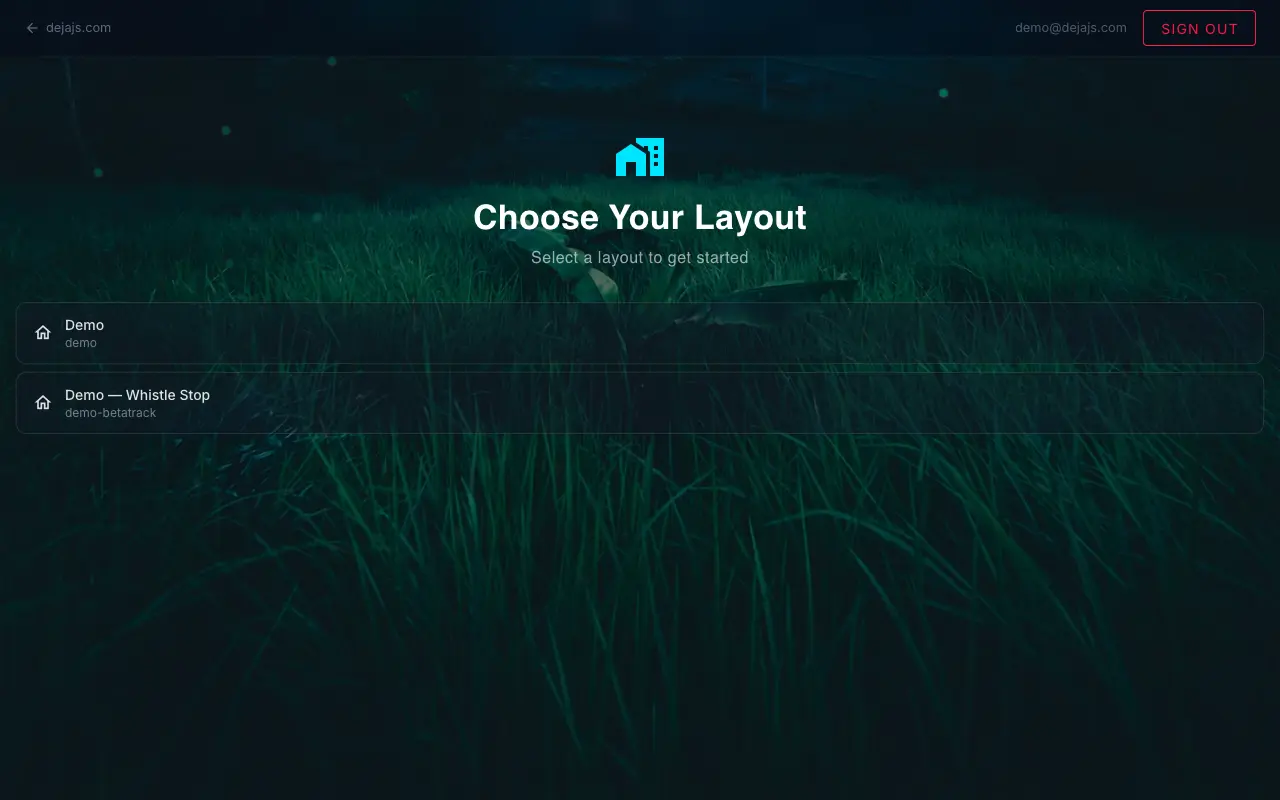
- Layout rowsList · tap one
- Each layout you own or are a member of, with its name and ID. Tap one to open it. No layouts at all shows “No layouts found. Create one to get started.”
Your choice is remembered in this browser, not your account. A new phone or computer asks again.
My Layouts and New Layout
WhereDevices → Disconnect layout /devices
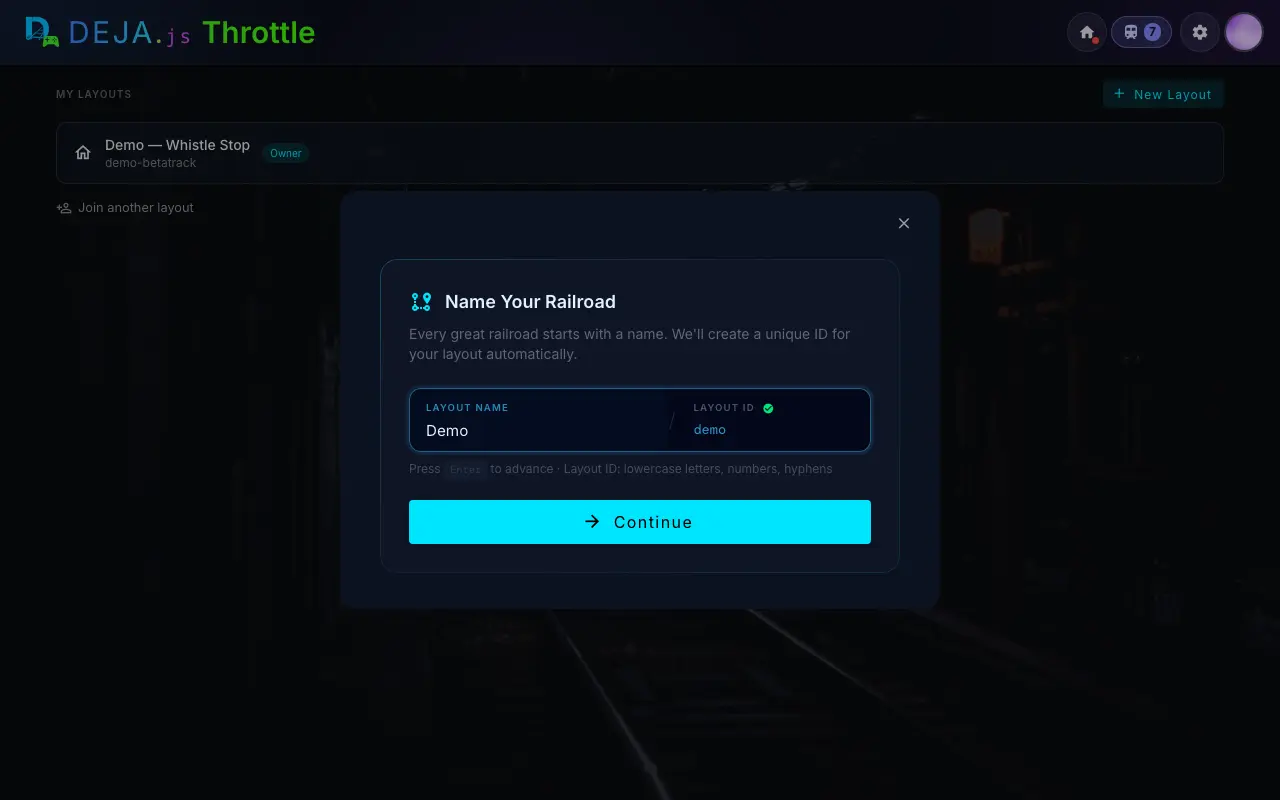
My Layouts
- New LayoutButton
- Opens Name Your Railroad, the same step as in Get Started, with its own Continue button. Continue creates the layout right away and switches you to it.
- Layout rowsList · tap one
- Each layout with its ID and an Owner or Member chip. Tap one to open it.
- Join another layoutLink → text field
- Paste a layout ID or a join link, then Request. The owner gets your request, and a line here shows “waiting for the owner” until they answer. Cancel closes the field.
- DismissText button
- Clears a “wasn't granted” line after an owner turns a request down.
The layout strip
On every page, the strip at the top shows your layout's name with a lamp for the server and each device. Tap it, or pull it down on a phone, to open the layout shade.
- DevicesButton
- Opens the Devices page.
- Switch layoutButton
- Leaves this layout and shows Choose Your Layout.
A new layout made here doesn't have a server yet. On the computer for it, run deja login and pick the new layout. If that computer already runs another layout, authorizing moves it over.
Settings › Layout
WhereSettings → Layout /settings#layout
Tags
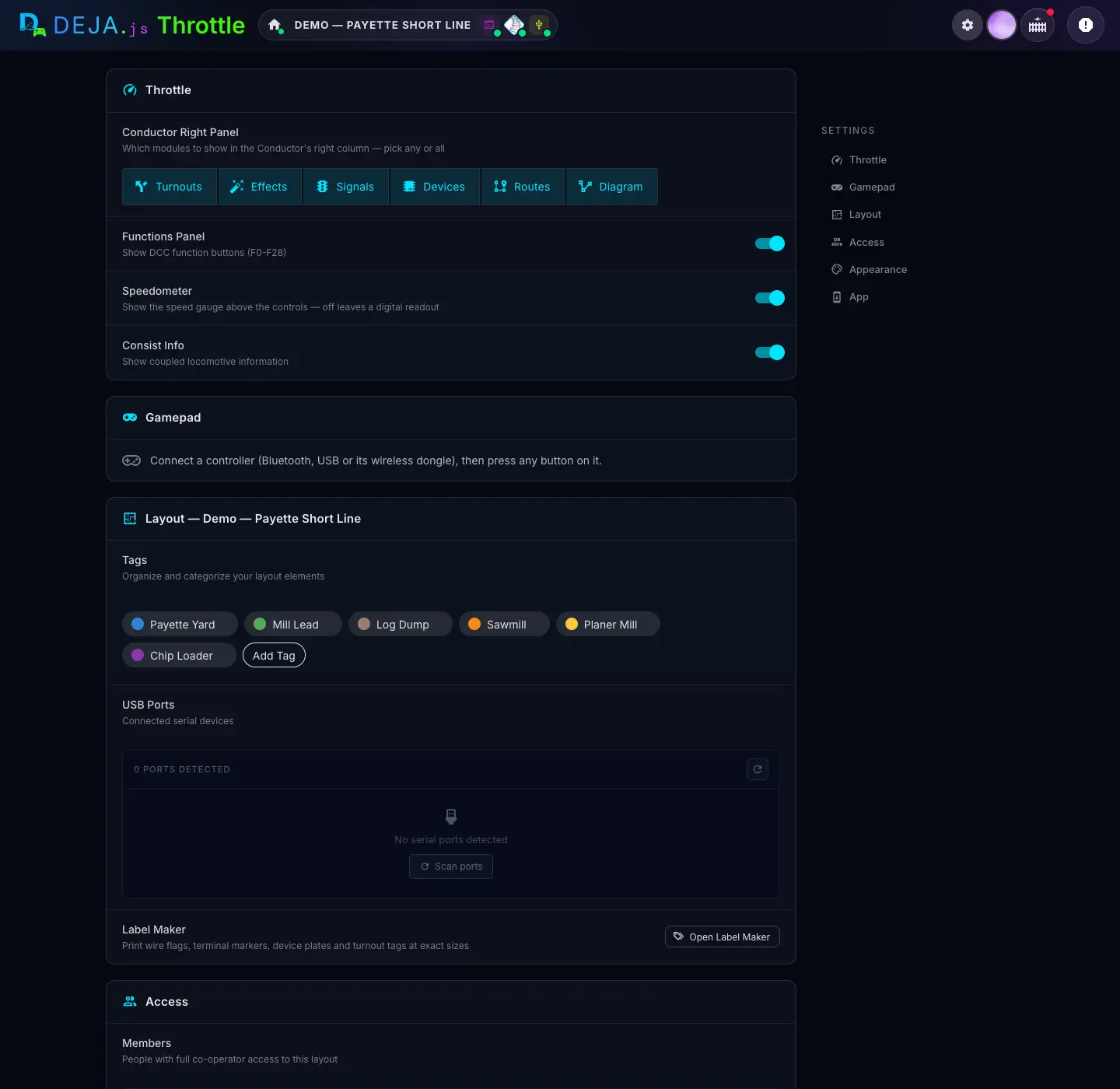
Tags group turnouts, effects, signals, sensors and routes by area or purpose, so you can filter by them. You make them here, then pick them in any editor.
- Tag chipsChips
- Your tags. Tap one to edit it.
- Add TagChip
- Opens the tag form.
- New TagText field · required
- The tag's name, e.g. “Sawmill”. Reads Tag when you're editing one. You can rename a tag later and everything keeps it.
- IconText field
- An optional icon for the tag.
- ColourColour picker
- The tag's colour. Tag colours also show up in every item's colour picker.
- Cancel · SaveButtons
- Save adds or updates the tag.
USB Ports
- N ports detectedList
- The serial ports on the computer running your DEJA Server, each with the device assigned to it and whether it's online. Fills in only while the server is running.
- Scan portsButton
- Asks the server to look again. Also the round refresh button at the top of the list.
- Open Label MakerButton
- Print wire flags, terminal markers, device plates and turnout tags at exact sizes. Opens in a new tab.
- DisconnectButton
- Under Disconnect Layout: leave this layout and choose another. Only shown when you belong to more than one.
Setup cards on Home
WhereHome /
- Set up your railroadCard
- Shown until your server has run for the first time. The same three steps as Install Server, with the same live ticks.
- Add your EX-CommandStationCard
- Shown when your server is online but the layout has no EX-CommandStation. Add EX-CommandStation opens Devices; Skip for now hides it.
- You’re connected!Card
- For two weeks after your server first starts: Drive a train, Add Locomotives and Explore Settings. The ✕ dismisses it.
Join a layout
WhereInvite link, or Get Started → Use their invite link /join
- Invite link or layout IDText field
- Paste the invite link the owner shared, or type their layout ID, then Find layout. Standing at the layout? Scan its QR code instead.
- JoinCode field + button
- If the layout asks for a code, enter the 3-digit code shown on the layout's display, then Join.
- Request AccessButton
- If the owner approves each person. You wait until they approve you in Settings → Access, then Start running trains.
Just visiting? If the layout allows guests, Join as a guest takes you to its guest app instead.
Next, connect your EX-CommandStation, then add your IO devices. Would rather have someone set it up with you? Track & Trestle runs paid setup sessions: see Support.